---
title: "Subscribe a new Contact to your Newsletter"
slug: "subscribe-a-new-contact-to-your-newsletter"
updated: 2025-03-05T12:48:34Z
published: 2025-03-05T12:48:34Z
canonical: "docs.mapp.com/subscribe-a-new-contact-to-your-newsletter"
---
> ## Documentation Index
> Fetch the complete documentation index at: https://docs.mapp.com/llms.txt
> Use this file to discover all available pages before exploring further.
# Subscribe a new Contact to your Newsletter
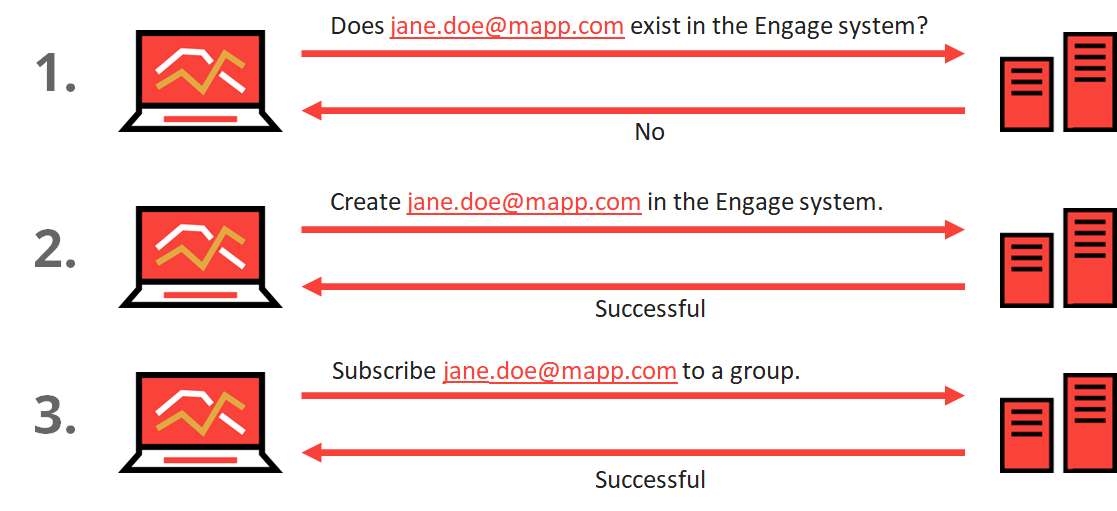
The goal is to add a new subscriber to your mailing list for a newsletter. This can be achieved by adding them to the group of newsletter subscribers. First, you should double-check that there isn't an existing user. If it does not exist, you could create a new one. Finally, in either case, subscribe the contact to the correct subscription group.
> If you'd like, you can test with our Postman Collection here:
>
> [](https://cdn.document360.io/554b9b98-6720-4d8b-9919-c7b203d72648/Images/Documentation/Create contact and add to newsletter.postman_collection(2).json)Create contact and add to newsletter.postman_collection(2)3.44 KB[](https://cdn.document360.io/554b9b98-6720-4d8b-9919-c7b203d72648/Images/Documentation/Create contact and add to newsletter.postman_collection(2).json)
## Prerequisites
Before you begin, make sure you have valid authorization credentials. Please see [this page](/v1-api/apidocs/getting-started-with-engage-api) for more information.
You will need to have the **groupID** ( *Audience > Groups*) on hand that you will use to subscribe the user to the newsletter, and an **opt-in type** (with notification or without, and double opt-in. Please see step 3 for more information.).
## Procedure
In order to search for a contact or update their information, you will need to decide which identifier you'd like to use:
| Contact Identifier Type | Definition |
| --- | --- |
| EMAIL | The identifier is an email address. |
| MOBILE | The identifier is a mobile number. |
| APP_ALIAS | The identifier is a mobile app alias. |
| EXTERNAL | The identifier is a value generated by an external system. |
| ID | Contact (User) identifier |
In our examples, we'll use email.
### 1. (Optional) Use a POST request to check if the contact already exists
In order to avoid errors, you may wish to double-check that the contact exists. To use contact/get, you must provide t he desired identifier type & subsequent identifier. In this case, we will use the contact's email address.
```javascript
'POST' \ 'https://your-engage-domain.com/api/rest/contact/get' \
{
"type": "EMAIL",
"value": "j.mcexample@example.com"
}'
```
```javascript
EMAIL
j.mcexample@example.com
```
| Response | Description |
| --- | --- |
| 200 | From this request, you should receive a **200** response, with information about the contact. This includes information like their contactID. |
| 400 | If the profile does not exist you will receive a **400** response. You can also double-check the email used in the call if you believe there is an existing user profile. |
### 2. Use a POST request to create the Contact Profile
For this, you need to specify at least one of the following identifiers: email address, mobile number, or mobile app alias. In this case, we will use the contact's email address.
```javascript
'POST' \
'https://your-engage-domain.com/api/rest/contact/create'\
{
"emailAddress": "j.mcexample@example.com",
"attributes":
[
{"name": "FirstName", "value": "John"},
{"name": "LastName", "value": "mcexample"},
{"name": "mobileNumber", "value": "33505606709"},
{"name": "user.ISOCountryCode", "value": "FR"}
]
}
```
You should receive a **200** response, alongside your contact's information like this:
```javascript
{
"id": 0,
"email": "j.mcexample@example.com",
"mobileNumber": "string",
"identifier": "string",
"attributes": [
{"name": "FirstName", "value": "John"},
{"name": "LastName", "value": "mcexample"},
{"name": "mobileNumber", "value": "33505606709"},
{"name": "user.ISOCountryCode", "value": "FR"}
],
}
```
If there was a problem, like missing required information, you might receive a **400** response.
```javascript
1
j.mcexample@example.com
48505606707
?
?
test
test
```
### 3. Use a POST request to subscribe them to a Group
While you can use email or userID, you need to also include one of the following opt-in types:
| Type | Definition |
| --- | --- |
| CONFIRMED_OPT_IN | New contacts receive a welcome message via email when they are added to the group. The contact does not need to confirm the subscription. A single opt-in subscription. |
| DOUBLE_OPT_IN | New contacts receive an invitation to join the group via email. The contact must accept the invitation before they are added to the group. |
| OPT_IN | New contacts are added to the group without notification. OPT_IN is creating self-subscribers |
1. By userID
For this method, you will need the contact's userID (this is the same as their ContactID from above), the groupID, and the type of opt-in you would like to use.
```javascript
'POST' \ 'https://your-engage-domain.com/api/rest/membership/subscribe?userID=12345&groupId=334&subscriptionMode=DOUBLE_OPT_IN' \
```
```javascript
3769713
385
DOUBLE_OPT_IN
```
2. By Email For this method, you can replace the userID above with their email. You will still need to provide the groupID and opt-in method. According to URL encoding, some characters like "+", "[", "]" need to be encoded otherwise the request will fail.
```javascript
'POST' \
'https://your-engage-domain.com/api/rest/membership/subscribeByEmail?email=name%255Dsurname%40test.com&groupId=334&subscriptionMode=DOUBLE_OPT_IN' \
```
```javascript
one@test.com
385
CONFIRMED_OPT_IN
```
## Conclusion
If the request is successful, you will receive a **204** response and no further information. This indicates that the contact has successfully been added to the group.
If you receive a **400** response, several things could have gone wrong. The parameter 'email' is not a valid email address, a user with this email does not exist, or a group with this id is archived. Please double-check. A **404** response indicates the user or group was not found. Please check the request again.
## Related Topics
[Engage web service implementation and error handling](/v1-api/apidocs/implementation-and-error-handling)