Some issues only occur in a user’s browser environment and cannot be reproduced through screen sharing. When screen sharing is not possible, a HTTP Archive (HAR) file can be used to capture network activity between the browser and the site for offline analysis.
A HAR file records:
HTTP requests sent by the browser
HTTP responses received from servers
Request headers, response headers, and timing data
HAR files may contain sensitive information such as authentication tokens, session cookies, or personal data. Review the file before sharing it externally.
General preparation (all browsers)
Before starting a capture:
Close all other browser tabs and windows.
Restart the browser.
Only open the site needed to reproduce the issue.
Avoid background activity such as extensions performing network requests.
This reduces unrelated network traffic in the captured file and improves analysis accuracy.
Chrome
Open Chrome.
Open Developer Tools by pressing F12.
Select the Network tab.
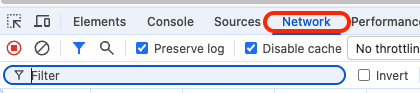
Enable:
Preserve log
Disable cache
Navigate to the site where the issue occurs.
Reproduce the issue. Network activity will be captured automatically.
In the toolbar below the Network tab, click the Download icon (down arrow).

Save the HAR file to your computer.
Edge
Open Edge.
Press F12 to open Developer Tools.
If prompted, confirm by selecting Open DevTools.
Select the Network tab (Wi-Fi style icon).

Enable:
Preserve log
Disable cache
Navigate to the site where the issue occurs.
Reproduce the issue.
In the toolbar below the Network tab, click the Download icon (down arrow).

Save the HAR file to your computer.
Firefox
Open Firefox.
Press F12 to open Developer Tools.
Select the Network tab if it is not already active.

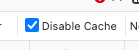
Enable Disable Cache.
Navigate to the site where the issue occurs.
Reproduce the issue.
In the Network tab toolbar, select the Settings icon (cog).
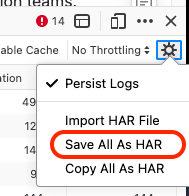
Choose Save All As HAR.
Save the HAR file to your computer.
Safari
Ensure the Develop menu is enabled in Safari preferences.
Open Safari.
From the menu bar, select Develop > Show Page Resources, or press Option + Command + A.
Select the Network tab.

Enable Disable Caches.
Navigate to the site where the issue occurs.
Reproduce the issue.
In the Network tab toolbar, click the Export icon (up arrow).

Save the HAR file to your computer.
Knowledge Base ID: ta97up