This article describes how to configure import data feeds in Mapp Intelligence.
It focuses exclusively on importing structured data into Mapp Intelligence using file-based, scheduled data feeds.
Where Import Data Feeds Fit in Implementations
Import data feeds are typically used to enrich or correct analytics data with information that is not captured via tracking.
Common scenarios include:
Importing return or cancellation data
Importing CRM or user-related classifications
Importing cost, revenue, or correction data
Assigning or updating categories and parameters in bulk
In most cases, configuring the import feed is only one step in a broader implementation.
Example: Importing Return Data for Net Revenue Analysis
A common implementation is the import of return data to calculate net revenue:
An e-commerce parameter must be configured first
A data feed is used to import return values, typically linked to order or product identifiers
The imported data is then used in analysis and reporting to calculate net revenue
This example illustrates that import feeds are usually combined with additional configuration and analysis steps.
For a complete, step-by-step implementation, see Optimize Product Analysis with Return Data: Import and Analyze for Net Revenue.
Where to Configure Import Data Feeds
All data feeds are managed in: Mapp Q3 > Configuration > Feeds
From this area, you can:
Create new import feeds
View and edit existing feed configurations
Control schedules and activation status
Creating an Import Data Feed
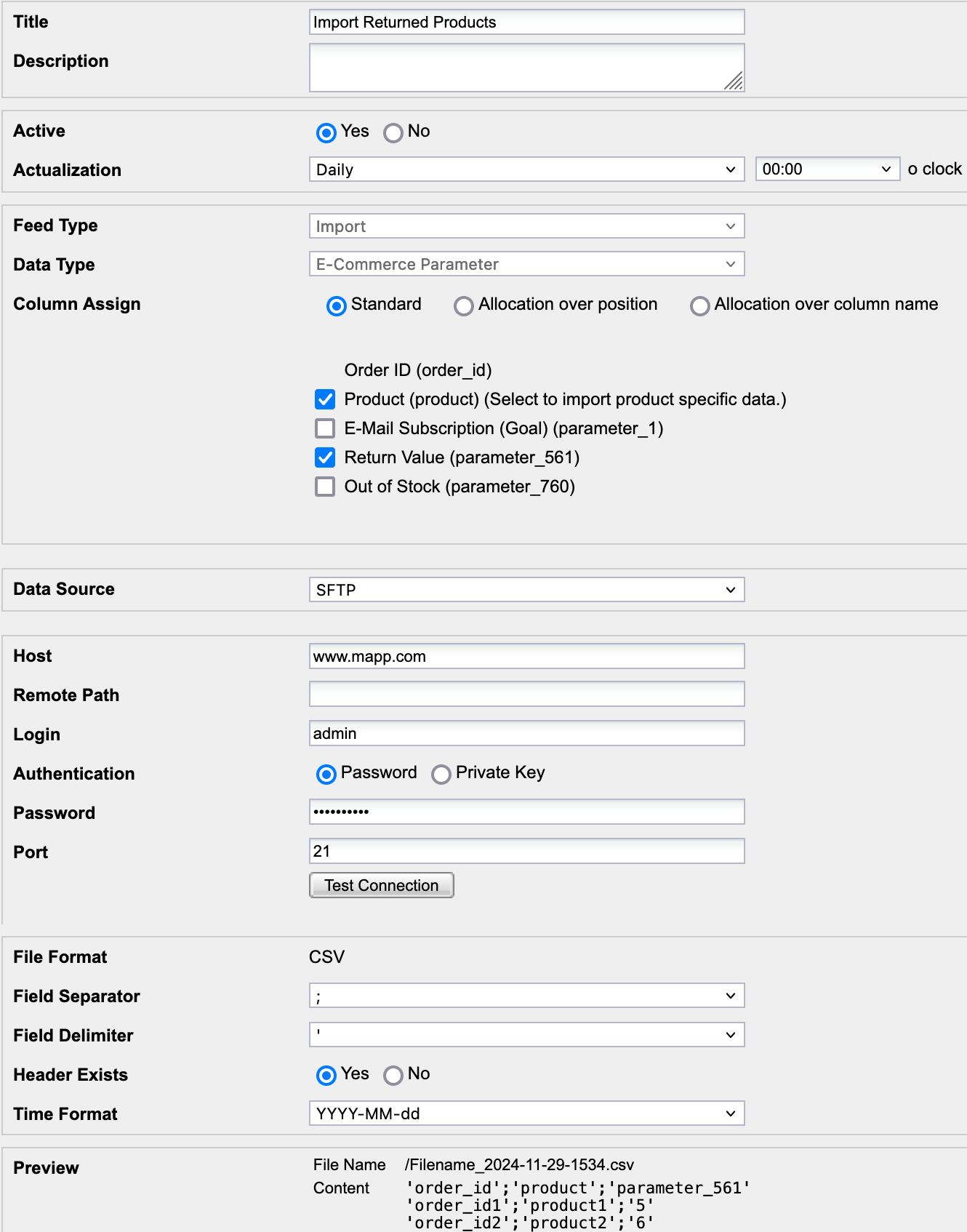
When creating a new data feed, set Feed Type = Import.
The import configuration consists of the following steps:
Define feed metadata (title, description, active status)
Configure actualization (schedule and execution time)
Select the data type
Map file columns (Column Assign)
Configure file settings
Validate the configuration using the preview
Data Types (Import)
The data type defines how the incoming file is interpreted and which identifiers are required.
Available import data types include (depending on account configuration):
Content Groups
Content Groups with Time
Product Categories
Product Categories with Time
Media Categories
Campaign Categories
Campaign Categories with Time
Time Categories
User Categories
User-related category data. In the configuration interface, this data type is labeled as URM Categories.
E-Commerce Parameter
Imports e-commerce–related parameters, typically linked to order or product identifiers.
Column Assign
After selecting a data type, you must map the columns of the import file to the required fields.
In the Column Assign section, you define:
Which column contains the object or identifier
Which column contains category or parameter values
Which column contains time or value references (if applicable)
Correct column mapping is mandatory for a successful import.
File Structure and Preview
Import data feeds consume structured CSV files.
Before activating the feed, a preview is displayed that shows:
The expected file structure
Required columns for the selected data type
Applied separators, delimiters, and time format
Use the preview to verify that the file structure matches the selected data type before scheduling the import.
Scheduling Considerations
Import feeds run automatically based on the configured actualization
Imports can be executed one-time or on a recurring schedule
Each execution processes the files available at that time
Ensure that the file delivery schedule aligns with the feed actualization.
Availability
Import data feeds are an optional feature. Availability and supported import options depend on your contract.
If import data feeds are not available in your account, contact your Mapp representative or support.