Overview
This step lets you create a new group based on an existing one. You define the group name, email address, and ownership options while reusing selected configuration settings from the original group.
Background Information
A copied group inherits configuration-related settings but does not include unique identifiers, members, or historical data. Not copied information includes:
Email: The email address must be unique in Mapp Engage.
Members of the group: When you copy a group, the original group's members are not transferred.
Group messages: The messages that were sent with the original group are not associated with or copied to the new group.
Creation date: The creation date of the new group refers to the date it was initially created.
Group ID: Every group in Mapp Engage has its own internal ID. When you copy a group, a new group ID is assigned.
Group statistics: Group and message statistics for the original group are not copied to the new group.
Inbound mobile ID: If the group sends SMS messages, the keyword or numeric code for inbound SMS is not copied to the new group. It is not possible for two Mapp Engage groups to use the same inbound mobile ID.
Navigation Path
Navigate to Audience > Group Management > Groups
In the Actions column, select Copy Group.
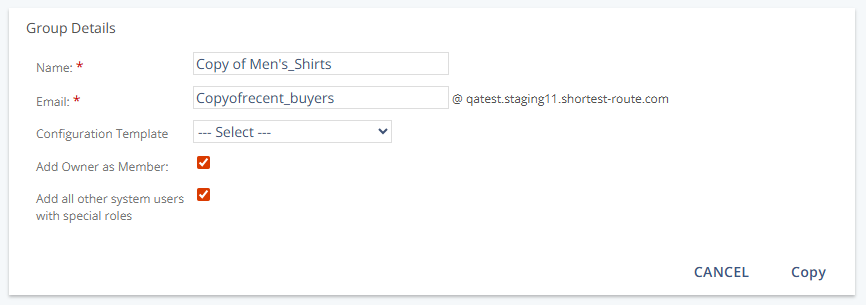
The Group Details view opens.
Settings
Setting | Description |
|---|---|
Name | Defines the group name used for administration. The maximum length is 150 characters. The name does not need to be unique and can be changed later if necessary. By default, it is part of the From Address. |
Defines the group email address, which must be unique and is used for technical purposes. The local part has a maximum length of 40 characters. Inbox display is configured in the reply handling. | |
Configuration Template | Applies a predefined set of sendout settings when creating the group. Templates help standardize and speed up group creation. |
Keep Owner | Determines whether the owner of the original group remains the owner of the new group. If deselected, you become the owner. |
Add Owner as Member | Determines whether the owner is also added as a group member. A contact profile is required. |
Copy Members with Special Roles | Adds members with special roles (for example, Manager or Customised Group Role 1–8) to the new group and keeps their group-specific permissions. This option is available only when 'Add Owner as Member' is selected. |