Goal
Set up and assign localized button sets to mobile push notifications based on audience language segmentation.
Procedure
1 Define Segments for Each Language
Go to Audience > Segmentation > Segmentation Builder.
Create a segment for each language group (e.g., German-speaking users).
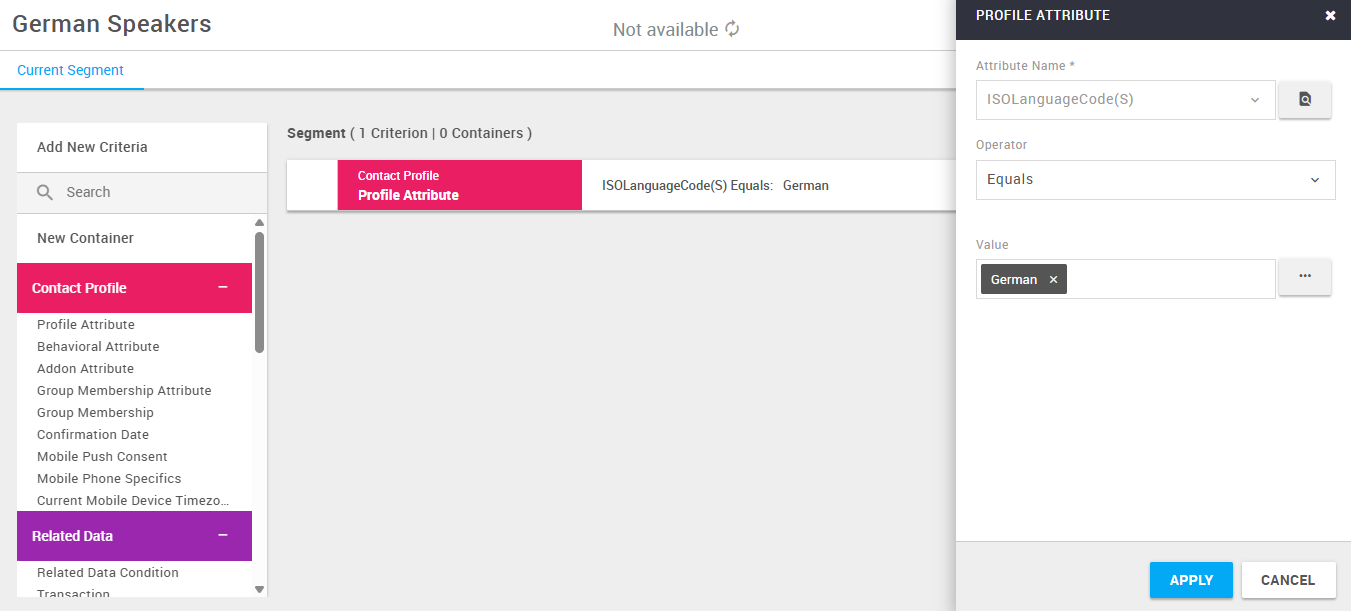
2 Create Localized Buttons
Navigate to Administration > Channels > App.
Edit an existing channel or create a new one.
In the Button section, click the blue icon to open the Localize Button Templates screen.

Select a language (e.g., German - DE).
Enter translations.
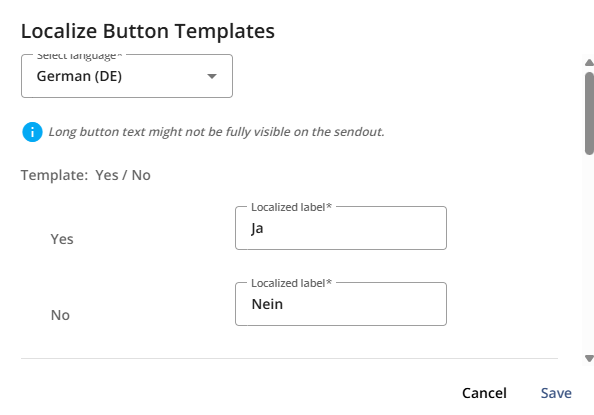
Click Save.
3 Add Localized Buttons to a Push Notification
Go to Messages > Push Notifications and start creating a new message, or edit an existing one.
In the Compose step:
For App, select the channel that has the localized buttons
Select the required language from the drop-down
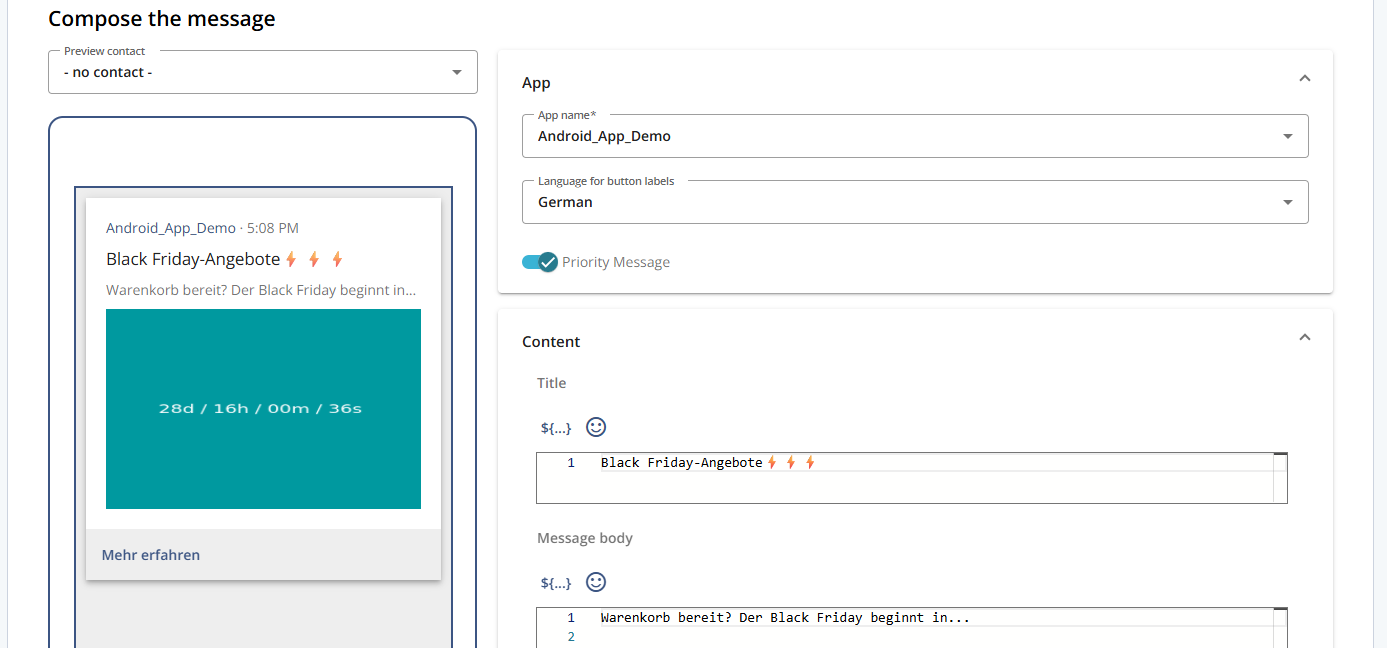
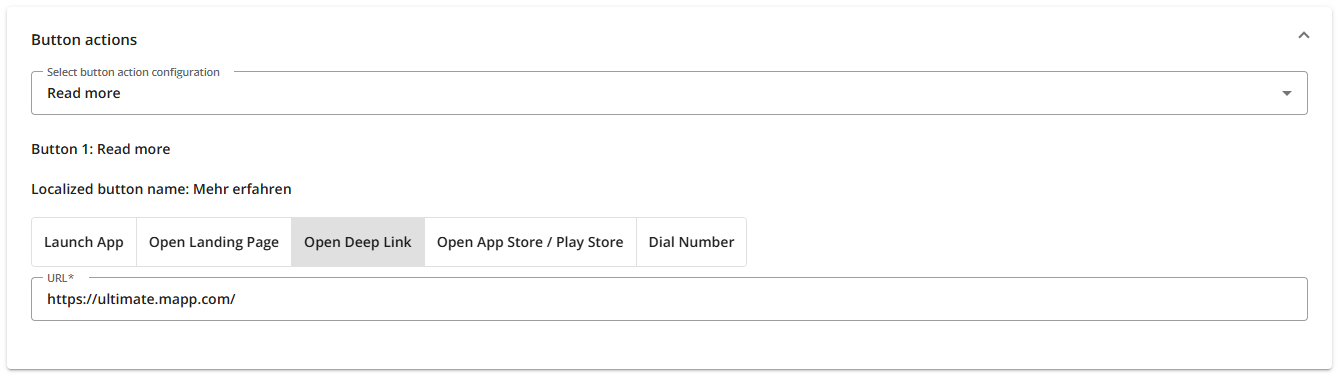
In the Button Actions step, choose the localized button set from the drop-down.
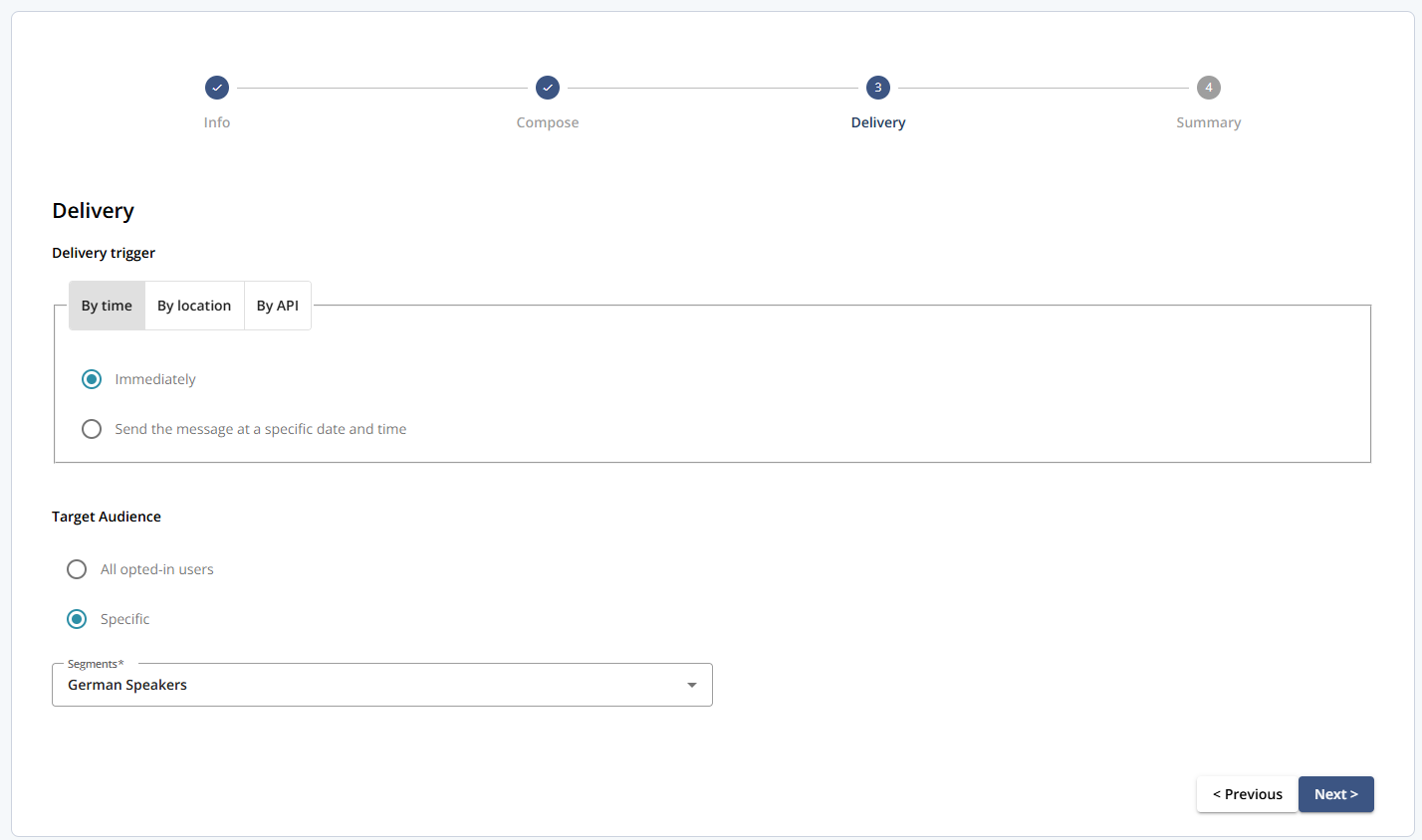
When selecting your audience in the Delivery step, apply the language-specific segment (e.g., German-speaking users).
Continue with the standard message creation flow.