---
title: "URL Parameters in Email Links"
slug: "engage-emails-url-parameters-in-email-links"
description: "Add static or personalized URL parameters to links in Mapp Engage emails, per link or for all links of a group, and how tracking consent affects them."
status: "update"
updated: 2026-10-30T15:05:40Z
published: 2026-10-30T15:05:40Z
canonical: "docs.mapp.com/engage-emails-url-parameters-in-email-links"
---
> ## Documentation Index
> Fetch the complete documentation index at: https://docs.mapp.com/llms.txt
> Use this file to discover all available pages before exploring further.
# URL Parameters in Email Links
## Overview
URL parameters let you pass extra values in the links of a message. A parameter can be a static value, a personalization placeholder, or a system variable, so you can hand dynamic values to the target page and track clicks per recipient.
---
## Use Cases
- **Personalized website experience:** Use contact data to tailor the landing page linked from an email.
- **Pre-filled forms:** Auto-fill fields in downloadable content such as whitepapers or brochures.
- **Message attribution:** Track which message a clicked link came from for web analytics.
---
## How Parameters Work
- Parameters are added as **name=value** pairs in the query part of a URL (after the `?` symbol).
- You can use static values or dynamic placeholders, for example `<%${user['lastname']}%>`.
- Add parameters manually to individual links, or automatically to all links via group settings (see the procedures below).
- You can exclude specific links from receiving parameters (see [Exclude Links From Link Parameters](/v1/docs/exclude-links-from-link-parameters)).
> [!NOTE]
> Note
>
> Placeholders must not appear in the hostname part of the URL. This breaks link tracking.
---
## Link Tracking and Redirection
- When link tracking is on, Mapp Engage routes every link through its tracking system before sending the recipient to the final destination.
- Unsafe characters such as spaces are URL-encoded automatically (a space becomes `%20`).
- The redirect is invisible to the recipient and lets Engage record click events.
> [!WARNING]
> Warning
>
> Do not use parentheses ( ) in message names that are used in tracking links. They are not URL-encoded and will break the link.
---
## Parameters in HTML vs. Text Emails
### HTML Emails
Use these parameters:
- `l` – encoded final destination URL
- `req` – personalized request data
A personalized placeholder in the URL:
```plaintext
http://www.website.com/?FNM=<%${user['lastname']}%>
```
During sendout it resolves to something like:
```plaintext
http://secure.dmcsystem.com/re?l=6m7...&req=FNM=von%20Sch%F6nburg
```
### Text Emails
Text emails use slightly different tracking parameters:
- `l` – encoded destination
- `u` – full destination URL with parameters
- `s` – security signature (for example `s=PKPJFBHPPLJGMKHM`)
---
## Add a Parameter to a Single Link
Edit the link's URL directly to pass a static or dynamic value.
### Example
You want to append the contact's ID to a shopping link so your e-commerce platform can customize the experience.
**Original link**
```plaintext
Shop Online
```
**Modified link with parameter**
```plaintext
Shop Online
```
**Resulting link in the recipient's inbox**
```plaintext
www.sportswear.com/?contactID=14182654230
```
### Procedure
1. Open the email in the **Compose Message** window.
2. Locate the link you want to modify.
3. Add a parameter to the query part of the URL (after the `?` symbol):
- Use a personalization placeholder to insert a value from the contact profile.
- Use a Mapp Engage variable to insert message-, group-, or system-specific values.
4. Save the email.
---
## Add Parameters to All Links
In the group settings you can define parameters that Engage appends automatically to every link in messages sent to that group.
### Procedure
1. Go to *Audience > Group Management > Groups*.
2. Locate the group used to send the message and click the **Change Settings** icon next to it.
3. Open the **Tracking & Links** tab.
4. Expand the **Link Parameters** section.
5. Click the plus icon next to **Add Link Parameter**, then:
- In the first field, enter the parameter name (no special characters or spaces).
- In the second field, enter the value: a static value, a personalization placeholder, or a Mapp Engage variable. Use the **Personalization** button to insert placeholders or variables, or the **Web Analytics** button for standard web-analytics parameters.
6. Click **Save**.
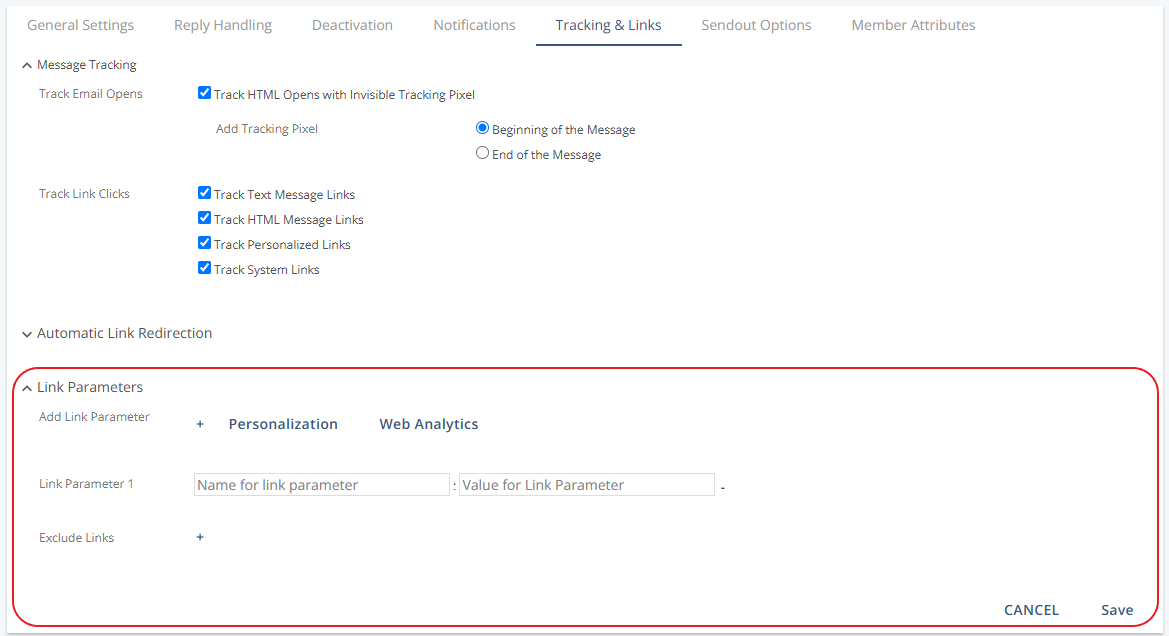
The parameter is now added to every link in emails sent to this group.
> [!NOTE]
> Note
>
> If Email Tracking Consent is active for your account, contacts who denied or withdrew consent only get the five standard UTM parameters from the group settings (`utm_source`, `utm_medium`, `utm_campaign`, `utm_term`, `utm_content`) when the message uses **Normal Tracking** or **Force Anonymized when denied or withdrawn**. Other parameters, such as a contact ID or an external message ID, are not added for them. For details, see [Email Tracking Consent](https://docs.mapp.com/docs/engage-email-tracking-consent#utm-and-other-link-parameters).
### Example
To track each newsletter with an external message ID:
- Parameter name: `exmid`
- Parameter value: `<%Message.ExternalID%>`
If you enter `november25_womenswear` in the **External Message-ID** field during newsletter setup, the resulting links look like this:
```plaintext
www.sportswear.com/?exmid=november25_womenswear
```