1 Introduction
The Filter Engine in Mapp Intelligence enables you to refine your data analysis by applying specific filters to dimensions and metrics. This flexibility allows you to answer targeted questions, for example, analyze the performance of specific campaigns or identify user behavior on your website.
With the Filter Engine, you can narrow down your results to focus on what matters most. Whether you want to filter for visits from a specific device, user segments, or time periods, the system provides a wide range of filter options to help you create relevant insights.
This page explains the basic components of the Filter Engine, including available filters, operators, input methods, and how to group filters using containers. These foundations are important before moving on to more advanced topics like scopes, exclusions, or filter combinations.
Example: In the pages analysis, show only results if the user visited the site via a tablet.
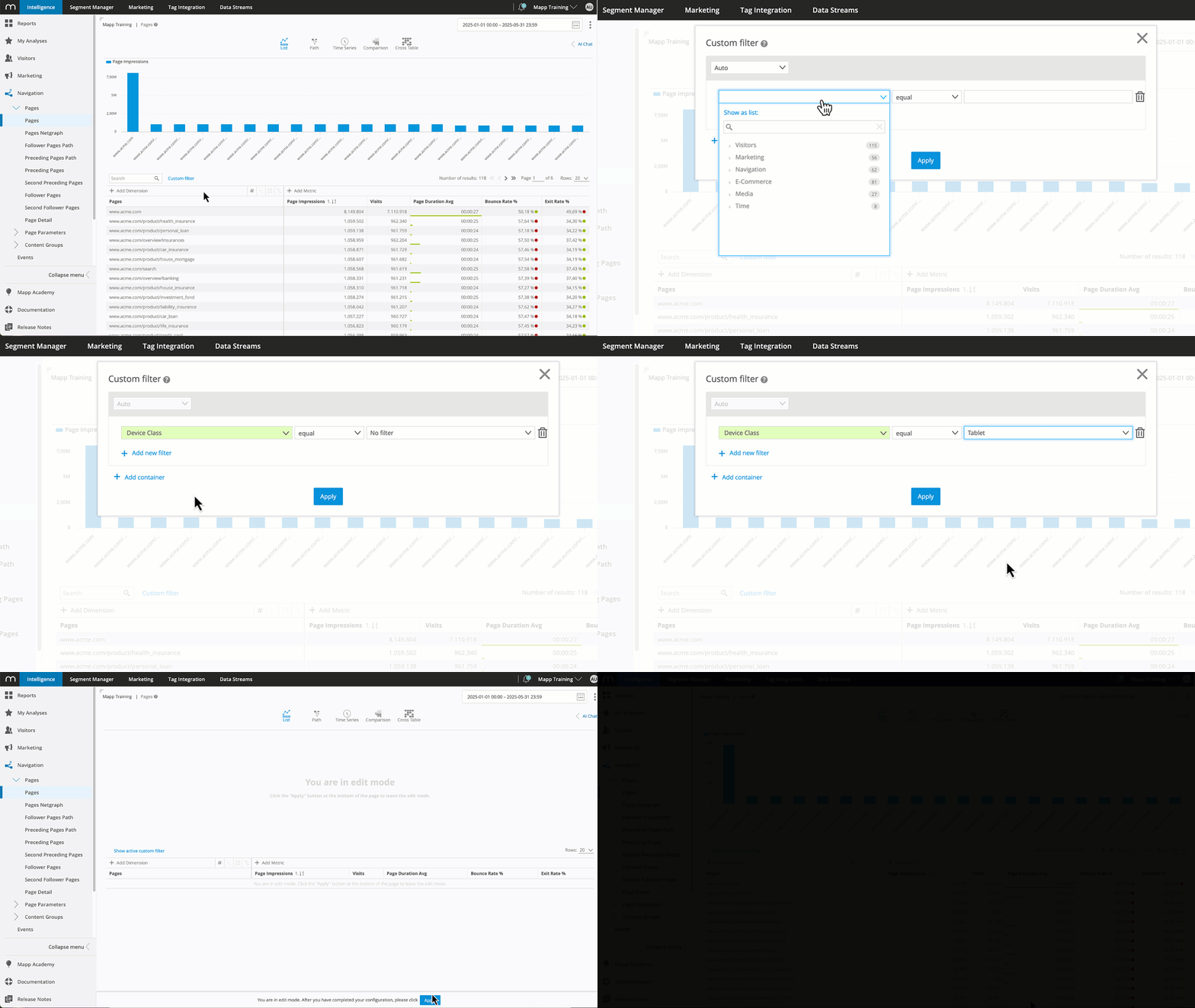
2 Filter criteria
To create a filter in Mapp Intelligence, you first select a filter element — either a dimension or a metric:
A dimension describes qualitative aspects of user behavior, such as Pages, Device Class, or City.
A metric reflects quantitative values, such as Page Impressions or Bounces.
Note
Custom figures cannot be used as filter criteria.
In the Filter Engine, these elements are presented as a searchable list. You can browse or search filter elements in two ways:
Show as list displays all filters in alphabetical order.
Show as groups organizes them into categories such as Marketing, Navigation, Visitors, or Other
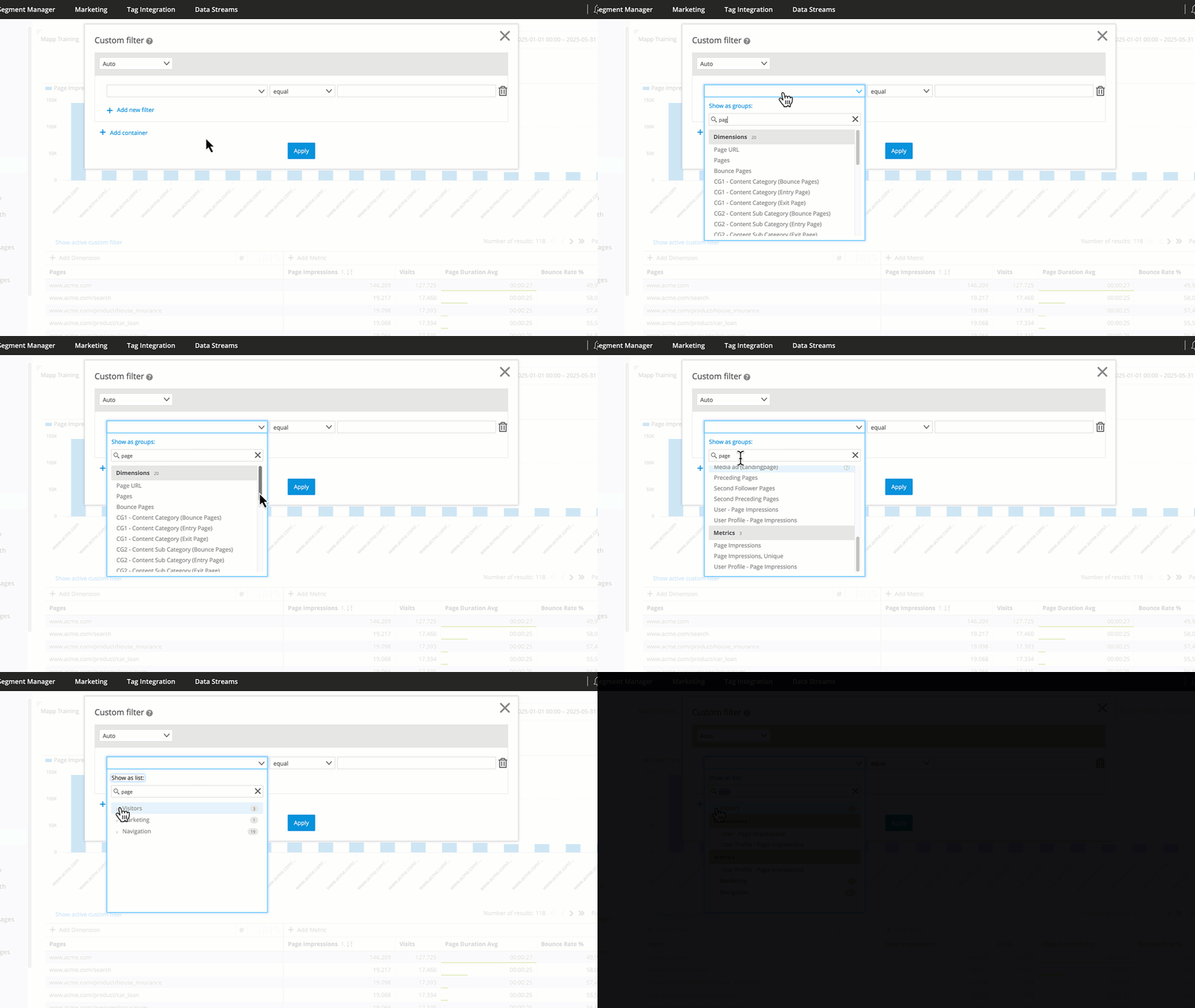
In the selection menu and filter view, dimensions are shown in green and metrics are shown in blue.
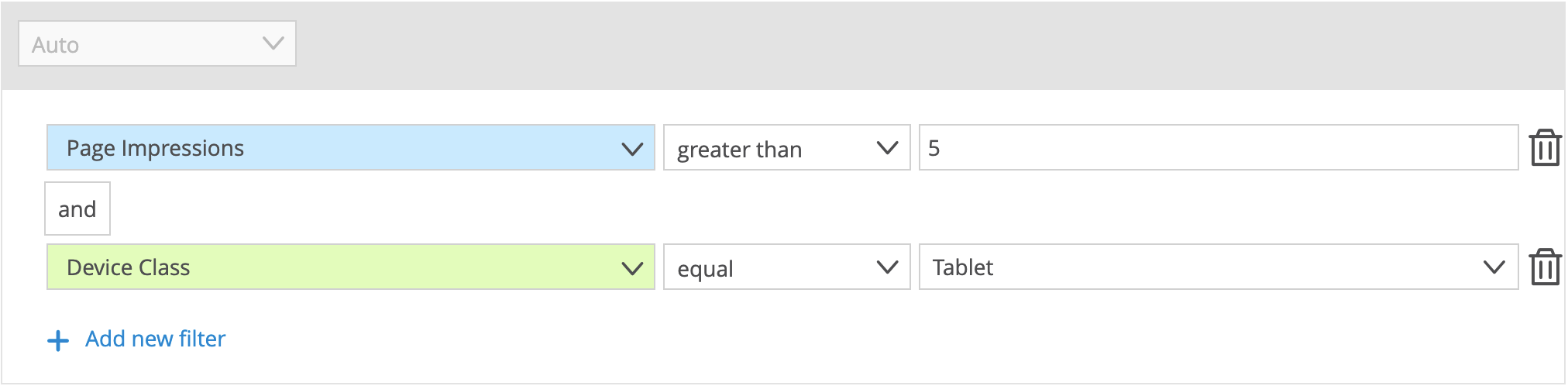
3 Operators
Operators define how the filter condition is applied. The available options depend on the type of data. Different types of dimensions and metrics support different sets of operators.
.png "CleanShot 2024-08-21 at 15.08.48@2x(1).png")
Available operators for metrics
Metrics reflect numerical values such as Page Impressions or Bounces. They are often used to apply thresholds or ranges for analysis.Operators
Example “Page Impressions”
Result
equal
Page Impressions equal 5
5
less than
Page Impressions less than 5
< 5
greater than
Page Impressions greater than 5
> 5
between
Page Impressions between 5 and 8
5, 6, 7, 8
Available operators for time-related dimensions
These dimensions refer to specific times or dates, such as Minutes, Hours, Days, or Weekdays. They allow you to isolate activity within certain time windows.Operators
Example “Hours”
Result
equal
Hours equal 5
5
before
Hours before 5
< 5
after
Hours after 5
> 5
between
Hours between 5 and 8
5, 6, 7, 8
Available operators for User-dimensions
User-based dimensions describe the overall behavior of an individual user across all visits, such as User - Visits or User - Page Impressions.Operators
Example “User - Visits”
Result
equal
User - Visits equal 5
5
less than
User - Visits less than 5
< 5
greater than
User - Visits greater than 5
> 5
between
User - Visits between 5 and 8
5, 6, 7, 8
Available operators for all other dimensions
This group includes typical categorical filters, such as Page, City, or Device Class. You can include or exclude specific values.Operators
Example “Pages”
Result
equal
Pages equal “home”
home
not equal
Pages not equal “home”
≠ home
4 Search input
Depending on the selected element (dimension or metric), values can be entered in different ways:
Free text field: Available for most dimensions and metrics. You can enter the value manually.
For dimensions, suggestions may appear (up to 8 values previously tracked with your login).
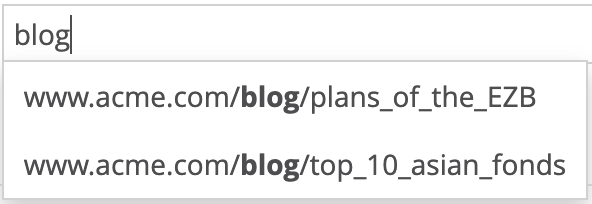
Dimensions also support placeholders (*) to replace one or more characters.
The examples below show how the * placeholder behaves when filtering the Pages dimension using the equal operator.Search Input Example
What the filter returns
*
All pages
*home
All pages ending with “home” (e.g., mobile.home)
*home*
All pages containing “home” (e.g., mobile.home, mobile.home.error)
Drop-down input:
Available for selected dimensions (e.g. Weekdays, Segments)
Only one value can be selected at a time

5 Containers
Filters can be grouped into containers.
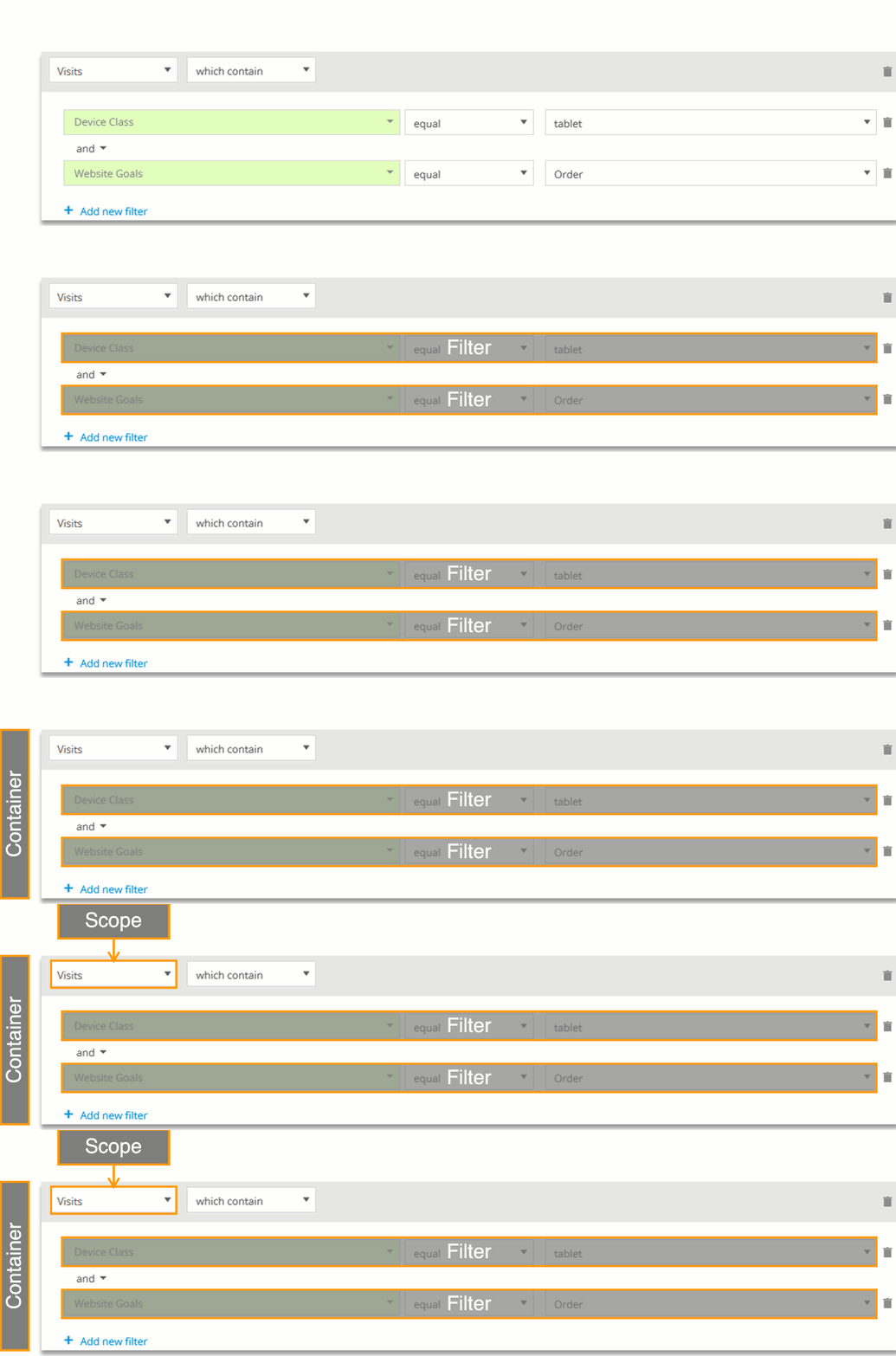
Each container acts as a unit and will later be assigned a scope, defining whether it applies per action, page, visit, or visitor.
Containers are essential when combining multiple filters, especially with logical links like AND, OR, or THEN.
Details on scopes and filter combinations are explained on the page Filter Scopes.