Overview
The Group Blacklist view displays contacts blocked from communication within a specific group in Mapp Engage. This includes email addresses, mobile numbers, and domains. It provides group-specific control over who can receive messages, helping to tailor audience engagement while maintaining compliance.
Navigation Path
Audience > Blacklists > Group Blacklist
How to View
To access a group's blacklist, use the Group drop-down menu at the top of the interface to select the relevant group. The list will automatically update to show only entries for that group.
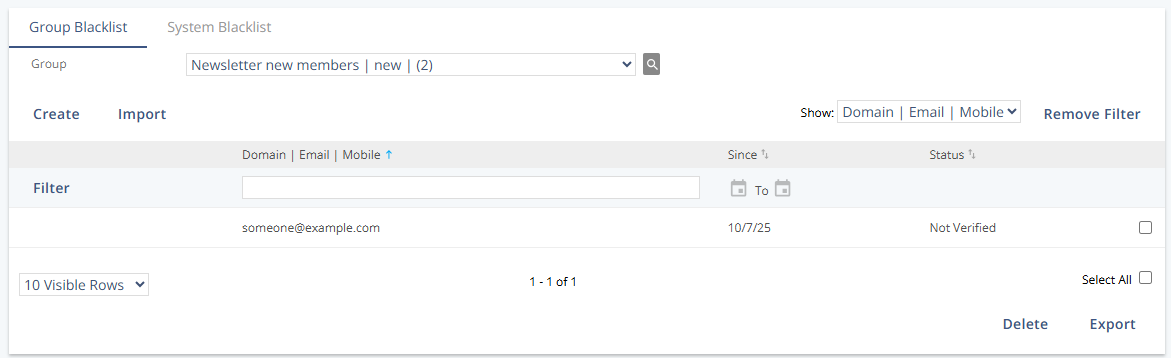
Settings
Setting | Description |
|---|---|
Domain / Email / Mobile | Displays the email, mobile number, or domain currently blacklisted in the group. |
Since | Indicates the date the entry was added to the group blacklist. |
Status | Displays the progress of group removal: |
• Not Verified – The contact/domain is still being processed for removal | |
• Verified – Successfully removed from the selected group |
Actions
Action | Description |
|---|---|
Create | Add an individual email, mobile number, or domain to the selected group's blacklist. |
Import | Upload a file to bulk-add multiple blacklist entries to the selected group. |
Delete | Remove selected entries from the group's blacklist. This does not reinstate prior group membership. |
Export | Download the group's current blacklist as a CSV file. |
Additional Information
Blocking a domain removes all corresponding addresses (e.g., all
@example.comusers) from the selected group.Deleting a blacklist entry lifts the restriction but does not automatically restore the user's subscription or membership in the group. Manual re-subscription or import is required.
The Group drop-down is mandatory to filter and manage blacklists effectively, as each group maintains its own list.
Blacklisting is one of several ways a contact can stop receiving messages. For a complete overview, see How a Contact Stops Receiving Messages.