Marketing automation is often associated with e-commerce, but it can also be effectively used for websites that don’t rely on product tracking.
Why You Still Need a Product and Category
Currently, for initialization, Mapp Intelligence requires at least one product and one product category in the data, even for non-e-commerce pages. Don’t worry—this is an easy process, and we’ll guide you through it.
Step 1: Create a Product Category in Q3
To start, you’ll need to create a product category in Q3. Follow these steps:
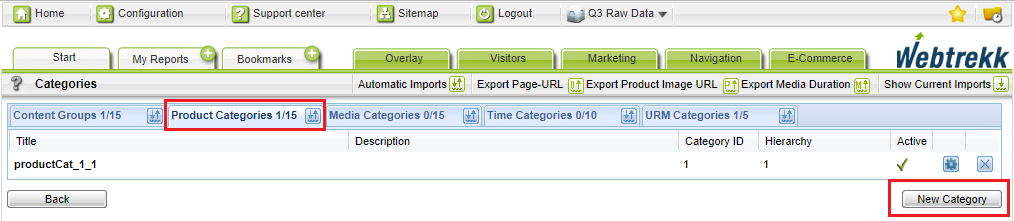
Navigate to Configuration > Categorization > Product Categories.
Create a new category (e.g., with ID 1).
Step 2: Send a Product Tracking Request
Once your product category is set up, it’s time to submit a tracking request.
Enter your Track ID in the form below. If you’ve assigned a different category ID, update that in the form as well.
Click Create Request Link. A link will appear to the right of the button.
Click the link to open a new tab or window (the page will be blank). This confirms that the tracking request has been submitted.
After the next data update, you should see the product with the ID “testproduct” associated with your newly created product category in your data.