---
title: "Methods and Use Cases for User Matching"
slug: "mapp-cloud-user-matching-methods-and-use-cases"
description: "Match users between Mapp Intelligence and Mapp Engage via campaigns, logins or registrations, including language, country and time zone for new contacts."
status: "update"
updated: 2026-11-02T16:06:07Z
published: 2026-11-02T16:06:07Z
canonical: "docs.mapp.com/mapp-cloud-user-matching-methods-and-use-cases"
---
> ## Documentation Index
> Fetch the complete documentation index at: https://docs.mapp.com/llms.txt
> Use this file to discover all available pages before exploring further.
# Methods and Use Cases for User Matching
This page contains a list of ways to match users between Mapp Intelligence and Mapp Engage.
## 1. Campaign Matching
Campaign matching connects users who interact with campaign links (email, SMS, etc.) by using URL parameters that identify the user.
### A) Campaigns with your website as a landing page
This method works if you send campaigns from Mapp Engage directly to your website, which includes the Mapp Intelligence tracking script.

#### How does it work?
All links in your Mapp Engage campaigns contain the URL parameter “uc701” for user matching. The Mapp Intelligence tracking script on the landing page uses this parameter to identify users.
#### How can I integrate it?
- The URL parameter in Mapp Engage will be automatically added to all your campaigns. No manual adjustments are necessary.
- On your website, use one of the following tracking script versions:
> [!NOTE]
> Please contact your account manager if you are using a different tracking version and cannot update.
- [Smart Pixel](/v1/docs/smart-pixel) (version 1.3.1 or later)
- [Tag Integration (Pixel V5)](/v1/docs/mapp-tag-integration-pixel-v5) (version 5.2.5 or later)
#### How can I test if it is working?
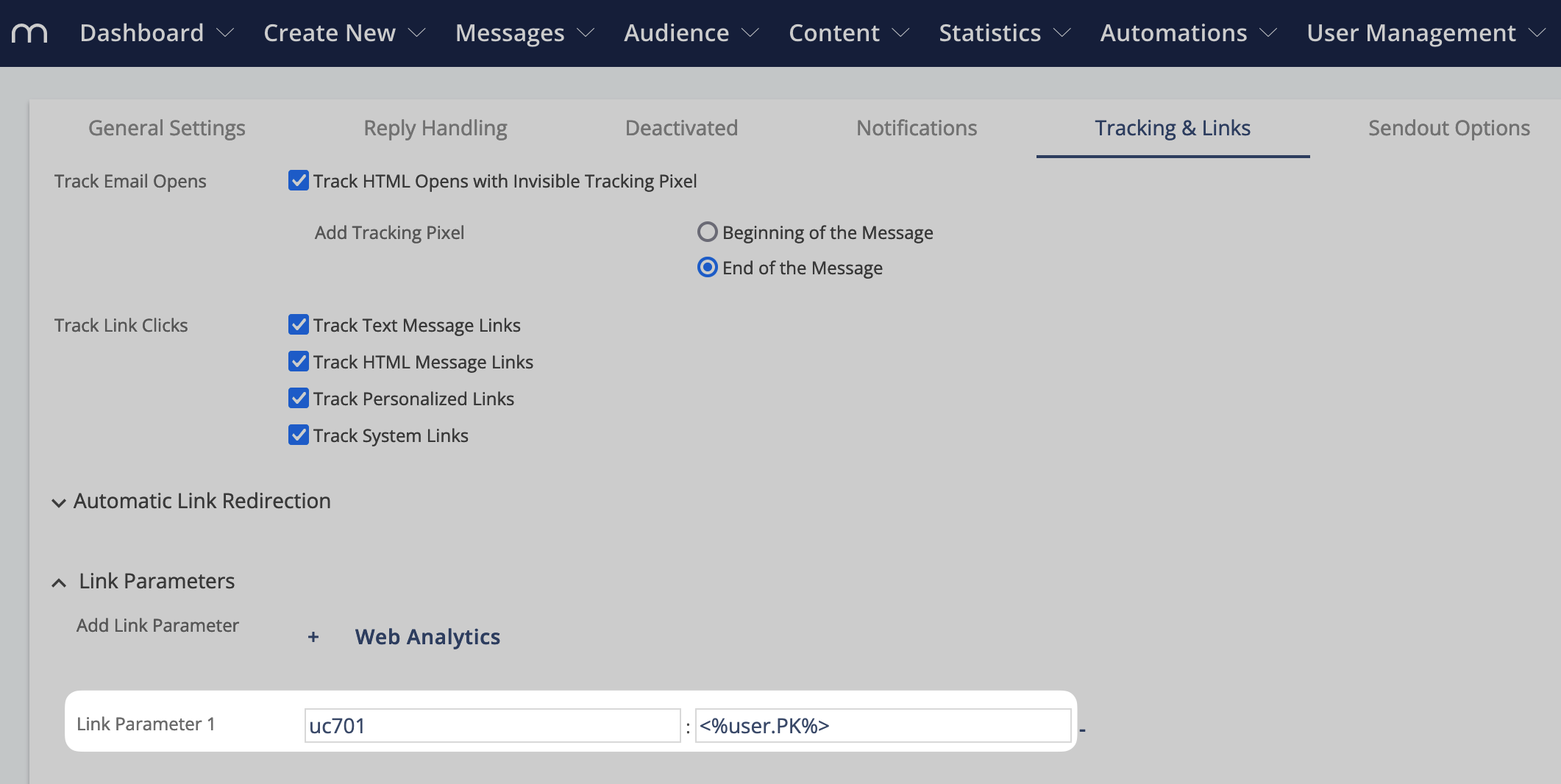
- Check if the uc701 parameter has been added to the URL of your **landing page**.
If not, please check [Tracking & Links Tab](/v1/docs/tracking-links-tab). It should contain the link parameter.
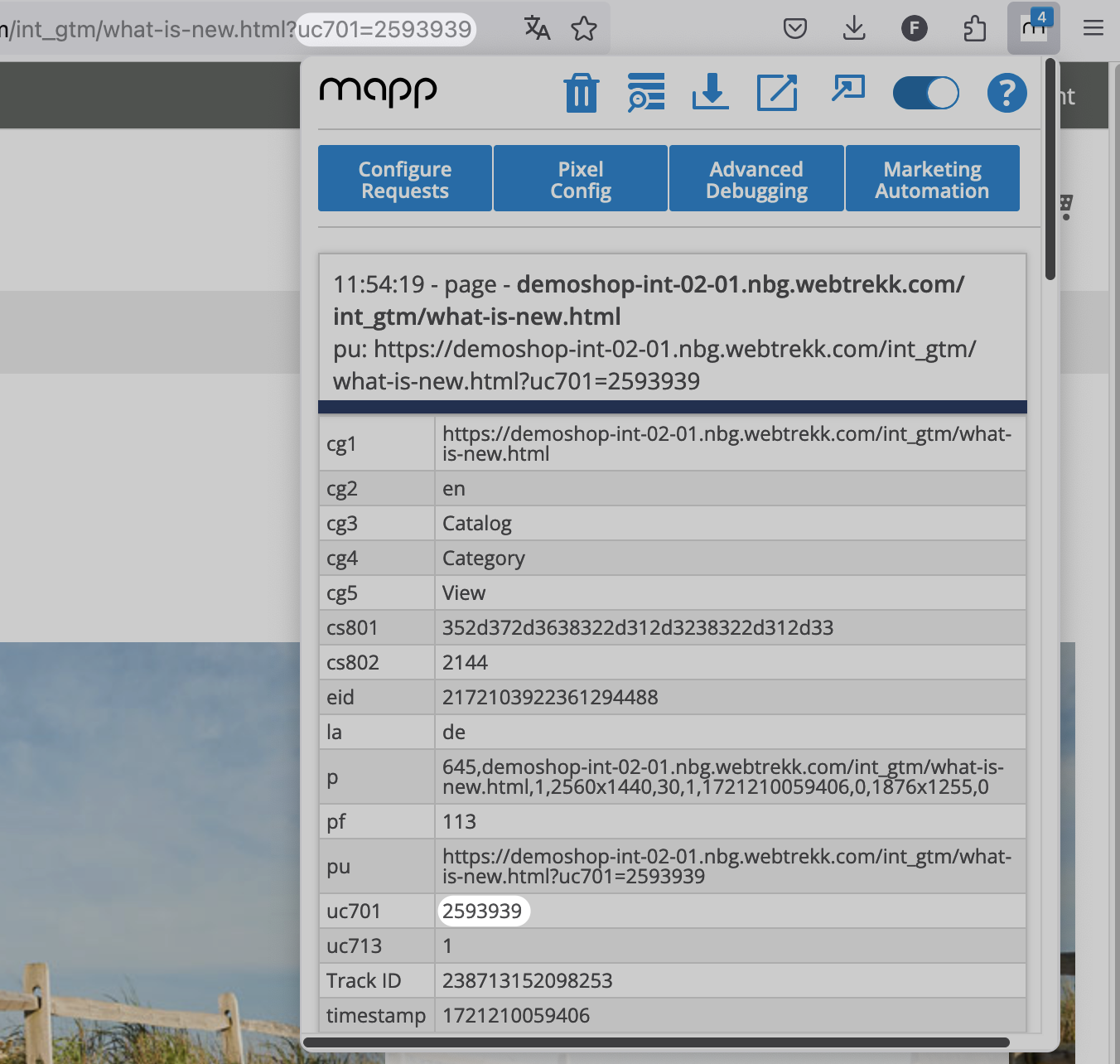
- Use a **debugger** (e.g., our [Mapp Cloud Debugger](/v1/docs/mapp-cloud-debugger)) to check if the Mapp Engage contact ID has been tracked in the uc701 parameter. If not, you might not use a supported tracking pixel version.
### B) Campaigns with a Third-Party Landing Page
This method works when you send campaigns from Mapp Engage to a landing page that does not have an integrated Mapp Intelligence tracking script. There are links on this landing page that lead to your website. The website contains the Mapp Intelligence tracking script.

#### How does it work?
All links in your Mapp Engage campaigns contain the URL parameter “uc701” for user matching. Since the landing page doesn’t include the Mapp Intelligence tracking script, you need to integrate a Javascript that reads the URL parameter out and automatically adds it to the links leading to your website.
#### How can I integrate it?
- The URL parameter in Mapp Engage will be automatically added to all your campaigns.
- Integrate the Javascript on the third-party landing page.
**Setup**
**Integration Steps:**
1. Download the zip file that includes the JavaScript file.
2. (Optional) Make the Adjustments in the file ‘mapp-matching.min.js’ **Example:**
```javascript
(function(){
var mappMatchingConfig = window.mappMatchingConfig || {
domain: []
};
/* ... */
})();
```
| Parameter | Description |
| --- | --- |
| domain | Here, you can enter the domains to be marked for Mapp User Matching. If you do not enter anything, all links **not equal to the current domain will be marked by default.** You can use strings with wildcards and regular expressions when specifying domains. For example: - "test.mapp.com" - "*.mapp.com" - /test\.mapp\.com/ - /.+\.mapp\.com/ |
3. Include the script file on the third-party landing page:
```xml
title of the page
The content of your third-party landing page is placed here.
```
- On your website, use one of the following tracking script versions:
- Smart pixel: check the [documentation](/v1/docs/customer) for more details. Use version 1.3.1 or later
- Tag Integration: check the [documentation](/v1/docs/engage-tag-integration) for more details. Use version 5.2.5 or later
#### How can I test if it is working?
- Check if the uc701 parameter has been added to the URL of your **third-party** landing page.
If not, please reach out to your Mapp contact.
- Check if the uc701 parameter has been added to the URL of your **website** landing page. If not, the script is not working properly. Please make sure that the configuration is correct.
- Use a **debugger** (e.g., our [Mapp Cloud Debugger](/v1/docs/mapp-cloud-debugger)) to check if the Mapp Engage contact ID has been tracked in the uc701 parameter. If not, you might not use a supported tracking pixel version.

### C) Campaign Matching via Redirect
User matching via redirect can be used as an alternative method.
> [!NOTE]
> This methode is only used in exceptional cases, as there is a risk that the redirect will not work correctly in certain cases.
Please contact your account manager if you are still interested in the implementation and require further information.
## 2. Web Matching
This method works if users are on your website and you want to match them with the Mapp Engage contacts.

This can be done if they provide their email address (e.g. when logging in or subscribe to a newsletter). This email address will be matched with the contact email address in Mapp Engage. If the user exists, he will be matched.
If he doesn’t exist, he will be added as a new user in Mapp Engage.
> [!NOTE]
> Continuous identification
>
> As long as the user does not delete his cookies, he can continue to be identified and matched in subsequent visits. If the user deletes the cookies, identification is only possible after a new login.
#### How does it work?
As soon as the email address is tracked on the website (e.g. when logging in or registering for the newsletter), it must be transferred in the tracking script. Further information can optionally be transmitted.
In case of a new registration (e.g., a new subscriber), you should send the Group that the user will be assigned to and the registration mode.
You can also send the language, country and time zone of the contact. New contacts then arrive in Mapp Engage with the correct language and country, so you can localize every message from the start, including the welcome message (see [Differentiate audiences by country and language](/v1/docs/differentiate-audiences-based-on-country-and-language)). For the available fields, see [Users](/v1/docs/intelligence-smart-pixel-users).
**Example of a registration form with included parameters**
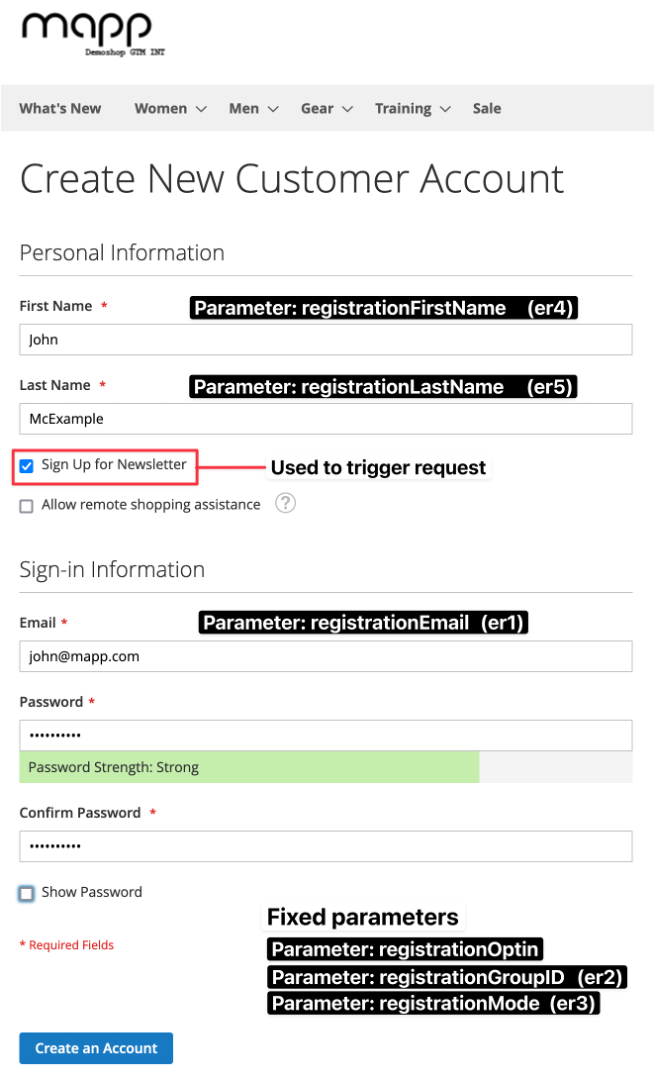
All parameters will be sent to Mapp Engage via Mapp Intelligence.
> [!NOTE]
> Customer ID
>
> We strongly recommend that you also send this email address in the Customer ID to minimize discrepancies between Mapp Intelligence and Mapp Engage.
Watch this video for more details.
[User Matching](https://player.vimeo.com/video/985559268?badge=0&autopause=0&player_id=0&app_id=58479)
(Placeholder)
#### How can I integrate it?
Integrate the email address and other optional parameters into the tracking script on your website. You can find more information on this in the documentation.
- [Documentation Smart Pixel](/v1/docs/customer) (version 1.4.5 or later)
- [Documentation Tag Integration](/v1/docs/engage-tag-integration) (version 5.3.1 or later)
#### How can I test if it is working?
The tracking request on the website contains the parameters er1-er10 (only “er1” is mandatory and should contain the email address). Use a debugger (e.g., our [Mapp Cloud Debugger](/v1/docs/mapp-cloud-debugger)) to check for this information.
[2024-07 Check Registration](https://player.vimeo.com/video/987049336?badge=0&autopause=0&player_id=0&app_id=58479)
> [!WARNING]
> Please note that the contact ID (parameter uc701) is exchanged directly between Mapp Intelligence and Engage. It is therefore not visible in the track request.
## 3. Mobile Matching
Mobile matching connects mobile application users using Mapp Engage and Mapp Intelligence SDKs.
#### How does it work?
User matching happens completely automatically within the app.
> [!NOTE]
> Cross-Channel Mapping
>
> If you measure websites in addition to the app, you should transmit the email address as a unique identifier. Use the customer ID parameter in the app and also the registration email on the website (see [Web Matching](/v1/docs/mapp-cloud-user-matching#2-web-matching)).
#### How can I integrate it?
Please activate User Matching in the SKD.
- [Android SDK User Matching](/v1/docs/android-user-matching)
- [iOS SDK User Matching](/v1/docs/ios-user-matching)
- [Flutter SDK functions](/v1/docs/functions-1)
#### How can I test if it is working?
The tracking request on the app contains the parameter uc701. Use a debugger to check for this information.