Overview
Link categories can be assigned manually or automatically using keywords or regular expressions.
Navigation Path
Administration > Categories > Link > Create new Link Category
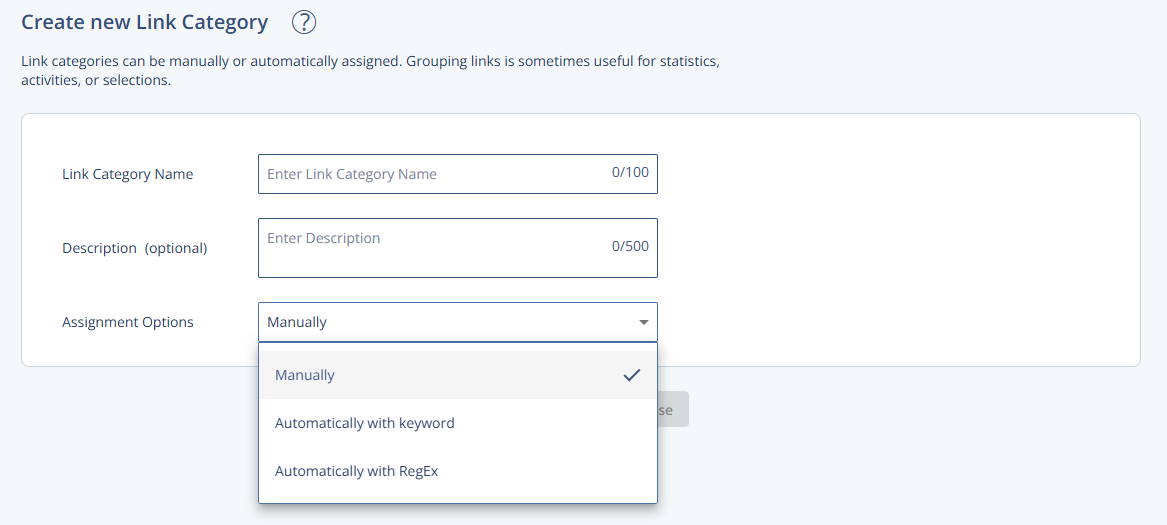
Settings
Setting | Description |
|---|---|
Link Category Name | Defines the internal name of the link category. This name appears in reporting, message creation, and automation settings. |
Description (optional) | Optional internal description to clarify the purpose or usage context of the link category. Useful when managing multiple categories. |
Manually assign Link Category | Enables manual assignment of the category during message creation. This method requires no technical knowledge. |
Assignment Options |
|
Actions
Action | Description |
|---|---|
Save & close | Creates the new link category and saves the configuration. The category is added with the lowest priority by default. |
Cancel | Closes the category creation view without saving changes. |
Additional Information
Manual assignments override automatic ones during message creation.
Regex patterns must follow standard syntax and are limited to 200 characters.
Automatic priority settings can be adjusted later via the Link Category Overview tab.