Overview
The Preview step allows you to validate the syntax and behavior of a personalization rule before using it in a message. You can test how the rule resolves for a specific user, review the resulting output, and edit the underlying source code if needed.
Navigation Path
Navigate to Audience > Segmentation > Personalization.
Click Create to open the Personalization Builder.
Create or edit a personalization rule.
Enter personalization content (in manual mode or via the graphical interface).
Click Preview to open the Preview interface.
.png)
Personalization Tab Settings
Setting | Description |
|---|---|
User | Specifies the address used for testing the personalization rule. The current system user is shown by default. A fictional email address is recommended to avoid using stored attribute values that may influence the preview. |
Preview | Displays how the personalization will appear for the selected user. The preview is only available when all |
Source Code | Shows the full personalization rule. Errors appear in red. The code can be edited directly and then transferred back to the Personalization Builder using the Load in Builder button.
|
Analysis for Address | Provides an evaluation of the rule based on the selected test user, including attribute values. Lines with |
Attributes Tab Settings
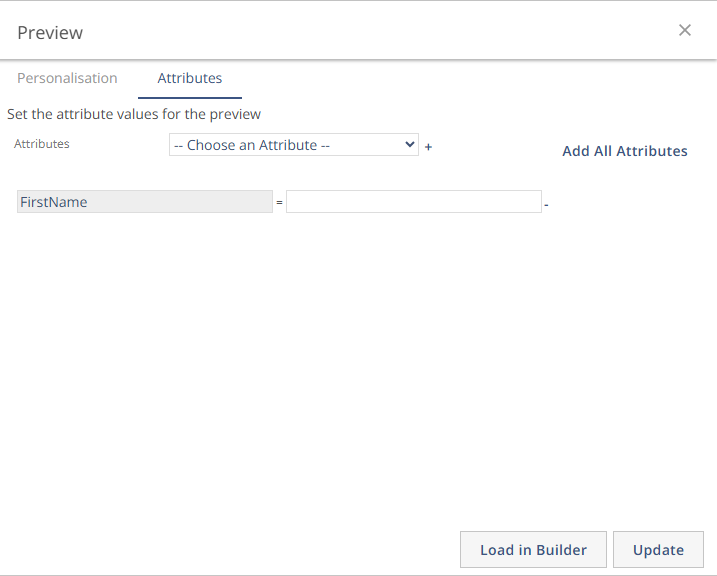
Setting | Description |
|---|---|
Attributes | Allows selection of attributes used for validation. The plus icon adds the selected attribute and opens a field where a test value can be entered. The minus icon removes it. |
Add All Attributes | Adds every attribute referenced in the personalization rule, allowing values to be entered for each. |
Attribute values | Input field for entering test values. For attributes that use predefined numeric codes (for example |
Actions
Action | Description |
|---|---|
Load in Builder | Applies code adjustments made in the Source Code back to the Personalization Builder. |
Update | Refreshes the preview based on any attribute changes or source code edits. |
Note:
To test an attribute without content, the user email entered in the User field must not contain any stored attribute values.
Using a fictional email address helps ensure attribute data does not interfere with test results.