Overview
Edit the scheduled message transfer (date, time, and time zone) for an already scheduled email. This is useful when timing needs to be adjusted without recreating the message. Message transfer can be changed until processing begins.
Navigation Path
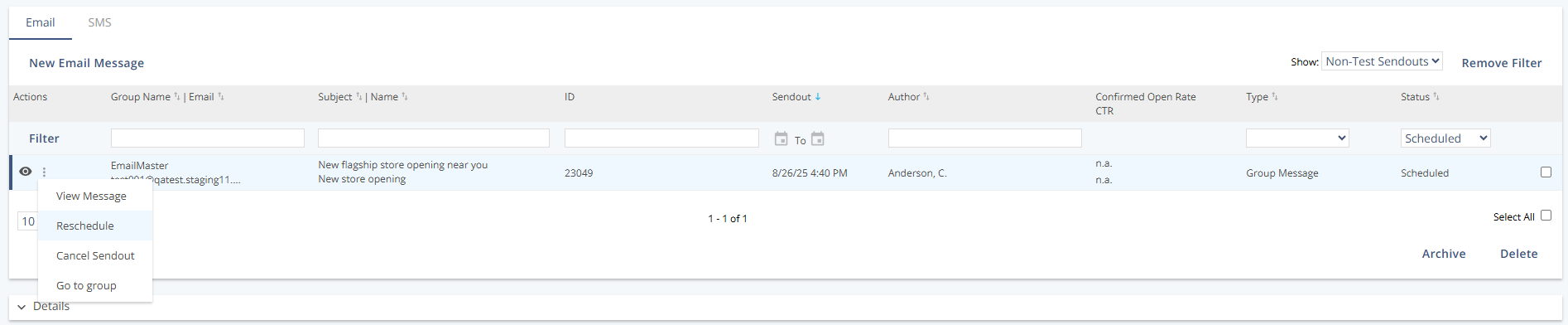
Navigate to Messages > Outbox > Email or SMS
Open the context menu and click Reschedule.
Settings

Setting | Description |
|---|---|
From Address | The sender address shown in the recipient’s inbox. |
Subject | The message subject line as it will appear to recipients. |
Message Transfer | The scheduled send time, including date, time, and time zone. |
Actions
Action | Description |
|---|---|
Reschedule | Confirms the new transfer time and opens the Processed Messages view. |
Additional Information
Processing can be scheduled up to 72 hours before the transfer time.
If processing and transfer are scheduled close together, transfer starts with messages that are already processed to the recipient MTA, while the rest continue processing in parallel.