Goal
Send coupons from a coupon list as scannable barcodes using the Barcode Generator.
Background Information
The Barcode Generator creates scannable barcodes based on codes stored in a coupon list.
During sendout, each recipient receives a unique barcode based on their assigned coupon.
Only barcodes that you have permission to view are available in the Barcodes Overview screen.
Barcodes allow you to integrate offline offers into digital campaigns, such as scannable discounts at checkout.
Prerequisites
A coupon list must have valid coupon codes.
A barcode must already be generated from the coupon list (see Create a Barcode).
Required permissions:
172: View and edit all barcodes,
170: View and edit own barcodes, or
171: View all barcodes (minimum).
Procedure
Create a new message or edit an existing message in the Compose Message screen.
(Works for email and SMS messages.)
Click the Engage Variables button.
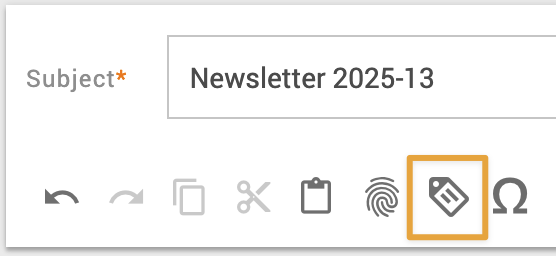
In the Category drop-down list, select Barcode.
Find the barcode created from the desired coupon list.
Drag the Engage Variable into the message editor where you want the barcode coupon to appear.
Preview the message and verify the barcode placement.
Make sure that the barcode displays correctly and can be scanned on the target device.
Send the message.
During sendout, a unique barcode is generated and inserted for each recipient based on the assigned coupon code.
Additional Information
In most cases, allowing recipients to forward barcode coupons is desirable.
However, you can suppress the forwarded barcode using a conditional statement (see Add a Forward Link to a Coupon Message).