---
title: "Upload Email Content (HTML Email)"
slug: "upload-message-parts-window"
updated: 2026-02-10T15:33:58Z
published: 2026-02-10T15:33:58Z
canonical: "docs.mapp.com/upload-message-parts-window"
---
> ## Documentation Index
> Fetch the complete documentation index at: https://docs.mapp.com/llms.txt
> Use this file to discover all available pages before exploring further.
# Upload Email Content (HTML Email)
## Overview
You can upload externally created email content and reuse it during the message creation process. Supported content includes HTML emails, plain text versions, and messages imported from a CMS.
---
## Navigation Path
In the message creation process, go to **Step 2: Content** and click **Upload Message**.
---
## Settings
#### Upload Message Parts
Uploads individual message parts that replace the current content in the message.
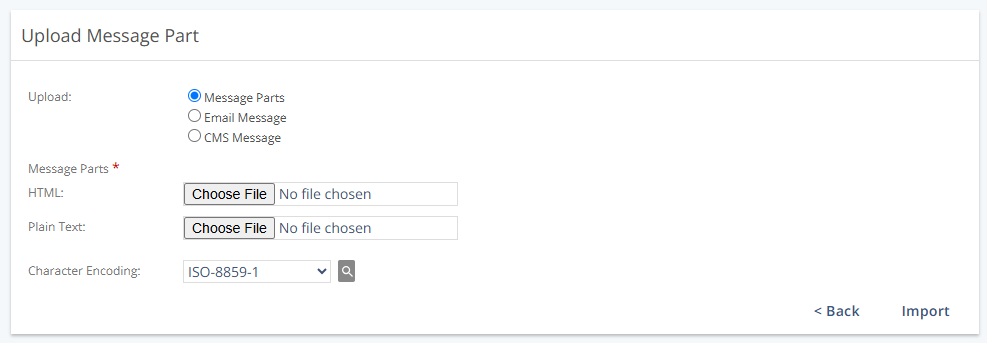
| Setting | Description |
| --- | --- |
| **HTML** | Uploads an HTML file as an email message part. File extension must be `.html`. |
| **Plain Text** | Uploads a text file as an email message part. File extension must be `.txt`. |
| **Character Encoding** | Specifies the character encoding used for the uploaded content. Supports multiple encoding options, including `UTF-8` and ISO `8859-15`. |
#### Upload Email Message
Uploads a complete MIME-formatted email (.eml).
The file can include HTML content, plain text parts, images, and attachments.
| Setting | Description |
| --- | --- |
| **Message** | Clock Choose File to select the message. |
| **Character Encoding** | Specifies the character encoding used for the uploaded content. Supports multiple encoding options, including `UTF-8` and ISO `8859-15`. |
#### Upload CMS Message
Imports a CMS message from a separate Mapp Engage system.
| Setting | Description |
| --- | --- |
| **CMS Account** | Selects the CMS account from which the message will be imported. Available only if a CMS account is configured. |
| **Select CMS Messages** | Opens the CMS message selection window from the selected CMS account. |
For more information, see [Import CMS Message into HTML Email](/v1/docs/select-cms-message-window).
---
## Actions Table
| Action | Description |
| --- | --- |
| **Back** | Returns to *Step 1: Type* of the message creation process. Selected files are not imported. |
| **Browse** | Opens your file browser to select a file from your local computer. |
| **Import** | Uploads and applies the selected message parts. Imported content fully replaces any existing content in the wizard. |
---
## Additional Information
- **Important:** Uploading message parts or CMS messages replaces all existing content, settings, and attachments in the message creation wizard. If you want to keep existing content, create a new message instead.
- **Recommendation:** Always include a plain text version of your email to ensure accessibility and reliable delivery.