Goal
Apply a prepared message template to system messages in Mapp Engage to standardize layout and enable tracking.
Background Information
Using a message template for system messages offers several benefits:
One consistent layout can be reused for multiple messages by simply updating the content.
Changes to the layout can be applied universally without editing each system message individually.
Messages created from templates can be tracked in Mapp Engage, unlike default system messages.
Prerequisites
A prepared message has been created and saved as a template in Mapp Engage.
The template includes a placeholder:
<%system_message%>, which marks areas that can be edited when setting up the system message.
For instructions on how to create templates, see Create Templates for System Messages.
Procedures
Set and adjust the template
Navigate to Messages > System Messages > System (General) / Group (General) / Group (Specific)
Click
.png) > Edit next to the message you want to configure.
> Edit next to the message you want to configure.Ensure that a language is selected under Customized Languages.
In the Message Template drop-down, select the prepared template you want to use.
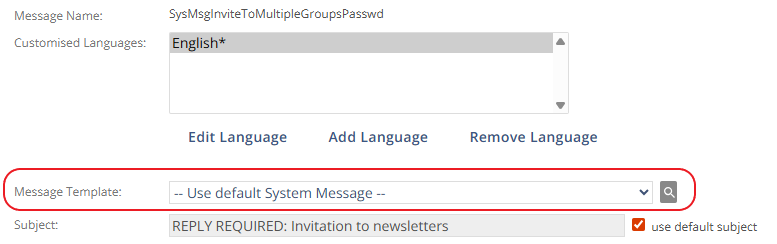
Uncheck Use Default Text to enable message editing.
Edit the content within the
<%system_message%>placeholder.Use the corresponding tab (HTML, Text, or SMS) to make changes.
Content outside the placeholder cannot be edited.
Click Save.
A system status message confirms your changes have been saved.
Assign the final template
Use this if your prepared template is final and you don’t need to edit the content.
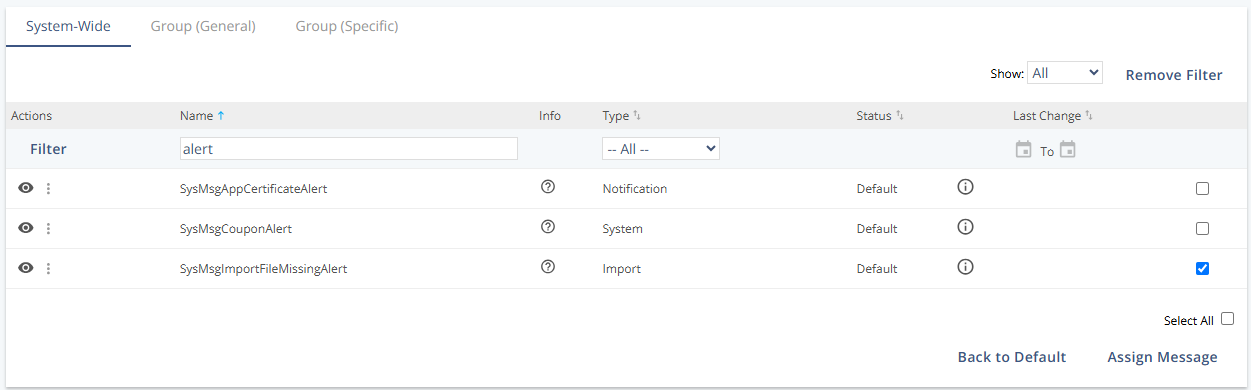
Navigate to Messages > System Messages > System (General) / Group (General) / Group (Specific)
Select the checkbox next to the message you want to assign the template to.
Click Assign Message.