Goal
Archive segments to keep your workspace organized and restore them when needed, or permanently delete segments you no longer need.
Archive or Restore a Segment
The Segmentation Builder provides two views: Active Segments, shown by default, and Archived Segments. Archiving helps reduce clutter by moving segments you no longer need into a separate list without deleting them. You can reactivate archived segments at any time.
Switching Between Active and Archived Segments
Open Audience > Segmentation > Segmentation Builder.
Below the table in the overview, select Active Segments or Archived Segments to switch between the lists.
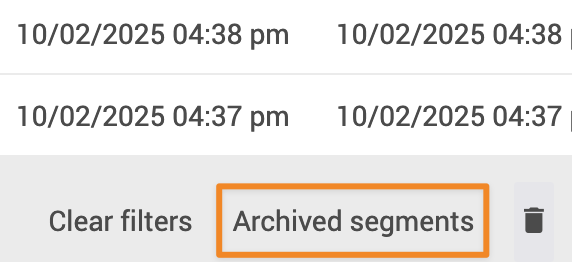
Archiving a Segment
In Active Segments, select the segment you want to archive.
Click More, then Archive.
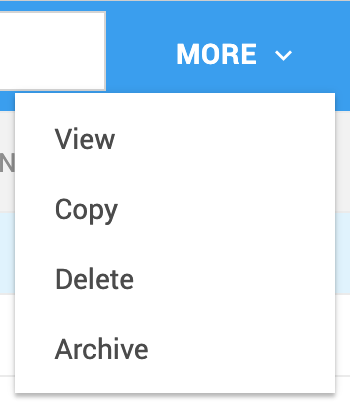
The segment moves to the Archived Segments list.
Restoring an Archived Segment
Open Archived Segments.
Select the segment you want to reactivate.
Click More, then Activate.
The segment returns to Active Segments.
Delete a Segment
Deleting a segment permanently removes it from your account.
If you only want to clean up your overview without losing the segment, you can archive it instead. For more information, see Archive or Restore a Segment above.
Prerequisites
Segments that are in use cannot be deleted. A segment must not be referenced anywhere in the system to be eligible for deletion.
Warning
Deletion cannot be undone.
Deleting a Single Segment
Open Audience > Segmentation > Segmentation Builder.
In the main view, select the segment plan you want to delete.
Click More at the top of the page.
Select Delete.
Confirm the action in the pop-up window by clicking Delete again.
Deleting Segments in Bulk
At the bottom of the page, click the trash icon to open the mass deletion settings.
Configure your filters. You can filter by:
Name
Dates, before a specific date:
creation date
last change
last published
Click Estimate to calculate how many segments match your filters.
Click Delete Plans to delete the selected segments.
Warning
Segments that are in use will not be deleted. They will appear with the status
Failed.