Overview
This interface allows you to customize the content of Mapp Engage system messages. This includes selecting templates, adjusting the subject line, editing message content by channel, and defining available languages. These settings allow you to personalize communications and maintain consistency across system-wide and group-specific messages.
Navigation
Go to:
Messages > System Messages > System-Wide
Messages > System Messages > Group (General)
Messages > System Messages > Group (Specific) > Group (select from drop-down)
Click
 > Edit next to the system message you want to edit
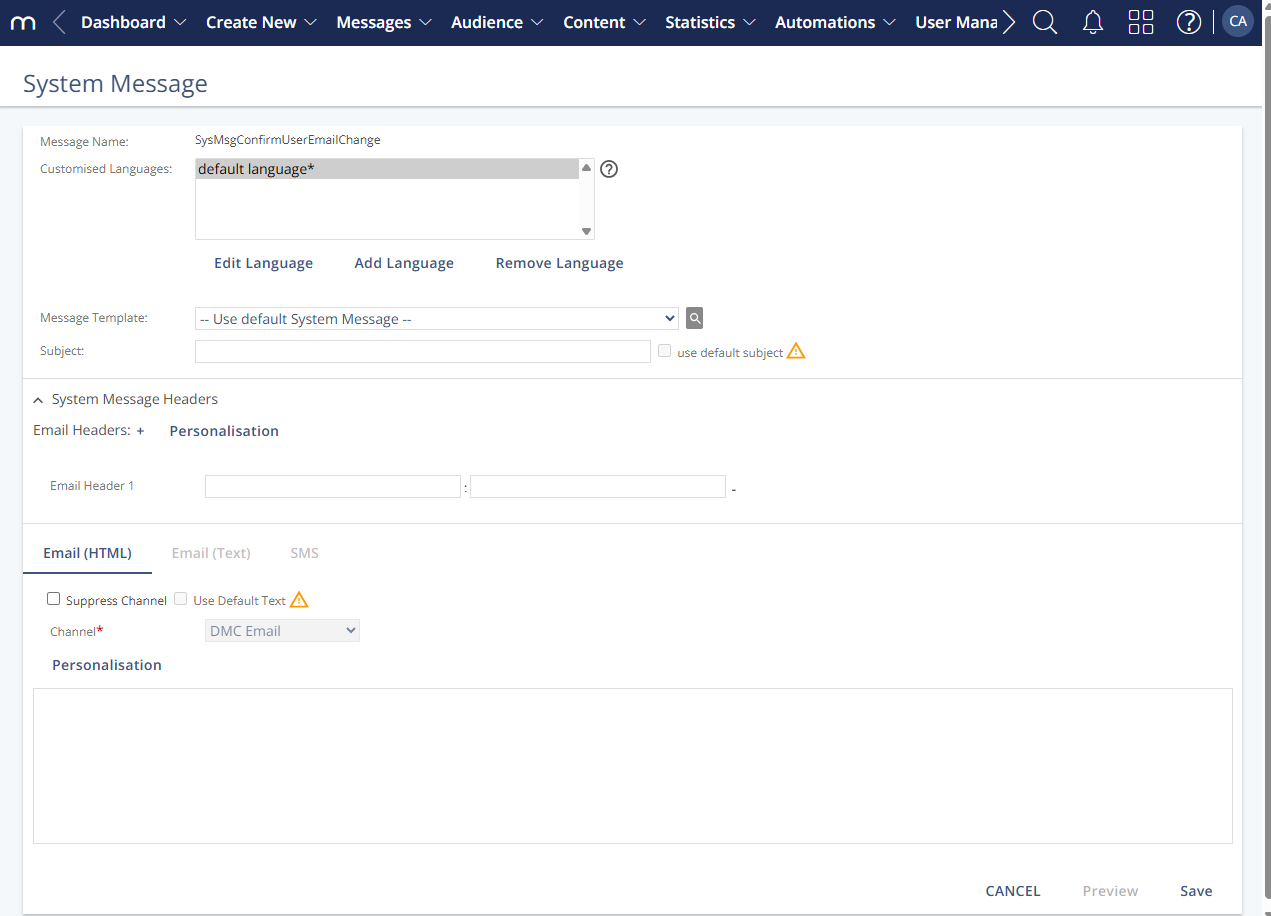
Settings
Setting | Description |
|---|---|
Message Name | Displays the name of the system message currently being edited. |
Customized Languages | Lists all languages that have been edited. |
Add Language | Opens a dialog to add a new language version for the message. |
Edit Language | Opens the message content for the selected language so you can make edits. |
Remove Language | Deletes the selected language version. |
Message Template | Selects a prepared message to be used as a template. Templates are language-specific and must be created beforehand. |
Subject | Defines the email subject line shown to recipients. Mapp Engage does not validate this field. Recommended limit: 50 characters. |
Use Default Subject | Applies the default subject line from the system. You can deselect the checkbox to enter a custom subject. |
System Message Headers | Add non-standard email headers or override group-level headers. |
Personalization | Inserts personalized values into the message or header to tailor it to the recipient. |
Tabs: Email (HTML), Email (Text), SMS | Switch between editing content for different message channels. |
Suppress Channel | Disables the selected channel (e.g., SMS or email). No message is sent via that channel. |
Use Default Text | Restores the default system message text provided by Mapp Engage. |