Overview
Use the Group Members tab to view and manage all contacts who belong to a selected group. From here, you can add or remove members, update contact preferences, manage test recipients, approve membership requests, and access related group or contact pages.
Navigation Path
Go to Audience > Contact Management > Group Members.
Select a group from the Group drop-down.
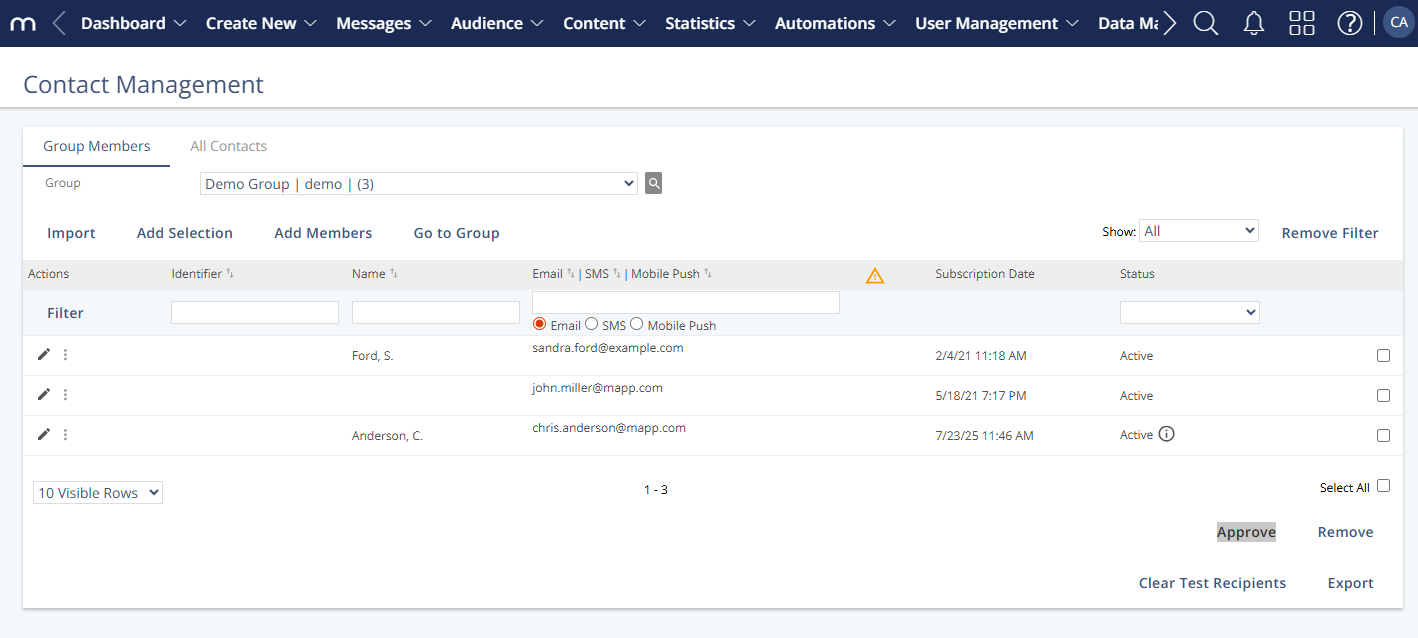
Actions
Action | Description |
|---|---|
Import | Opens a window where you can import contacts and profile data into the group. The data must be saved in a CSV, XML, or text file. You can use an import to add, update, or remove contacts from the system. You can use this action to synchronize your contact data with an external system. See Group Members: Import. |
Add Selection | Opens a window where you can add contacts to the group with a segment. A segment finds contacts who match specific criteria. You can add, replace, or delete members with the selection. See Group Members: Add Selection. |
Add Members | Opens a window where you can add one or more contacts to the group as members. See Group Members: Add Members. |
Go to Group | Opens a window that allows you to access information and settings for the selected group. |
Edit Contact Profile | This opens a window that allows you to view and edit the selected contact's profile data. The profile shows all the attributes that the system stores for the contact. See All Contacts: Edit Contact Profile. |
Read Mode | Opens a window where you can edit the channel and format preferences for the selected contact. See Group Members: Read Mode. |
Blacklist | Opens a window where you can add the selected contact to the group blacklist. When you add a contact to a group blacklist, all group-specific information for the contact is permanently deleted. |
Show Contact | Opens a window that allows you to access information and settings for the selected contact. |
Promote to Test Recipient | Designates the contact as a test recipient in the group. Test recipients receive all test messages that are sent in the group. |
Approve | Approves the selected contact's request for membership. This option is available to the group's owner or manager. |
Remove | It removes the selected contacts from the group after a confirmation request is received. The contacts remain in the system, and no profile data is lost. |
Reactivate | This option reactivates the member in the respective group. It is only available when the contact is deactivated in the group. |
Clear Test Recipients | This removes all the test recipients from the group. The contacts remain members of the group, but no longer receive test messages in it. |
Export | This opens a window where you can define which information the system exports for the selected group. The data is exported in a CSV file. |
Column definitions
Label | Description |
|---|---|
Identifier | This optional, unique value is used for synchronizing contacts across systems. It is not validated for uniqueness on manual entry; check for duplicates in the All Contacts tab. |
Name | Last name and first initial of the contact. |
Email / SMS / Mobile Push | Address data used to identify the contact. Each contact has a single central profile, regardless of their group memberships. |
Subscription Date | Date and time when the contact joined the group. |
Status | Membership status in the selected group. Possible values:
|