Overview
The Groups view provides a centralized overview of all groups available in the Mapp Engage system. Groups are the primary structure for organizing contacts and sending messages. Many key settings, including sendout-related configurations, are defined and managed at the group level. From this view, users can create and manage groups, review basic group information, and access related management functions.
Navigation Path
Audience > Group Management > Groups
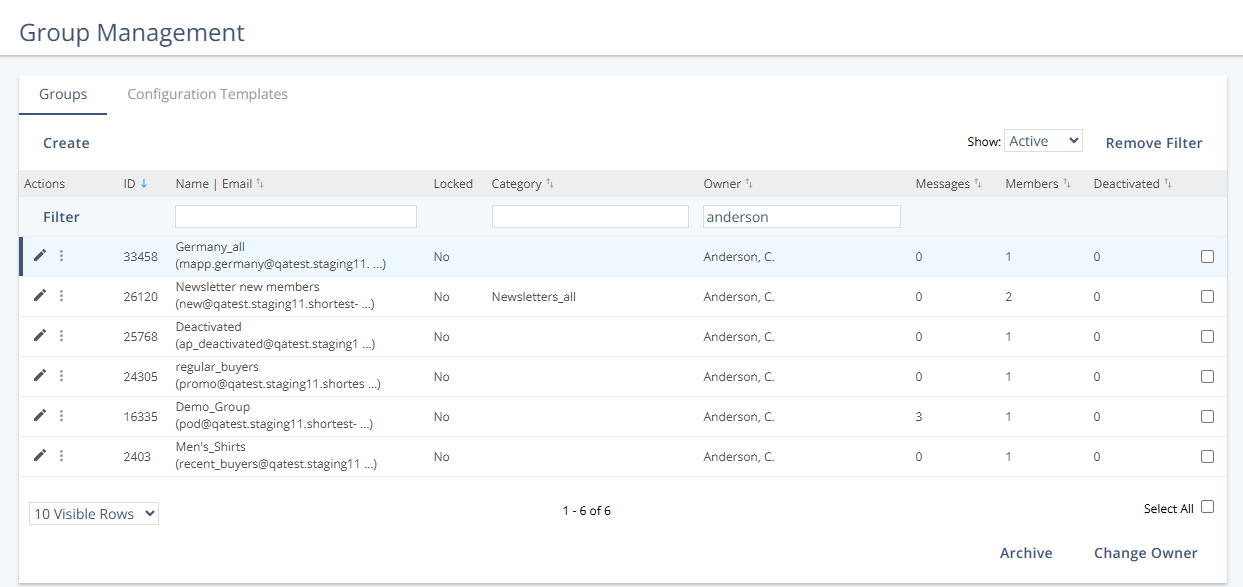
Actions
Access to some actions depends on the permissions assigned to the user’s system role.
Action | Description |
|---|---|
Create | Opens a view where a new group can be added. |
Change Settings | Opens a view to edit the group name and group-specific settings. Many sendout-related settings are managed at the group level. |
View Statistics | Opens contact statistics for the group, including membership development, daily changes, and the number of active and deactivated members. |
Log in as Owner | Opens a login view that allows access with the permissions of the group owner, supporting troubleshooting activities. |
Copy Group | Creates a duplicate of the selected group with the same settings. A unique name and email address must be defined for the new group. |
Group Attributes | Opens a view to create, import, or edit group attributes. Group attributes store values that apply to all members of a group and are specific to that group. |
Delete | Deletes the selected group after confirmation. Deleted groups cannot be restored. |
Landing Pages | Opens the overview where landing pages assigned to the group can be viewed and edited. |
Members | Displays the list of contacts who are members of the group. |
Change Owner | Opens a view to assign a different owner to the group. The group owner has the highest permission level within the group. |
Group Information
The table in the Groups view displays key information for each group. Each row represents one group.
Item | Description |
|---|---|
ID | Unique identifier assigned automatically when the group is created. The ID can be used to locate the group in the system. |
Name | Name of the group as defined during creation. The group name can be changed at any time and is not necessarily the sender name used in email inboxes. |
Email address of the group, defined at creation and not editable afterward. This address is used for replies and deliverability processes and may differ from the visible sender address. | |
Locked | Indicates whether the group is temporarily locked. Locks prevent conflicting processes, such as running imports and sendouts at the same time. |
Category | Category assigned to the group to support organization. Only one category can be assigned at a time and can be changed or removed in the group settings. |
Owner | Displays the current group owner, who has the most extensive permissions within the group. |
Messages | Total number of messages sent using this group since its creation. |
Members | Total number of group members, including all membership statuses. |
Deactivated | Number of deactivated group members. |
Group Locks
Groups can be temporarily locked by the system to prevent conflicting actions. There are two lock types:
Exclusive lock: Indicates that data is being written to the group, such as during a contact or blacklist import. No other actions, including sendouts or exports, can run while this lock is active.
Shared lock: Indicates that the group data is in use, for example, during a sendout or export. Sendouts and exports are allowed, but imports are blocked.
Group locks do not prevent individual subscription actions. Contacts can still subscribe, and individual contacts can be added via the user interface or API while a group is locked.