This article focuses on using Real-Time Behaviors to create dynamic target groups for your marketing automation campaigns. Real-Time Behaviors primarily leverage data from a user’s current session to engage users based on their immediate actions. However, you can also use the Visitor scope to include historical data for more comprehensive targeting.
1 Introduction
Real-Time Behaviors enable you to target users based on live interactions on your website or app. By capturing user actions in real-time, you can engage users instantly with relevant messages. Additionally, the Visitor scope allows filtering based on actions taken in past visits, providing more flexibility beyond just the current session.
Examples:
Users with products worth over €300 in their cart who show exit intent.
Newsletter sign-ups: Users who subscribed either during the current visit or in a previous visit (using the Visitor scope)
Users who spend more than 20 seconds on a product page.
2 Available Scopes for Real-Time Behaviors
When creating real-time behaviors, you can choose from the following scopes:
Visitor Scope: Filters based on actions taken across multiple visits (e.g., past newsletter sign-ups).
Key Benefit: Useful for targeting users based on historical actions but limited to data collected after the filter is created.
Visit Scope: Filters actions taken within a single session (e.g., total cart value during a visit).
Key Benefit: Ideal for session-specific behaviors, such as cart abandonment or session engagement.
Page Scope: Applies filters to individual page views (e.g., time spent on a specific page).
Key Benefit: Perfect for page-specific interactions like scroll depth or time spent on product pages.
3 Use Cases for Real-Time Behaviors
A) Engaging High-Value Cart Abandoners
Scenario: Target users who show exit intent and have added products worth over €300 to their cart.
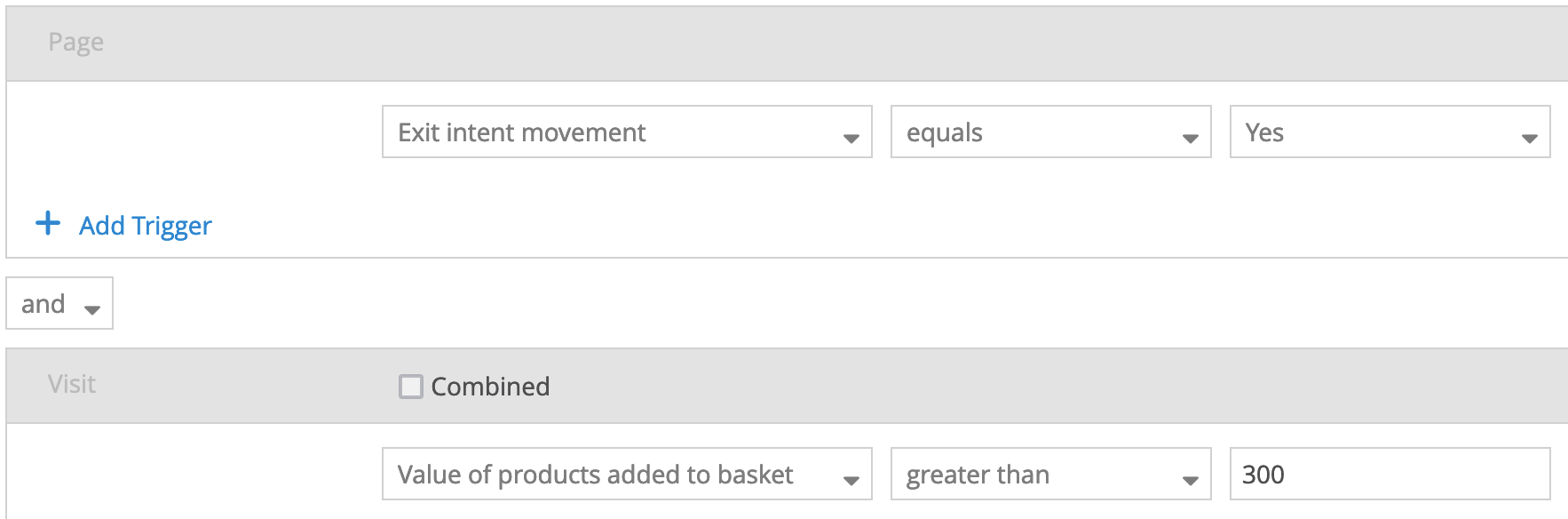
Action: Trigger a pop-up with a discount code to encourage purchase completion.
B) Showing a Custom Welcome Message for New Users
Scenario: Showing a Custom Welcome Message for New Users

Action: Display a welcome teaser or pop-up, such as:
“Welcome to [Your Brand Name]! Discover our exclusive collection and experience unmatched quality.”
Alternatively, emphasize your brand’s strengths: “Join thousands of satisfied customers who trust us for premium quality and fast, reliable service.”
C) Offering Assistance to Engaged Users on Product Pages
Scenario: Identify users who spend more than 20 seconds on a product page and proactively offer help through a chat prompt.
Action: Trigger a chat window offering assistance, such as: “Need help finding the right product? Chat with us!” This can help guide users who may be hesitating or have questions, potentially reducing abandonment rates.
D) Engaging Mobile Users with a Special Offer
Scenario: When a user is browsing on a mobile device, display a pop-up offering a mobile-exclusive discount or content to encourage conversions.
Action: Show a pop-up with a mobile-specific offer, such as:
“Mobile Exclusive: Free shipping on orders placed today!”
Alternatively, offer a teaser to download your app if it enhances the mobile experience.
E) Triggering a Pop-Up for Engaged Scrollers
Scenario: When a user scrolls down 50% of the page, show a pop-up asking if they need help or offering additional content.
Action: Display a pop-up message like:
“Looking for something specific? Chat with us!”
Or, promote a special offer: “You’ve unlocked a 15% discount! Use code SCROLL15.”
4 Creating Real-Time Behaviors
To set up a new real-time behavior, follow these steps to define target groups based on live user interactions:
Step 1: Navigate to the Real-Time Behavior Configuration
Go to Marketing Automation > Target Groups > Real-Time Behaviors.
Click on Create a New Real-Time Behavior.
Step 2: Select the Appropriate Scope
You can choose from the following scopes based on your targeting needs:
Visitor Scope: Filters based on actions taken across multiple visits.
Visit Scope: Filters actions taken within a single session.
Page Scope: Applies filters to individual page views.
Step 3: Define Your Filters and Conditions
When creating a real-time behavior, you have two options:
Select a predefined real-time behavior from the list.
These predefined behaviors serve as quick-start templates that include commonly used triggers, such as:
New Visitor
New Visitor Attempts to Leave Website
Visitors with High Cart Value
Once you select a predefined behavior, you will see the default filter configuration. You can then add additional filters to refine it further.
This is a great way to quickly set up common scenarios and customize them to fit your specific needs.
Create a new real-time behavior from scratch:
Manually select filters and set conditions based on your campaign requirements.
Use available filters such as exit intent, time spent on page, or device type.
Combine filters using “AND” / “OR” operators to create complex conditions.
Using Custom JavaScript Triggers
With the Custom JavaScript feature, you can define highly specific triggers using your own JavaScript functions. This is particularly useful for scenarios where predefined triggers are insufficient.
Example: The following example demonstrates how various JavaScript functions can be used to dynamically extract content, including reading the page title from the HTML, checking for specific text within the document title, and retrieving the number of search results displayed on the page..png)
How It Works
Custom JavaScript allows you to execute JavaScript functions and use their returned values for targeting. Depending on the return type of your JavaScript function, you can select one of the following trigger types:
String Comparison: For functions that return string values.
Example: document.querySelector('.base').innerHTML contains “Weather.”
Boolean Check: For functions that return true or false.
Example: document.title.indexOf('Capri') !== -1 checks if the title contains the word “Capri.”
Numeric Comparison: For functions that return numeric values.
Example: document.querySelector('.search .toolbar .toolbar-number').textContent is greater than 10.
4.1 Advanced Filtering Techniques
To refine your targeting and create more sophisticated real-time behaviors, you can leverage filters, containers, and logical operators. Below are some advanced techniques to optimize your configurations.
A. Combining Filters with “AND” and “OR”
Filters can be linked using “AND” and “OR” operators to create more complex conditions.
Example: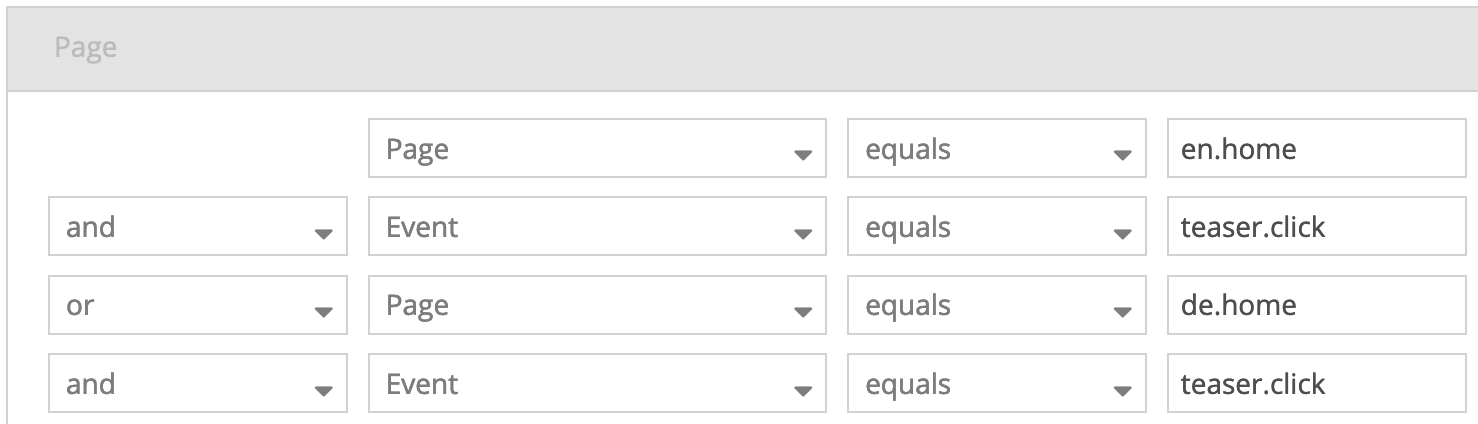
This condition means:
On page en.home we tracked the event teaser.click, OR
On page de.home we tracked the event teaser.click
Bracketing is applied automatically:
[Page = en.home AND Event = teaser.click] OR [Page = de.home AND Event = teaser.click]B. Using Containers for Separate Conditions
Containers allow you to group filters and process them separately, which affects how conditions are evaluated.
Example: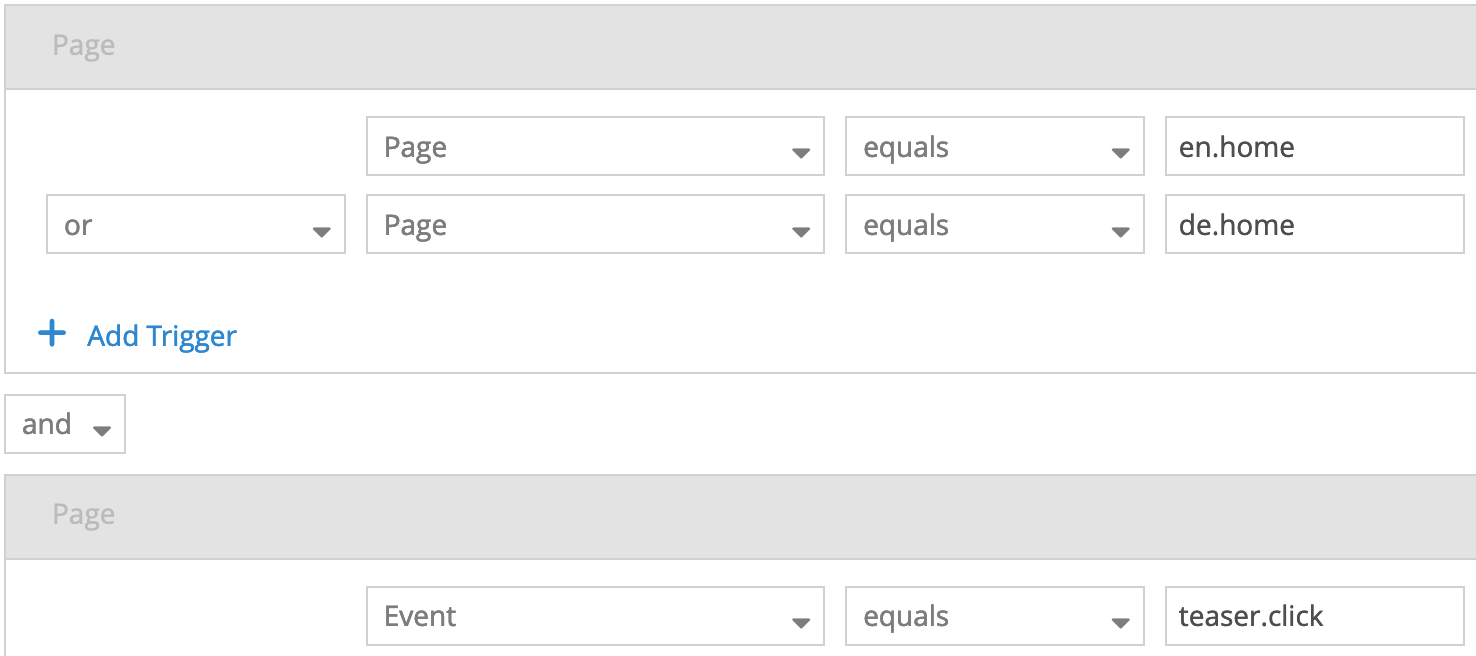
This condition means:
On page en.home OR page de.home we tracked the event teaser.click
The logic is:
[[Page = en.home] OR [Page = de.home]] AND [Event = teaser.click]]Explanation: The conditions in each container are processed separately. This enables more granular control over the targeting logic.
C. Directly Combining Filters in the “Visit” Scope
In the Visit scope, you can combine multiple filter rules using the “Combined” checkbox.
Important:
You must activate the “Combined” checkbox when you initially select the Visit scope.
Once filters are added, it’s no longer possible to activate the Combined checkbox. If you need to use this feature, ensure you select the checkbox before adding any filters.
Example:
With Combined Option: ALL products must belong to the sports category.

Without Combined Option: ONE of the products must be from the sports category.

Note: Only one metric can be used in containers with combined filters.
D. Combining Containers with Different Scopes
You can combine filters across different scopes (e.g., Visit and Page) to create highly specific conditions.
Example: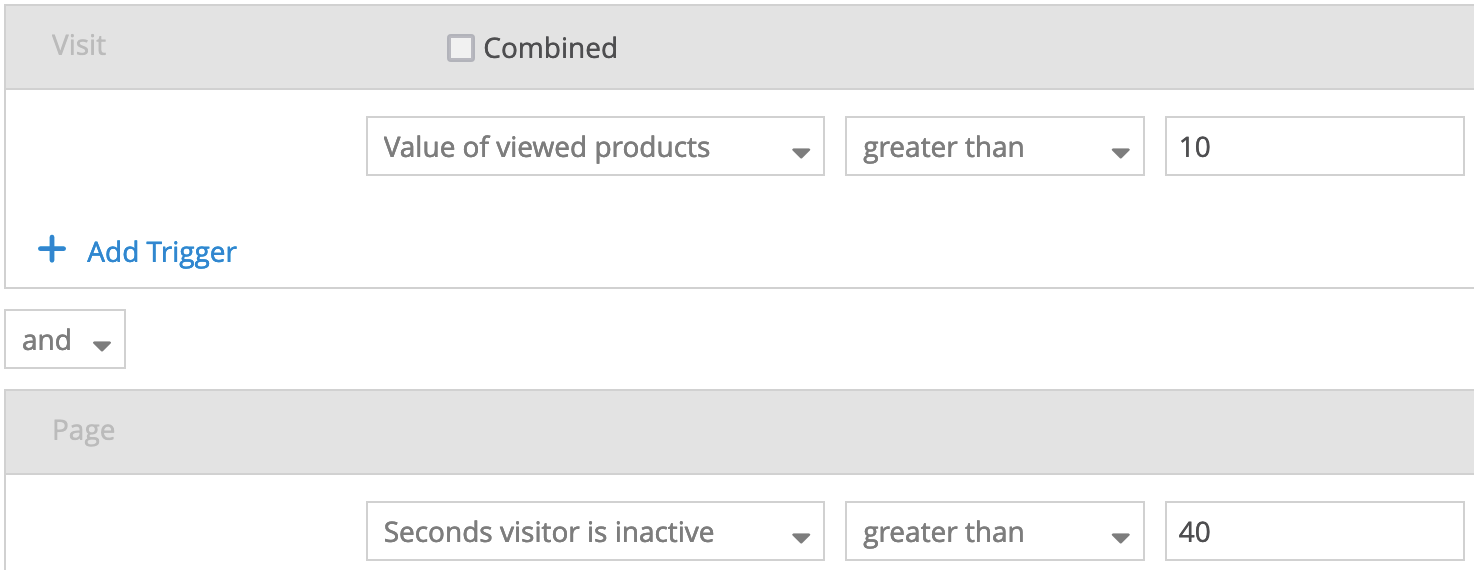
The condition is interpreted as: The visitor must have viewed more than 10 products within a visit AND must have been inactive on a page for more than 40 seconds.
5 A selection of available filters
Filter | Description | Filter input | Available for |
|---|---|---|---|
Exit intent movement | The mouse pointer has left the plane. The user wants to leave! | Yes | No | Page |
New visitor | Is it new visitor or a returning visitor? More information here. | Yes | No | Page | Visit |
Browser tab looses visitor focus | The tab with your website has lost the user’s attention and the user is looking at another tab or application. | Yes | No | Page |
Browser tab gains visitor focus | focus eq 1 -> Your tab has gained focus, the user has returned to it either from another tab or another application. | Yes | No | Page |
Visitor scrolls up | The user is scrolling up | Yes | No | Page |
Visitor scrolls down | The user is scrolling down | Yes | No | Page |
Seconds visitor is inactive | The number of seconds the visitor was inactive on the page (e.g., no mouse movements, clicks, or keyboard inputs). If the visitor switches to another tab or application, the inactivity timer will not continue to increment. | [Figure] | Page |
Seconds visitor is engaged | The number of seconds the visitor actively engages with the page (e.g., key presses, scrolls, mouse movements, and window focus). This timer tracks user interactions while the page is in focus. | [Figure] | Page |
Seconds visitor time on page | The total number of seconds a visitor has spent on the current page, including both active engagement and passive viewing. This timer starts as soon as the page is loaded and continues to count until the visitor leaves or navigates away from the page. | [Figure] | Page |
Value of viewed products | The monetary value of the products viewed by a visitor. Depending on the selected scope, this can either represent the value of a single product on the current page (Page scope) or the cumulative value of all products viewed during the entire session (Visit scope). This filter allows you to target users based on the product values they have shown interest in. | [Figure] | Page | Visit |
Event name | Name of the event (e.g. name of the link) | [Text] | Page | Visit |
Number of viewed products | Number of products seen in the session | [Figure] | Visit |
Avg. value of viewed products | The avg. Value of products seen in session. | [Figure] | Visit |
Seconds since last product view | The number of seconds that have passed since the visitor last viewed a product. This timer resets each time a product is viewed and measures the duration since the most recent product interaction. | [Figure] | Page |
Value of products in basket | Represents the monetary value of products in the visitor’s shopping basket. If the Page scope is selected, this filter reflects the value of products added to the basket on the current page. If the Visit scope is used, it shows the cumulative value of all products added to the basket throughout the entire session. This filter is ideal for targeting users based on their basket value to encourage conversions. | [Figure] | Page | Visit |
Number of products in basket | Number of products added to the basket in the session | [Figure] | Visit |
Avg. value of products in basket | The avg. value of products added to the basket in session. | [Figure] | Visit |
Seconds since last product added to basket | Seconds passed since last product added. | [Figure] | Page |
Value of purchased products | The value of ordered products | [Figure] | Page | Visit |
Number of purchased products | Number of products ordered in the session | [Figure] | Visit |
Avg. value of purchased products | The avg. value of products ordered to the basket in session. | [Figure] | Visit |
Seconds since last product purchase | seconds passed since last product ordered. | [Figure] | Page |
Product category | Contains all product-categories regardless of product status. Usually equal to product-viewed-category. | [Text] | Page | Visit |
Category of viewed products | Captures the categories of products that a visitor has viewed. If the Page scope is selected, this filter identifies the categories of products viewed on the current page. If the Visit scope is used, it includes all product categories viewed during the entire session. This filter allows you to target users based on the types of products they have shown interest in, enabling personalized recommendations or promotional offers. | [Text] | Page | Visit |
Category of products in basket | Captures the categories of products currently added to the visitor’s shopping basket. If the Page scope is selected, this filter identifies the categories of products added on the current page. If the Visit scope is used, it includes all product categories added to the basket during the entire session. This filter can be used to target users based on the types of products they are interested in purchasing, allowing for personalized promotions or incentives to complete their purchase. | [Text] | Page| Visit |
Category of purchased products | Captures the categories of products that a visitor has purchased. If the Page scope is selected, this filter identifies categories of products purchased on the current page. If the Visit scope is used, it includes all product categories purchased during the entire session. This filter helps you target users based on the types of products they have bought, enabling personalized follow-up campaigns or recommendations. | [Text] | Page | Visit |
Product name | Captures the name of a specific product that a visitor has interacted with. Depending on the selected scope, this can refer to a product viewed, added to the basket, or purchased on the current page (Page scope) or throughout the entire session (Visit scope). This filter is ideal for targeting users who engage with specific products, allowing for personalized messaging and promotions. | [Text] | Page | Visit |
Name of viewed products | Captures the names of products that a visitor has viewed. If the Page scope is selected, this filter identifies products viewed on the current page. If the Visit scope is chosen, it includes all products viewed during the entire session. This filter allows you to target users based on the specific products they have shown interest in, enabling personalized recommendations or follow-up messages. | [Text] | Page | Visit |
Name of products in basket | Captures the names of products currently added to the visitor’s shopping basket. When the Page scope is selected, this filter refers to products added on the current page. When the Visit scope is used, it reflects all products added to the basket throughout the entire session. This filter can be used to engage users based on specific products they are interested in, helping to drive conversions. | [Text] | Page | Visit |
Name of purchased products | Captures the names of specific products that a visitor has purchased. Depending on the selected scope, this can either refer to the product purchased on the current page (Page scope) or any products purchased during the entire session (Visit scope). This filter allows you to target users based on the specific items they have bought. | [Text] | Page | Visit |
Page | Check whether a certain page was viewed | [Text] | Page | Visit |
Visitor scrolls on a page (percentage) | The percentage of the page a visitor has scrolled through, measured from the top to the bottom of the page. This filter tracks how far down the page a visitor scrolls, allowing you to target users who reach specific scroll depths (e.g., 50%, 75%, or 100%). | [Figure] | Page |
Visitor clicks on an element on the page | Tracks interactions when a visitor clicks on a specific element on the page. Use a CSS selector to identify the element, allowing you to trigger marketing campaigns based on user engagement with buttons, links, or other clickable components. Learn more here | [Text] | Page |