Introduction
Whiteboards are automation workflows in Mapp Engage. They help you coordinate marketing campaigns and system tasks, for example by sending personalized messages, managing group memberships, or running recurring jobs such as imports and reports.
Common Use Cases
Welcome and onboarding journeys: Send a personalized message when a contact subscribes to your newsletter or creates an account.
Campaign launches at a fixed time: Start a message campaign for a specific group of contacts on a given date and time.
Ongoing lifecycle campaigns: Run recurring programs, such as sending daily birthday greetings to contacts with upcoming birthdays.
Automated system operations: Schedule tasks such as importing contacts or generating reports without manual intervention.
Whiteboard Types and Templates
Whiteboard Types
Whiteboards are available in three main types: event-based, scheduled, and recurring. The type defines how and when contacts enter the automation.
Event-based whiteboards
React in real time to contact activities.
A typical example is sending a personalized message as soon as a contact subscribes to your newsletter.
For detailed configuration, see Create an Event-Based Whiteboard.
Scheduled whiteboards
Launch tasks automatically at a specific date and time
A typical example is launching a promotional campaign for a defined group of contacts on a specific date.
For detailed configuration, see Create a Scheduled Whiteboard.
Recurring whiteboards
Run campaigns automatically at regular intervals.
A typical example is sending daily birthday greetings to contacts with upcoming birthdays.
For detailed configuration, see Create a Recurring Whiteboard Plan.
System Whiteboards
Scheduled and Recurring whiteboards can also act as System whiteboards. In this mode, they run system task such as:
Importing contacts
Generating reports
For detailed configuration, see System Whiteboards.
Whiteboard Templates
Whiteboard templates provide ready-made flows for common scenarios across channels. Instead of starting from a blank canvas, you can select a template and adapt it to your needs. Templates are designed to:
Make the system easier to use for marketers and reduce barriers for new users.
Provide best-practice examples for experienced users.
Offer an alternative creation process that does not begin with an empty whiteboard.
Enable easy onboarding of new customers, for both the customer and the implementation team.
Support marketers in making campaign design decisions.
Reduce effort for services teams by decreasing the need to build individual whiteboards from scratch.
Available Templates
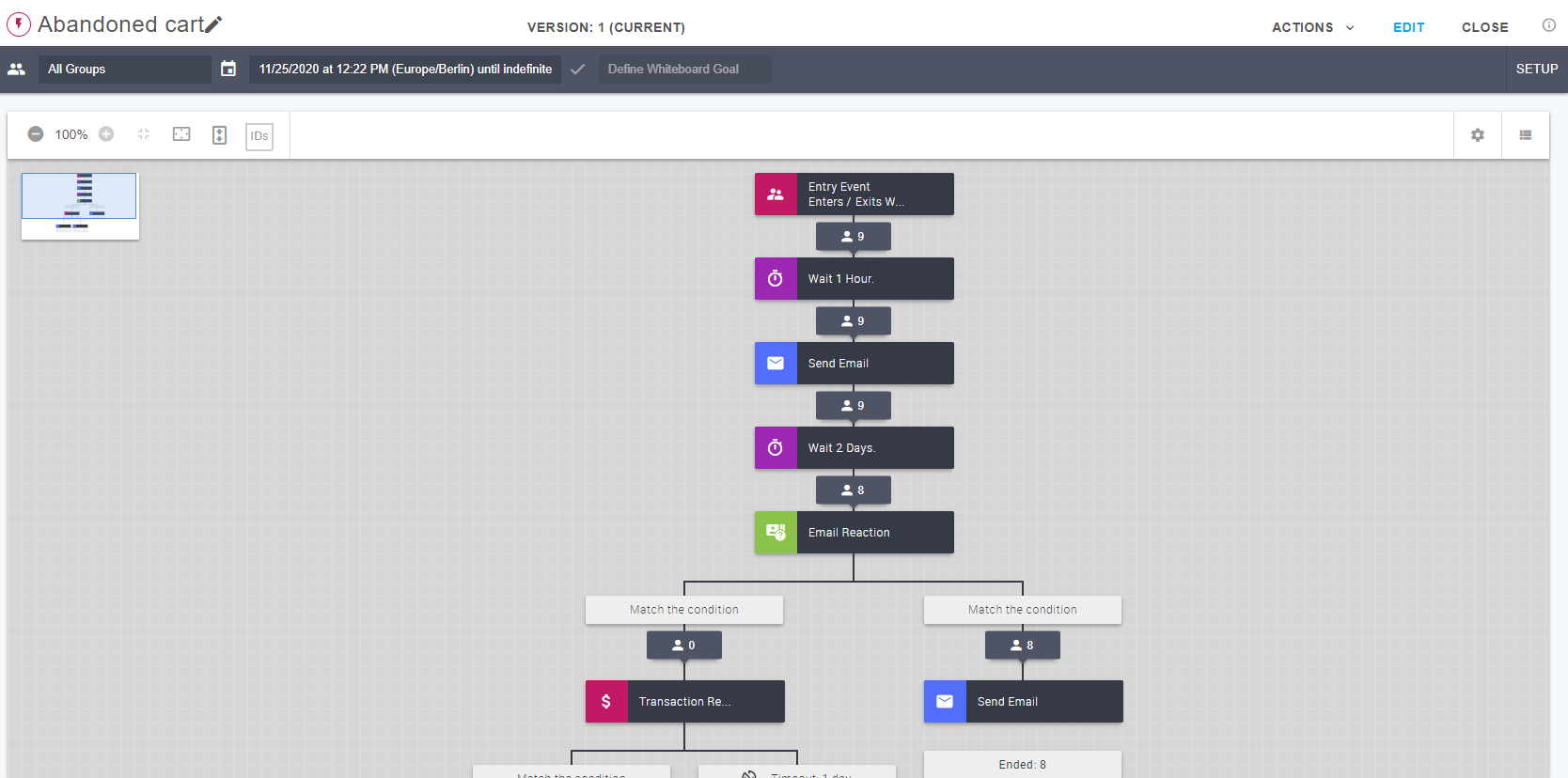
Abandoned Cart
Triggers when products are added to or removed from the cart. After a one-hour waiting period, the flow sends a follow-up email to encourage conversion.
For an example use case, see Set up a Simple Abandoned Cart Campaign.
Happy Birthday
Automatically sends contacts a message on their birthday to strengthen engagement and reinforce brand value.
For an example use case, see Birthday Email Sendout.
Welcome Message
Delivers a welcome message, typically when a contact first subscribes to a newsletter or joins your program. This helps create a positive first impression and initiates ongoing communication.
Set Up and Logic
General rules
Contacts move through the whiteboard step by step, without skipping or repeating steps.
Split paths allow contacts to follow different routes based on predefined conditions.
A Time element can introduce a delay between steps.
Every whiteboard starts with an event or job. You cannot place a delay or filter directly after the first event.
Real-time validation ensures that only compatible components are available while you build the flow.
To create, edit, or copy a whiteboard, you must have the required system permissions. If you do not have access, contact your Customer Success Manager or system administrator.
Components
Whiteboard flows consist of four main component types: Events, Jobs, Filters, and Time.
Events
Events react to contact actions. Typical examples include subscribing to a newsletter or interacting with a message. Events can also be used to split paths, routing contacts based on whether they complete the defined action.
Jobs
Jobs are actions performed when a contact reaches a step. Examples include sending a message, adjusting group memberships, or updating profile attributes.
Filters
Filters evaluate contact data or behavior before allowing contacts to continue. Filters can also be used to create splits. Available types include:
Segment: Filter by predefined segment criteria.
Email Reaction: Check whether an email was opened or clicked.
Attribute Value: Check profile attribute values.
Group Membership: Verify whether a contact is a member of a group.
Random Split: Distribute contacts randomly by percentage.
Time
Time elements delay the progression of contacts either until a specific date and time or for a defined duration.
Whiteboard Goals
Whiteboard goals define when a contact’s journey is considered complete. A goal can be triggered when a contact enters an audience, reacts to an email, or leaves a group.
When a contact reaches a goal, they are removed from the whiteboard. If a goal and a normal event contain the same condition, the goal takes priority.
Split Configuration
A split divides one path into two: a positive path and a negative path. Each contact follows one of the paths based on whether they perform the specified action.
Positive Paths
Contacts who meet the defined condition move to a positive path.
Conditions are evaluated from top to bottom.
Multiple positive paths can be added, each with its own criteria.
Negative Path
Contacts who do not meet any positive-path conditions move to the negative path.
A timeout defines how long the system waits for the action before evaluating paths.
Timeout units can be set in minutes, hours, days, or weeks, with a maximum duration of four weeks.
Whiteboard Versioning
When you edit an active whiteboard, a new version is created automatically.
The current version is being phased out, which means no new contacts will enter it.
Contacts already in the phased-out version finish their existing journeys.
Each version maintains separate statistics and reporting data.
Looking for a structured learning path?
Learn step by step in our Academy Course: Mapp Engage - Automating Campaign Flows with Whiteboards.
.png "grafik(33).png")