Description
Video block with Gif image fallback support. This is not compatible across all devices; however, support is growing, albeit very slowly. There are some excellent ways to utilise this block to feature it at its best. By utilising a few extra assets, the block can give the appearance of an embedded video for those clients that are not compatible.
You need to create 4 assets and their URLs before editing the Video block. All assets need to be uploaded to the Content Store, then save the URLs to a .txt file for later. The URLs can be found by selecting the asset and scrolling to the bottom of the page and copying the URL for Download: link.
Asset 1 – upload your video (short, low MB/GB file) to the content store.
Asset 2 - Upload what will be called the poster image to the content store. This could be an image of your video's opening screen, first slide, or some other call-to-action. Do not overlay a 'play icon' on the image; the system will do that automatically.
Asset 3 - Create the URL for where your video is hosted – youtube, landing page, or even the content store.
Asset 4 - Upload to the content store a fallback static image for all the email clients that do not support video in HTML email. This can be the same as the poster image above but add an overly 'play icon'.
Default block view
Desktop
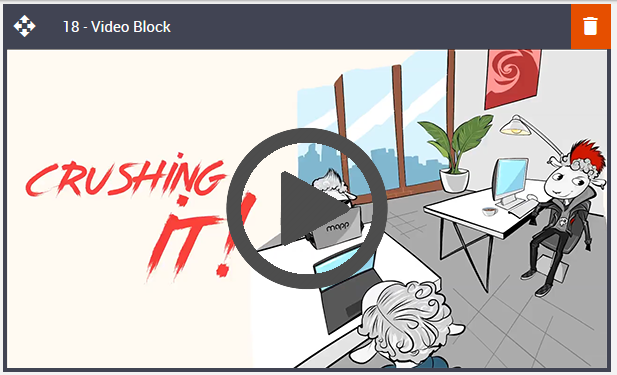
Mobile

Formatting options
Padding
As with all blocks, the Video block is no exception when it comes to padding. Padding is the space between the content of the block and its border. This can be edited in the Details Tab in the usual way.
Option | Details | Default |
| 0 |
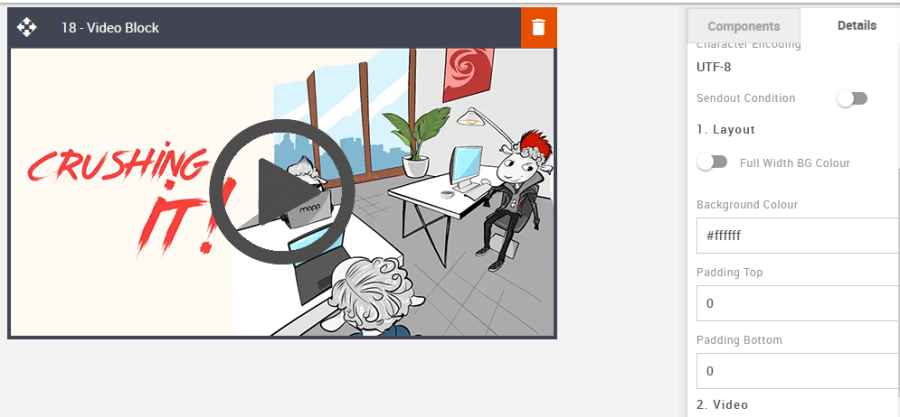
Block Background Color
Used to change the block background color. Only use HEX color values. HTML email only recognizes 6-digit long-hand versions and has patchy support for shorthand versions.
Option | Details | Default |
Background Color | Block Background Color | #ffffff |
Video URL (MP4)
Add the video URL for the asset from the to the Content Store. This is the same process for all assets.
Option | Details | Default |
Link | Video Link | https://amundsen.shortest-route.com/demo-dk/imgproxy/cont/2029110731/video-snip.mp4 |
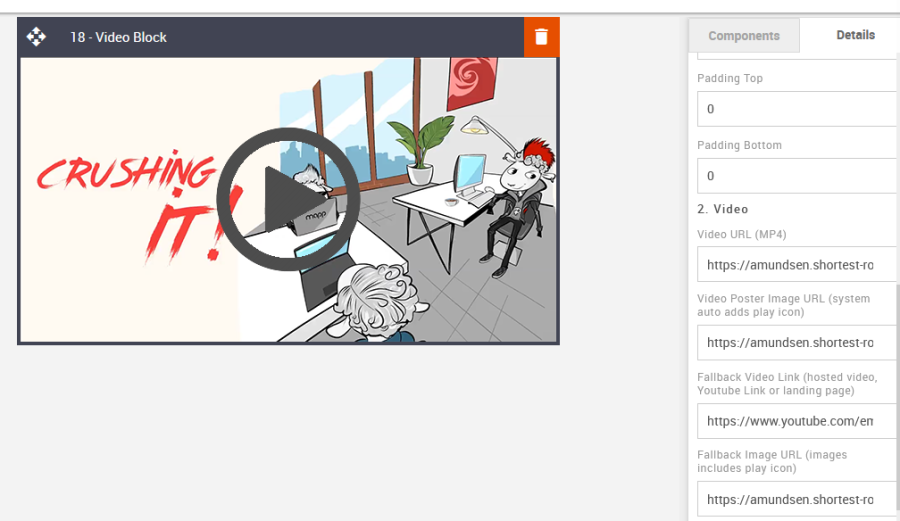
Video Poster Image URL
It allows you to apply a fallback image. This does not need a play icon.
Option | Details | Default |
Image | Video Poster Image URL (system auto adds play icon) | https://amundsen.shortest-route.com/cts-demo/imgproxy/img/2040410182/preview_image.png |
Fallback Video Link
Apply the link for where the video is hosted externally, like Youtube, your website, or a Mapp Engage landing page.
Option | Details | Default |
Links | Fallback Video Link (hosted video, YouTube link, or landing page) | https://www.youtube.com/embed/jfha5FPDBAk?rel=0&autoplay=1;fs=0;autohide=0;hd=0; |
Fallback Image URL
Add the static fallback image URL
Option | Details | Default |
Links | Fallback Image URL (image includes play icon) | https://amundsen.shortest-route.com/cts-demo/imgproxy/img/2040245173/video_poster.png |
Compatibility
As mentioned, there is limited support, but applying the fallback assets can give the appearance of an embedded video for all incompatible devices.
Interactive view
Desktop | Mobile |
|
|
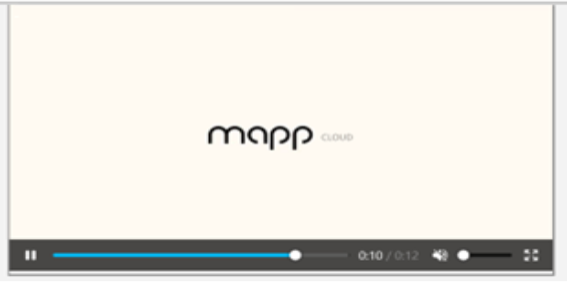
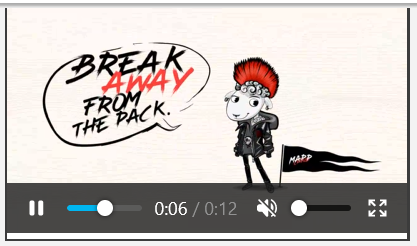
Fallback view
Desktop | Mobile |
|
|