Goal
Validate your campaign under real sendout conditions by sending it to a test group.
Note
This test sendout differs from a preview email. Preview emails are used for layout checks only.
Test sendouts simulate real sendout behavior, including tracking and personalization.
For details on preview options and personalization checks, see the Email Message: Preview online help.
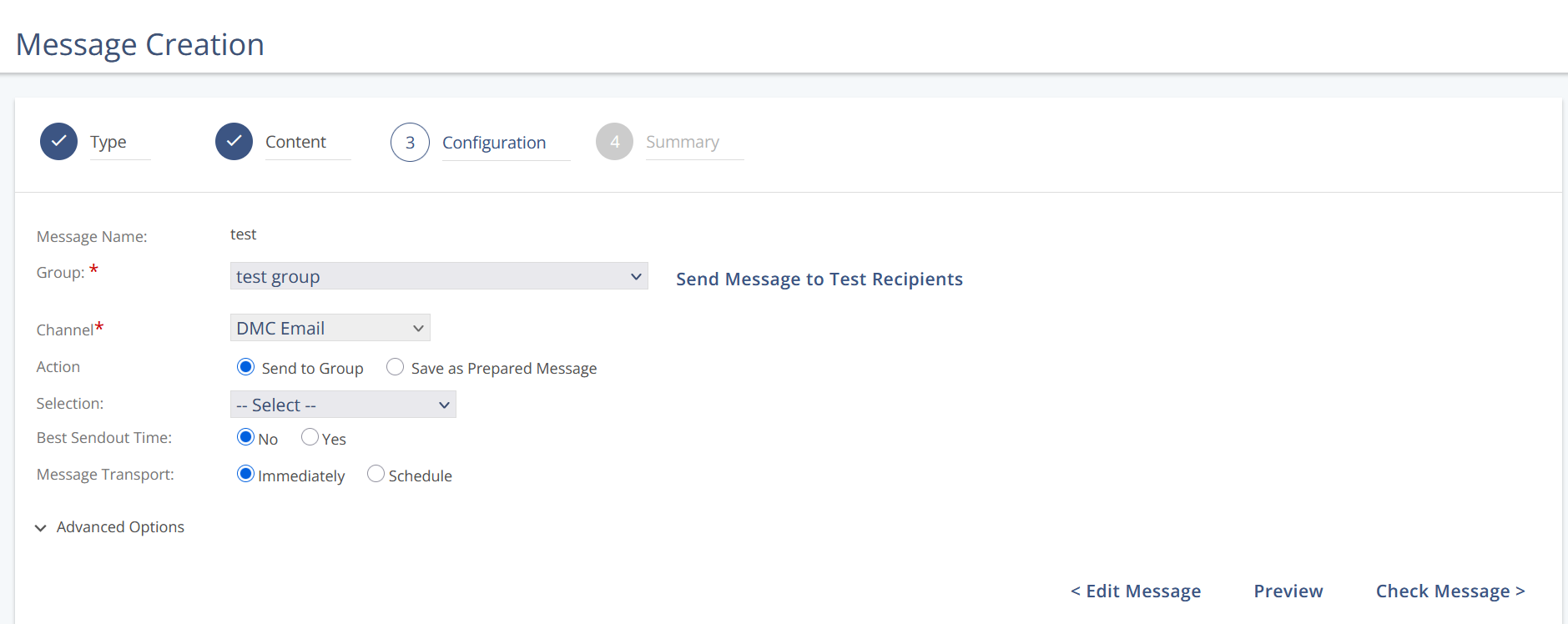
The test message creates an actual sendout:
The test email goes through a standard Mapp Engage sendout process. Mapp Engage applies group settings such as the From Address and To Address to create the test message.
Mapp Engage adds a tracking pixel to the email. You can view test sendout information and statistics.
During sendout, Mapp Engage personalizes the message for each test recipient in the group. The address in the Test Address input field does not affect the test sendout.
As in a normal sendout, all standard functionality is available for the test message:
Read Message Online link.
Unsubscribe link.
Forward Message link.
Mapp Engage Variables.
If the test sendout includes a coupon, Mapp Engage sends preview text, not actual coupon codes. You define the preview text when you create the coupon list. Actual coupons from the coupon list are never used for test or preview messages.
Prerequisites
The group you select for the sendout contains one or more test recipients.
Procedure
Create an email and follow the email creation process until Step 3 Configuration.
From the Group drop-down list, select the group to which the message is sent.
Click Send Message to Test Recipients.
Mapp Engage then sends the message to all test recipients in the selected group. After the sendout, information about the test sendout is available in the Outbox and the Statistics area of your Mapp Engage system.