1 Reports in the main menu
The report section in the main menu contains a link to the report overview as well as a list of the report favorites.
The report favorites can be expanded in order to show the containing elements of the type "Analysis" and directly navigate to the corresponding analyses.
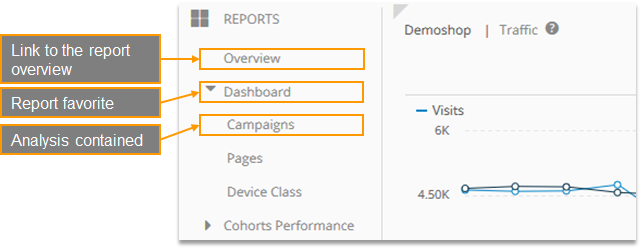
In the report overview, reports can be marked as favorites.
2 Report overview
The report overview lists all available reports and provides various functions.
Reports can be structured by using folders.
Often it is useful to cluster the reports by topics (e.g., folders for Marketing, Management) or by department.
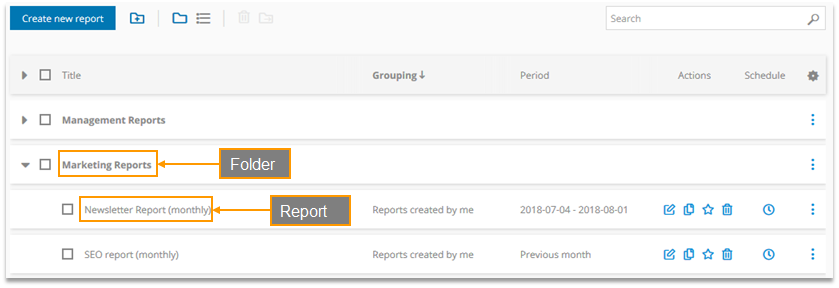
2.1 Report folders
Reports can be added to folders by doing one of the following things:
Dragging & Dropping the report in the corresponding folder
Choosing the folder in the report options
Selecting the reports and clicking on the following symbol:
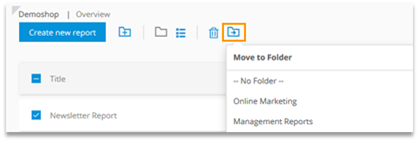
Each report can be stored in exactly one folder.
New folders can be created by clicking on the corresponding symbol.

Empty folders (i.e., folders that do not contain a report) cannot be saved.
In the report overview, reports can be shown with and without folders.

Folders can be renamed or removed using the extended options.

2.2 Columns
Several information can be shown by selecting different columns, for example: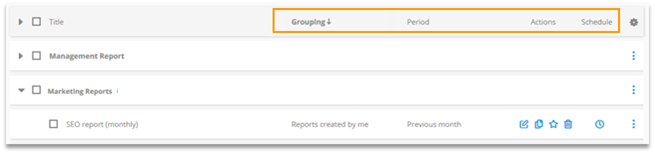
Categories: Allows for sharing reports with other users
Grouping: e.g. Reports created by me, Reports shared with me, Mapp Reports…
Created at/by
Last edited by/at: Shows by whom and when the report has last been
saved within the Edit mode, or
moved to another folder.
Auto-Refresh: Allows to update the report automatically with each raw data update. If activated, also images in dynamic boxes will be updated. Can only be activated for a limited number of reports.
Dispatch: Allows you to access dispatch schedules
Using the table configuration, you can choose which information is shown.
You can export this data in the User Management. |
|---|
2.3 Sorting and Search
Sorting
You can sort ascending or descending for a column by clicking on it. The sorting is saved for each user and account.

Search
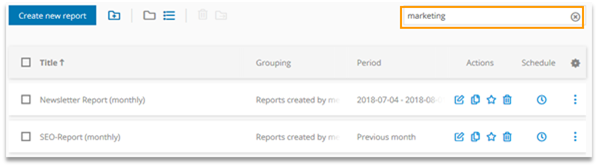
You can search for the Title, Description, Category and Folder.
The result is shown as list.
2.4 Actions and Other Options
For reports, you can perform the following actions:
Actions

Edit
Add to favorites: The report is shown in the main menu.
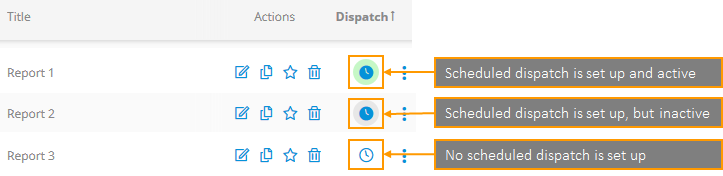
Dispatch

Opens the dispatch schedules overview
The clock symbol can have three different statuses:
Other options
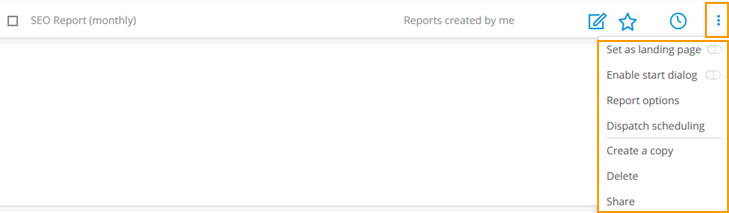
Set as landing page: The report is shown directly after logging in to Mapp Intelligence.
Enable start dialog: Allows for adapting the time period and report filters before the calculation starts.
Report options: Opens the report options.
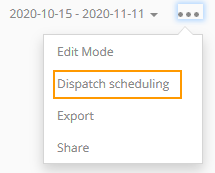
Dispatch scheduling: Opens the dispatch schedules overview.
Create a copy: Enables you to copy the report, also across accounts. The used filters can be adapted.
Delete
Share: Creates a link that allows to directly access the report. To access the report, it is necessary to login to Mapp Intelligence.
2.5 Selecting more than one report
Reports can be selected by clicking on the checkboxes.
Reports selected that way can altogether be deleted or moved to another folder.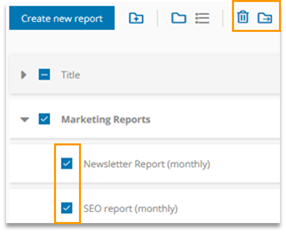
3 Report view
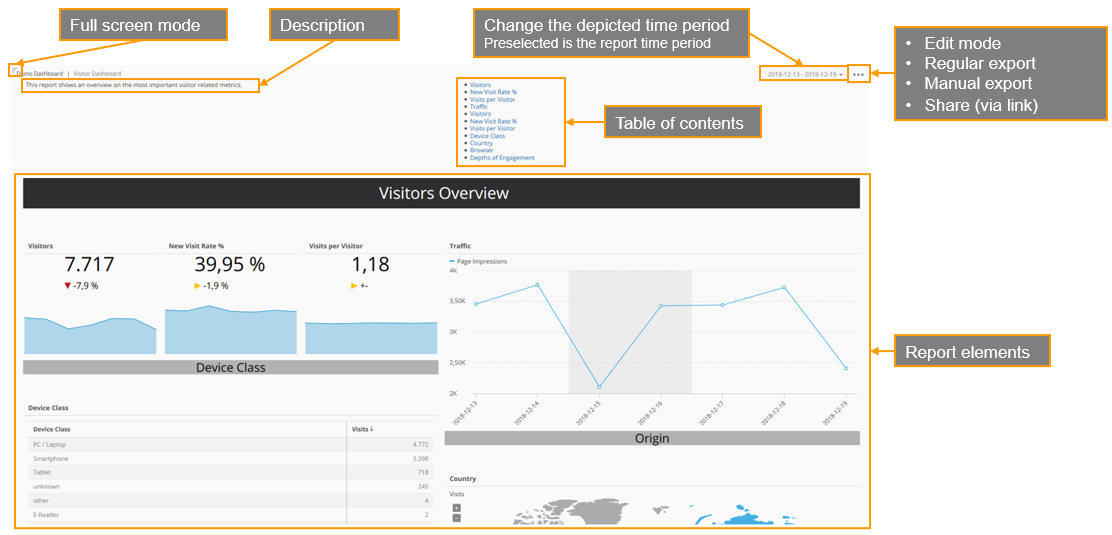
The report view shows the report content and offers various options.
If a report contains report filters, all elements can be limited to these filters.
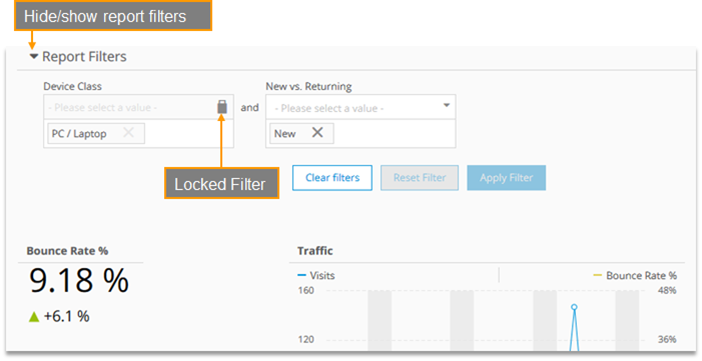
You cannot edit a filter with a lock symbol next to it within the report view. This is a locked filter that can only be edited in the Edit mode.
Changes made to filters in the view mode are not saved permanently. To save them permanently, you have to switch to the "Edit" mode.
You can hide or show the whole report filter area.
4 Regular export
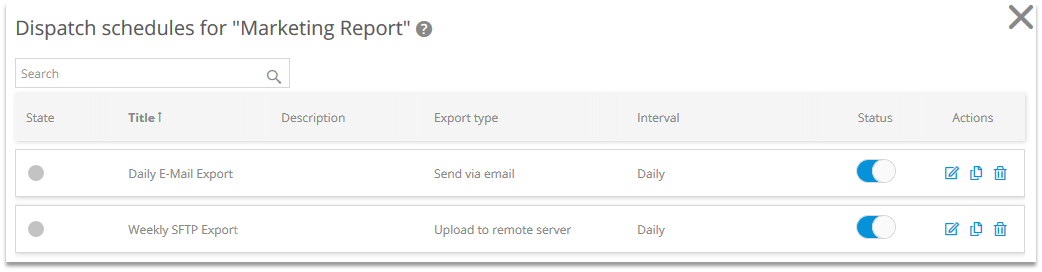
At dispatch scheduling, you can set up a regular, automated export via e-mail or to a server.
For each report, you can set multiple dispatch schedules - for example, one to export the report daily, and one to export it weekly.
Export formats: CSV, Excel, PDF
Only in PDF files diagrams, visualizations, dynamic boxes and, if shown, report filters are depicted.
More information can be found in this How-To. |
|---|
Saved report filters are applied in exports.
5 Manual export
In the report view, reports can be exported ad-hoc as e-mail or download.

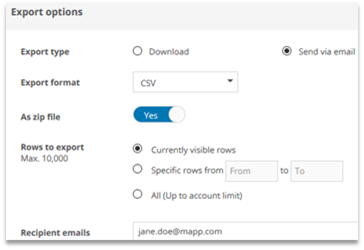
Export formats: CSV, Excel, PDF
Only in PDF files diagrams, visualizations, dynamic boxes and, if shown, report filters are depicted.
6 Sharing via Link
In the report view, you can copy a link to this report. This way, you can share the report by sending the link to other Mapp Intelligence users.
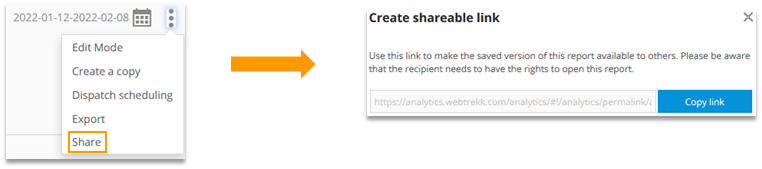
When clicking the link, the user is forwarded to the report when he logged in.
Please note that the user must have access to the report. This can be configured in the report options by assigning the report to a category.