Overview
In the Build step of AMP Email creation, you define your message content using AMP HTML and fallback HTML. You can also preview your message for specific devices or contacts, and validate your code before moving to delivery. This step is essential for ensuring both interactivity and compatibility of your email message.
For a conceptual overview of email message types and the overall email creation workflow, see the Email Channel Basics.
Navigation path
During email creation, follow the message creation process until you reach Build.
.png)
1 Building Tools
1.1 Personalization
Personalization ${…} inserts dynamic content into the subject line, AMP HTML, or fallback HTML.
.png)
1.2 Emojis
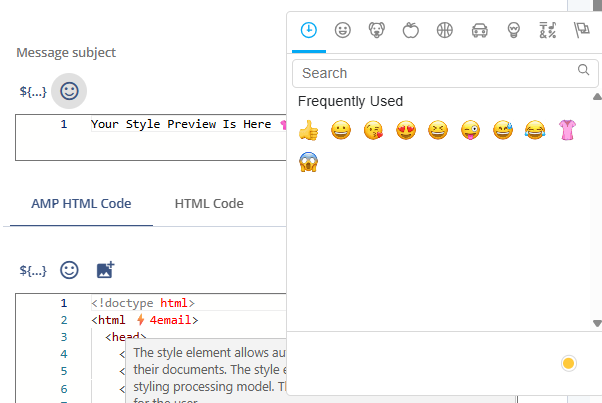
The  icon opens an emoji selector for use in subject lines, AMP HTML, and fallback HTML.
1.3 Images
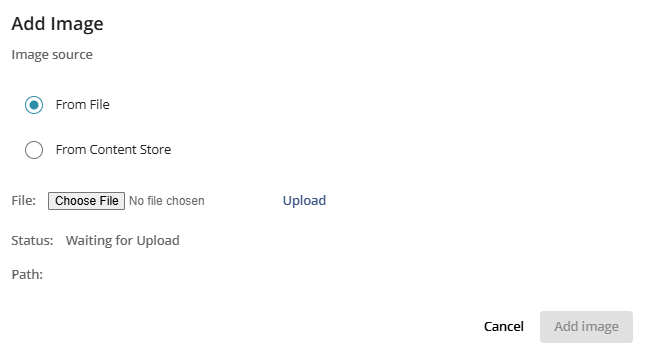
The  icon opens a pop-up to add or upload images from the Content Store to AMP or fallback HTML.
1.4 AMP HTML Code
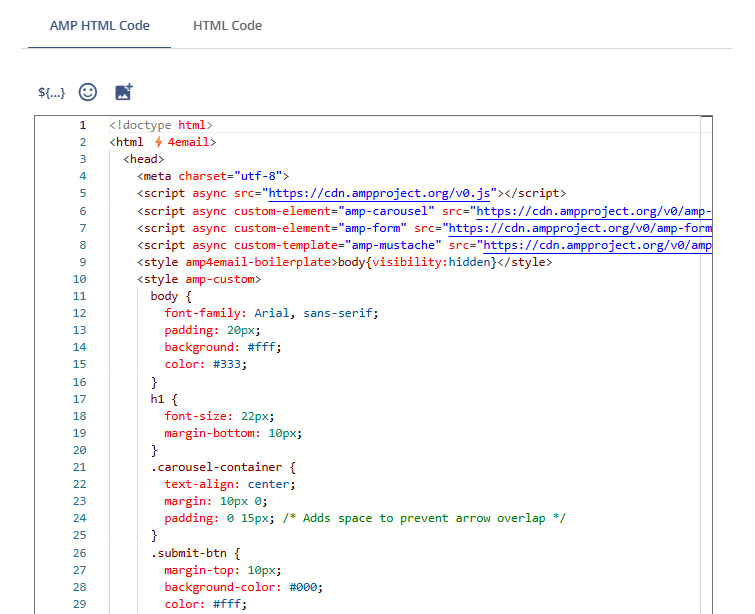
Panel for entering the interactive AMP HTML version of the email.
Example:
Sample AMP HTML Code
<!doctype html>
<html ⚡4email>
  <head>
    <meta charset="utf-8">
    <script async src="https://cdn.ampproject.org/v0.js"></script>
    <script async custom-element="amp-carousel" src="https://cdn.ampproject.org/v0/amp-carousel-0.2.js"></script>
    <script async custom-element="amp-form" src="https://cdn.ampproject.org/v0/amp-form-0.1.js"></script>
    <script async custom-template="amp-mustache" src="https://cdn.ampproject.org/v0/amp-mustache-0.2.js"></script>
    <style amp4email-boilerplate>body{visibility:hidden}</style>
    <style amp-custom>
      body {
        font-family: Arial, sans-serif;
        padding: 20px;
        background: #fff;
        color: #333;
      }
      h1 {
        font-size: 22px;
        margin-bottom: 10px;
      }
      .carousel-container {
        text-align: center;
        margin: 10px 0;
        padding: 0 15px; /* Adds space to prevent arrow overlap */
      }
      .submit-btn {
        margin-top: 10px;
        background-color: #000;
        color: #fff;
        border: none;
        padding: 10px 20px;
        font-size: 16px;
      }
      select {
        padding: 8px;
        margin-top: 10px;
        width: 100%;
        max-width: 250px;
      }
    </style>
  </head>
  <body>
    <h1>✨ Discover Our Latest Fashion Picks</h1>
    <p>Swipe through the top styles of the season and let us know your favorite look!</p>

    <div class="carousel-container">
      <amp-carousel width="220" height="200" layout="fixed" type="carousel">
        <amp-img src="https://ultimate.mapp.com/media/catalog/product/cache/3858a3811164e28a74b80979797998ab/t/u/tuc135493834-yellow_r_z001a_1.jpg" width="200" height="200" alt="Look 1"></amp-img>
        <amp-img src="https://ultimate.mapp.com/media/catalog/product/cache/3858a3811164e28a74b80979797998ab/t/u/tuc135732428-multi-coloured_r_z001a_3.jpg" width="200" height="200" alt="Look 2"></amp-img>
        <amp-img src="https://ultimate.mapp.com/media/catalog/product/cache/3858a3811164e28a74b80979797998ab/t/u/tuc136119748-grey_r_z001a_3.jpg" width="200" height="200" alt="Look 3"></amp-img>
      </amp-carousel>
    </div>

    <form method="post" action-xhr="https://example.com/submit-style">
      <label for="style">Which look do you love most?</label><br />
      <select name="style" id="style" required>
        <option value="">Choose one</option>
        <option value="look1">Look 1</option>
        <option value="look2">Look 2</option>
        <option value="look3">Look 3</option>
      </select><br /><br />
      <input type="submit" value="Submit" class="submit-btn" />
      <div submit-success>
        <template type="amp-mustache">
          <p>Thanks for your feedback! 💖</p>
        </template>
      </div>
      <div submit-error>
        <template type="amp-mustache">
          <p>Oops! Something went wrong. Please try again.</p>
        </template>
      </div>
    </form>
  </body>
</html>
1.5 HTML Code
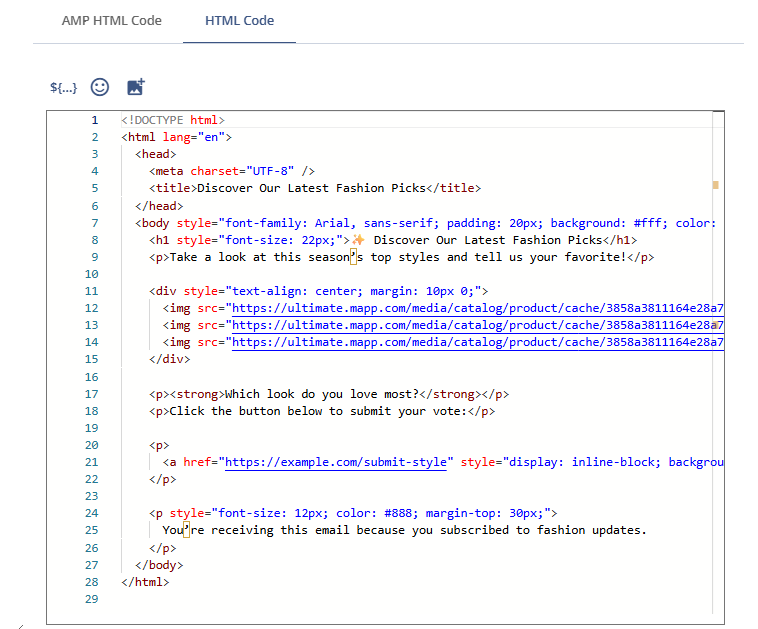
Panel for entering the fallback HTML shown to recipients who can’t view AMP content.
Example:
Sample HTML Code
<!DOCTYPE html>
<html lang="en">
  <head>
    <meta charset="UTF-8" />
    <title>Discover Our Latest Fashion Picks</title>
  </head>
  <body style="font-family:Arial, sans-serif;padding:20px;background:#fff;color:#333;">
    <h1 style="font-size:22px;">✨ Discover Our Latest Fashion Picks</h1>
    <p>Take a look at this season’s top styles and tell us your favorite!</p>

    <div style="text-align:center;margin:10px 0;">
      <img src="https://ultimate.mapp.com/media/catalog/product/cache/3858a3811164e28a74b80979797998ab/t/u/tuc135493834-yellow_r_z001a_1.jpg" alt="Look 1" width="150" height="200" style="margin:5px;object-fit:cover;" />
      <img src="https://ultimate.mapp.com/media/catalog/product/cache/3858a3811164e28a74b80979797998ab/t/u/tuc135732428-multi-coloured_r_z001a_3.jpg" alt="Look 2" width="150" height="200" style="margin:5px;object-fit:cover;" />
      <img src="https://ultimate.mapp.com/media/catalog/product/cache/3858a3811164e28a74b80979797998ab/t/u/tuc136119748-grey_r_z001a_3.jpg" alt="Look 3" width="150" height="200" style="margin:5px;object-fit:cover;" />
    </div>

    <p><strong>Which look do you love most?</strong></p>
    <p>Click the button below to submit your vote:</p>

    <p>
      <a href="https://example.com/submit-style" style="display:inline-block;background-color:#000;color:#fff;text-decoration:none;padding:10px 20px;font-size:16px;">Vote Now</a>
    </p>

    <p style="font-size:12px;color:#888;margin-top:30px;">
      You’re receiving this email because you subscribed to fashion updates.
    </p>
  </body>
</html>
2 Preview Tools
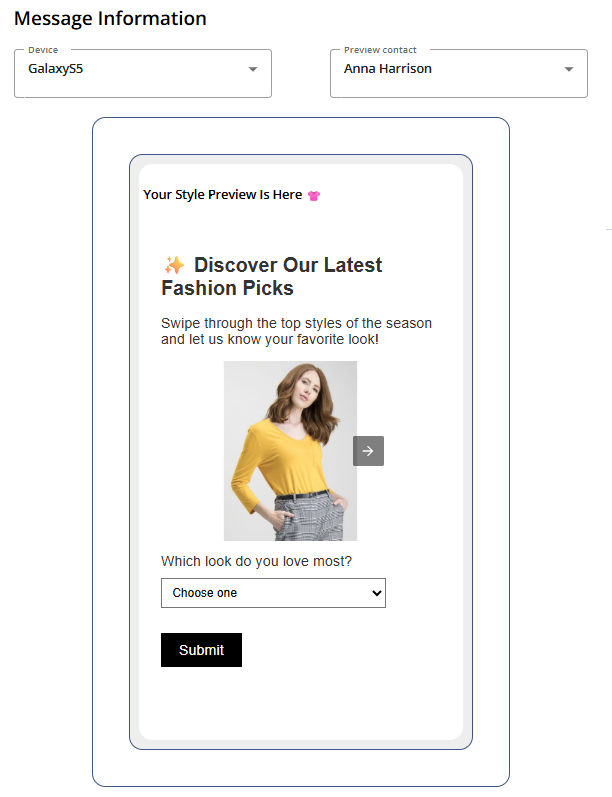
2.1 Device
Lets you preview the message on different devices.
2.2 Preview contact
Lets you preview how the message will appear for a specific contact.
2.3 Example
3 Error Indicators
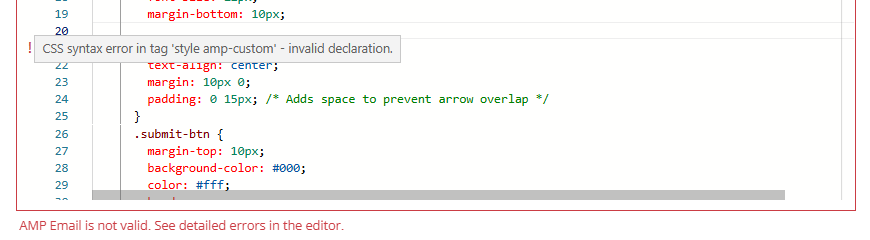
Highlight issues in your code with an exclamation mark and an explanatory comment:
A comment appears below the editor
An exclamation mark appears next to the erroneous code line
Hovering over the exclamation mark reveals details about the error
Example:
4 Next Step
AMP Email Message Creation: Delivery