Attribute enumeration allows for efficient organization and usage of attribute values by restricting input to predefined options. This guide explains how to create, edit, or remove enumerations for custom attributes in Mapp Engage.
Overview
Enumeration enables defining specific values for custom attributes, which can be used throughout the system. Enumerated attributes provide the following benefits:
Appear as drop-down options in tools like the Segmentation Builder.
Ensure data consistency by restricting input values.
Prerequisites
A custom attribute must exist in the system.
Standard attributes and Boolean-type profile attributes cannot be enumerated.
Enabling Enumeration
Navigate to Administration > Attributes.
Create a new attribute, or click
 to edit an existing one.
Activate the toggle switch to enable Enumeration.
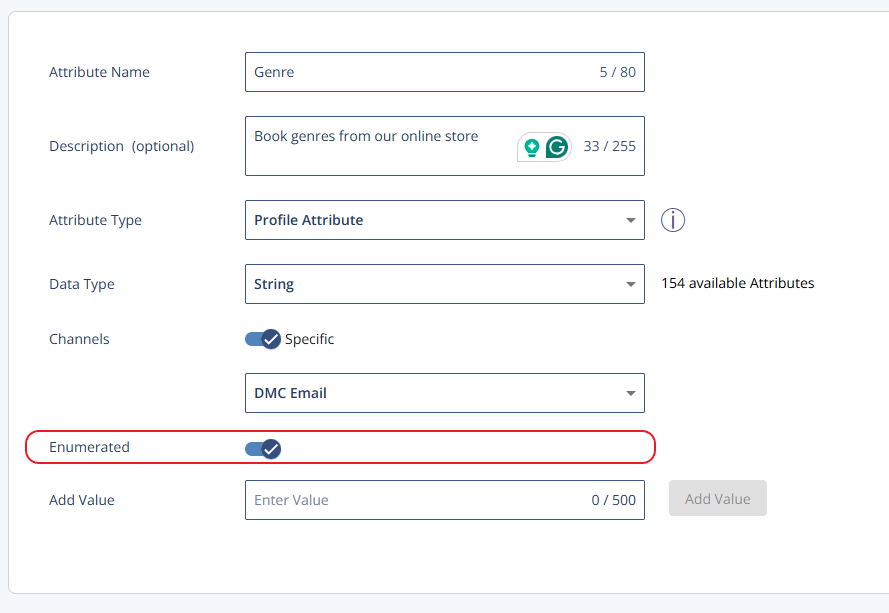
Click Save & Close.
Managing Enumeration Values
You can add or delete values in an existing enumerated attribute.
Adding Values
Once the enumeration is enabled, you can add the values one by one in the Add Value input field:
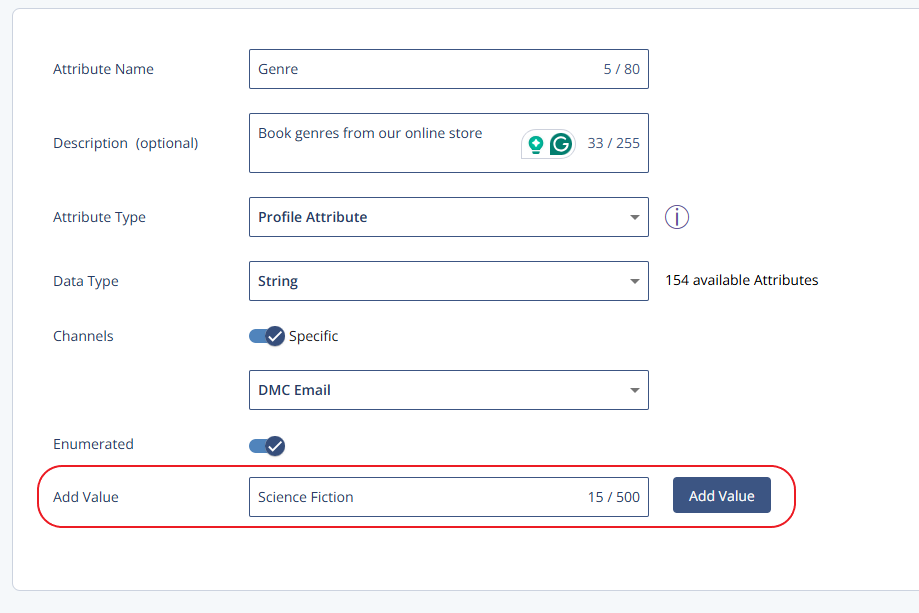
Click Add Value, then Save & Close.
Deleting Values
To delete enumeration values, click the x sign next to it:
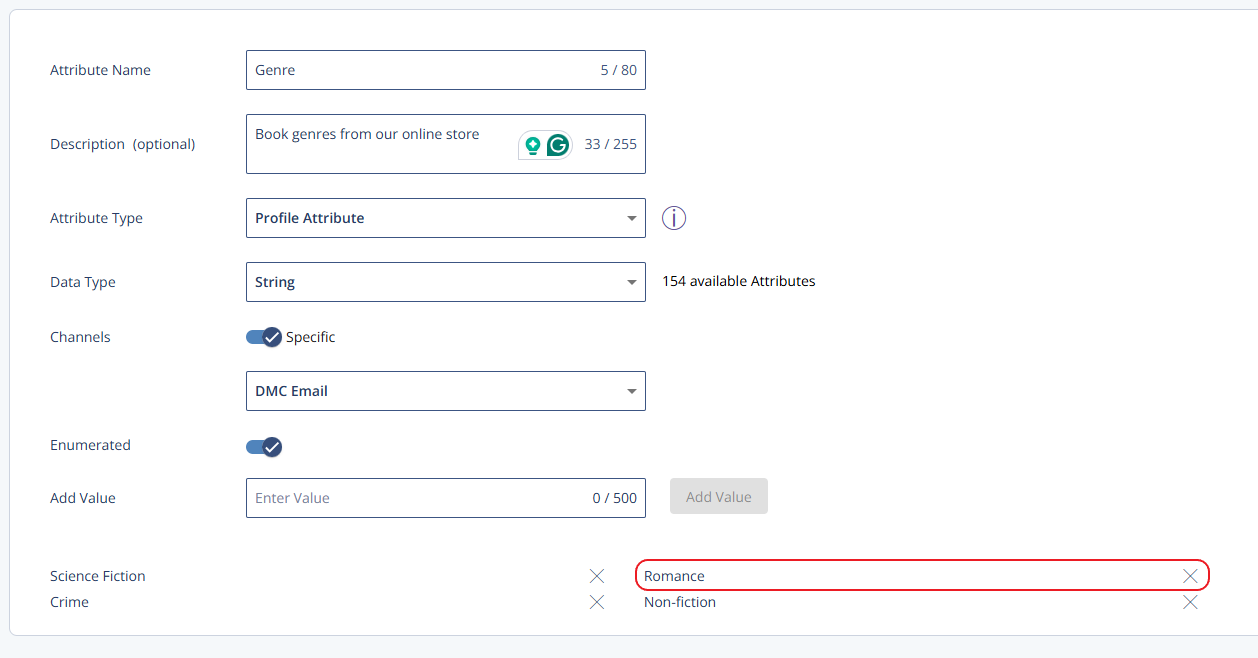
Click Save & Close.
Disabling Enumeration
When an enumeration is no longer required, it can be disabled. This action converts the attribute into a regular attribute, allowing any value to be saved.
Deactivate the toggle switch to disable Enumeration:
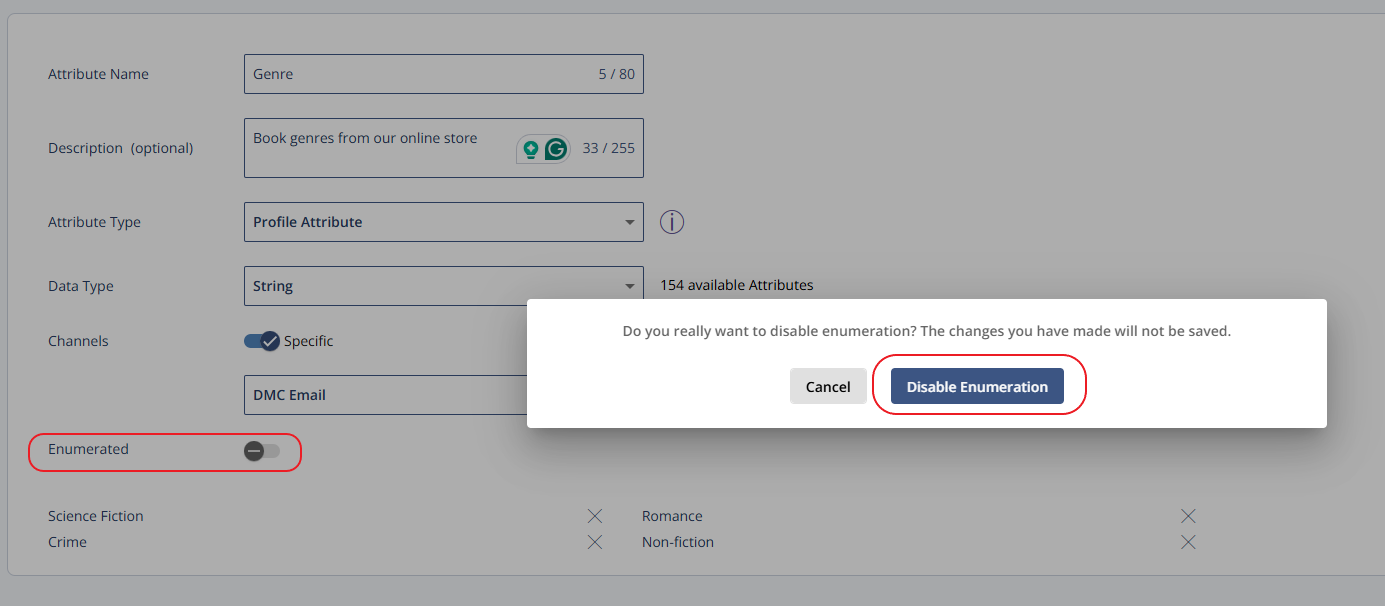
Confirm the action by clicking the Disable Enumeration button on the confirmation window.
Click Save & Close.
Additional Information
Attributes can have up to 1,000 enumerated values.
Enumerations can be created automatically via CSV or XML imports:
CSV Import: An attribute with fewer than 1,000 values during import is automatically enumerated. Exceeding this limit causes the import to fail.
XML Import: Set
enum="true"in thenamedattr-definitionelement. This only works for attributes that do not exist yet. If you include it for an existing attribute, the import fails.
Changing an enumerated attribute to a regular one does not delete previously stored values.
Examples
Example: Consistent store values for segmentation
You want to target contacts by their preferred store. Without enumeration, values are entered as free text, so the same store can appear as Munich, munich, and München. A segment for one store then misses part of the audience.
With an enumerated attribute PreferredStore and the values Berlin, Hamburg, and Munich, only these values can be selected. In the Segmentation Builder, they appear as a drop-down list, so every segment uses exactly the same values.
Example: Create an enumerated attribute with a CSV import
If a CSV import contains a custom attribute that does not exist yet, Mapp Engage creates it as an enumerated attribute and adds every value in the column as an enumeration value.
"user.Email","user.CustomAttribute.PreferredStore"
"jane.miller@example.com","Berlin"
"joe.jones@example.com","Hamburg"
Result: The attribute PreferredStore is created with the enumeration values Berlin and Hamburg.
For the full file format, see CSV Format for Contact Imports.
Example: Create an enumerated attribute with an XML import
In an XML import, define the new attribute with namedattr-definition and set enum="true". Then assign the values to contacts with namedattr.
<userdata xmlns="http://webservices.ecircle-ag.com/ecm">
  <list>
    <namedattr-definition enum="true" type="string" name="PreferredStore"/>
    <user>
      <email>jane.miller@example.com</email>
      <namedattr name="PreferredStore">Berlin</namedattr>
    </user>
  </list>
</userdata>
Note
You can only set
enumandtypefor attributes that do not exist yet. For existing attributes, the import fails.
For the full file format, see XML Format for Contact Imports.