This article describes how to configure export data feeds in Mapp Intelligence.
It focuses exclusively on exporting structured data from Mapp Intelligence using file-based, scheduled data feeds.
Where Export Data Feeds Fit in Implementations
Export data feeds are typically used to make analytics data available to external systems.
Common scenarios include:
Providing recurring data extracts for BI or data warehouse systems
Exporting segments or category data for CRM or marketing platforms
Supplying structured analytics data for downstream processing
Configuring the export feed defines what data is delivered, in which structure, and on which schedule.
Where to Configure Export Data Feeds
All data feeds are managed in: Mapp Q3 > Configuration > Feeds
From this area, you can:
Create new export feeds
View and edit existing feed configurations
Control schedules and activation status
Creating an Export Data Feed
When creating a new data feed, set Feed Type = Export.
The export configuration consists of the following steps:
Define feed metadata (title, description, active status)
Configure actualization (schedule and execution time)
Select the data type
Select the exported data
Configure file settings
Validate the configuration using the preview
Data Types (Export)
The data type defines which kind of objects are exported.
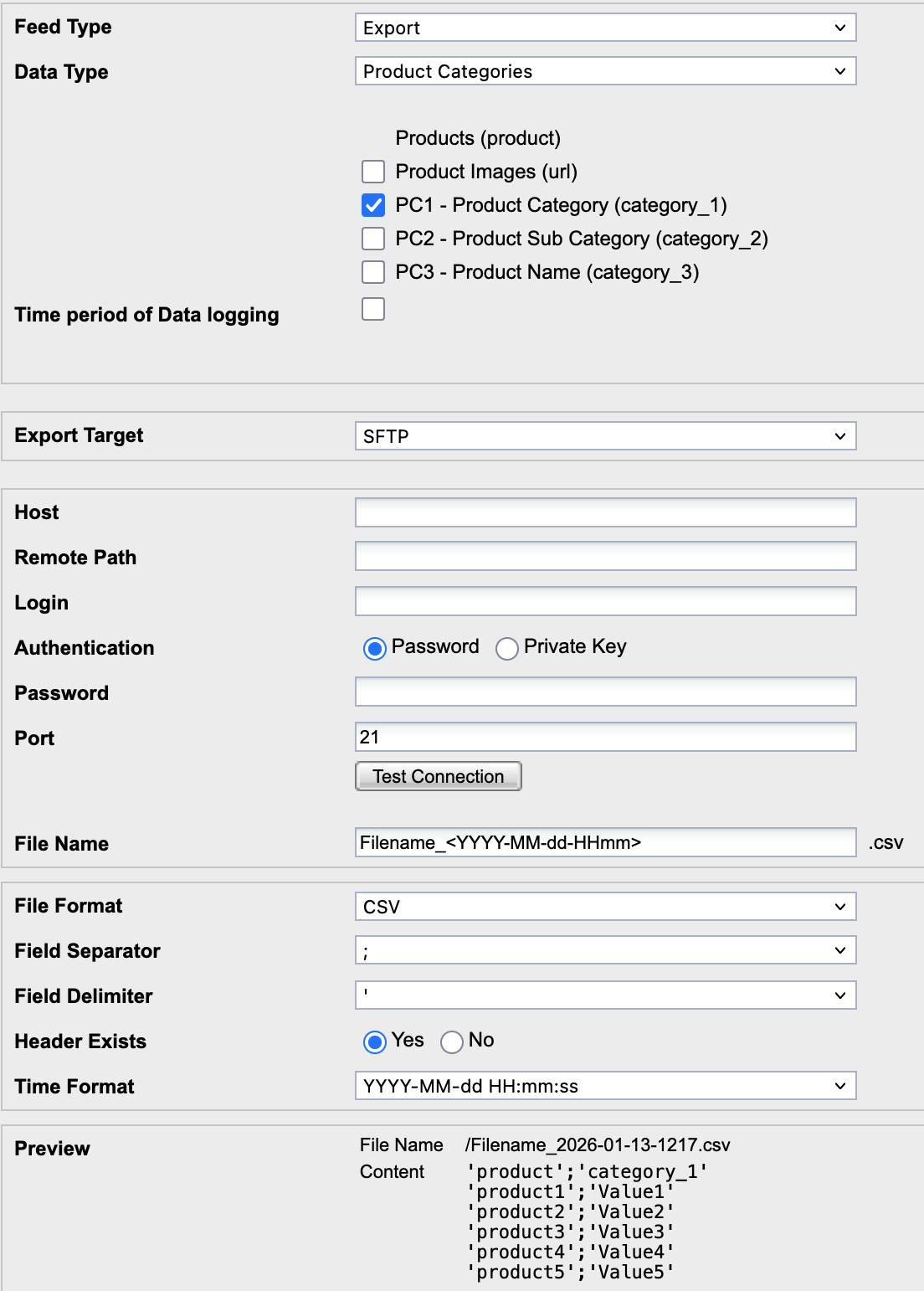
Available export data types include (depending on account configuration):
Segment
Exports segment membership data.
Content Groups
Exports configured content group structures.
Product Categories
Exports product category data.
Media Categories
Exports media-related category structures.
Campaign Categories
Exports campaign classification data.
User Categories
Export user-related category data.
In the configuration interface, this data type is labeled as URM Categories.
Exported Data
After selecting a data type, you define which concrete objects are included in the export.
All available objects of the selected data type are listed
You can select only the objects that are relevant
For time-based data, you can define a period
The row limit restricts the maximum number of exported rows
This allows you to keep exports focused and control data volume.
File Settings
Export data feeds generate structured files.
You configure:
Export target (for example, SFTP)
File name and naming pattern
File format (CSV)
Field separator and delimiter
Header and time format
Preview
At the bottom of the configuration, a preview is displayed.
The preview shows:
The generated file name
A sample of the exported content
The applied format and separators
Use the preview to verify structure and formatting before activating the feed.
Scheduling Considerations
Export feeds run automatically based on the configured actualization
Execution time and selected period directly affect data completeness
Very large exports covering long timeframes may be incomplete
Smaller, recurring exports are recommended.
Availability
Export data feeds are an optional feature. Availability and supported export options depend on your contract.
If export data feeds are not available in your account, contact your Mapp representative or support.