When using Audience Stream within Mapp’s Marketing Automation to share user data with third-party vendors (e.g. Meta or Google), it’s essential to ensure that this only happens with valid user consent.
While standard data collection in Mapp Intelligence does not require opt-in, Audience Stream campaigns may involve data transfers that are subject to GDPR. To stay compliant, you can configure your Audience Stream campaigns to check for user consent stored in a User Category.
This article explains how to do that.
What Are User Categories?
User Categories in Mapp are used to store user-level attributes – such as consent status, language preference, or customer type. These values are specific to each user and can be used for segmentation, personalization, or campaign targeting.
User Categories can be populated in two ways:
via tracking, e.g. with Mapp’s Smart Pixel,
via import, based on a unique identifier like Customer ID.
In some parts of the Mapp interface – especially in older modules like the campaign setup for Audience Stream – the term “URM Category” may still appear. Technically, it refers to the same thing as a User Category, and both can be used interchangeably.
1. Create a User Category for Consent
Consent values are stored in a dedicated User Category. You can create one consent category per vendor or use a shared category for multiple purposes.
To set up a new User Category:
Log in to your Mapp Q3 account.
Go to Settings > Categories > URM - Categories.
Click New Category.
Set the Data Type to "Text".

Save the category.
2. Track Consent Values
Once your User Category is created, you can pass consent information to it through tracking.
Example using Smart Pixel:
mapp('customer', {
  id: '123456',
  category: {
    14: '1' // Opt-in for advertising
  }
});
Parameter values:
Value | Meaning |
|---|---|
1 | Opt-in |
0 | Opt-out |
other | Treated as opt-out |
Note
The syntax for passing user category values depends on your tracking setup. The example above uses the Smart Pixel. For other options (e.g. SDKs or server-side integration), refer to the Tracking Integration documentation.
Alternatively, consent values can also be imported manually or automatically using the Customer ID as the identifier.
3. Enable Consent Check in Audience Stream
When creating or editing an Audience Stream campaign in Marketing Automation:
Go to the Target Group section.
Enable the checkbox “Check for user consent in URM category”.
Select the appropriate User Category from the dropdown.
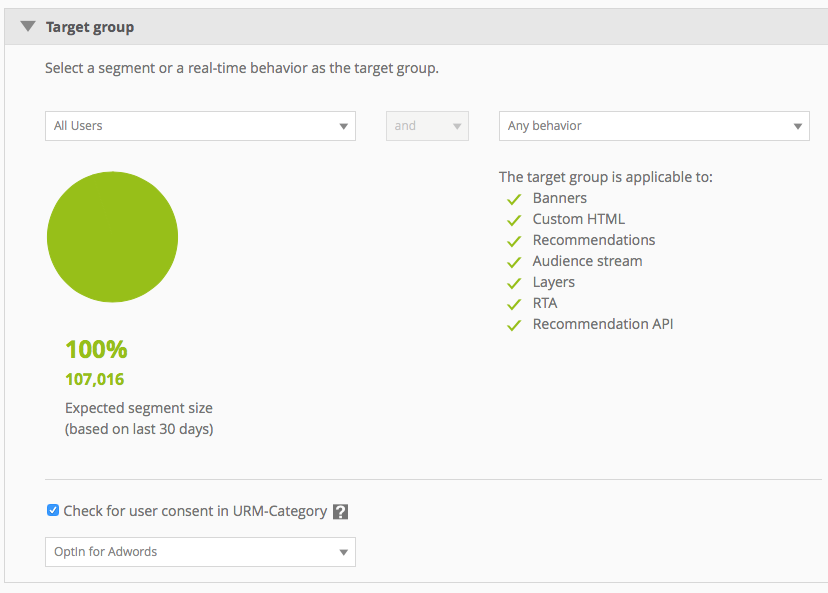
Only users with a value of "1" in that category will be eligible to receive the campaign.
4. Notes on Implementation
Audience Stream campaigns are executed via an iFrame hosted on a Mapp domain (e.g. cdn.mateti.net).
This ensures that third-party vendors (like Meta) do not see your website’s domain as the referrer.
The campaign will be skipped if no valid consent is available (value ≠ “1”).