In Mapp Intelligence, you can perform Ad Hoc Exports directly from the analysis interface in various formats, such as Excel, PDF, or CSV files. These exports are manual and provide a one-time snapshot of your data.
You have the flexibility to choose how you receive your exported data:
Download it directly.
Send it via email to specified recipients.
Upload it to a remote server for further processing.
How to Export Data from an Analysis
To export your analysis data, follow these steps:
Open the analysis you want to export.
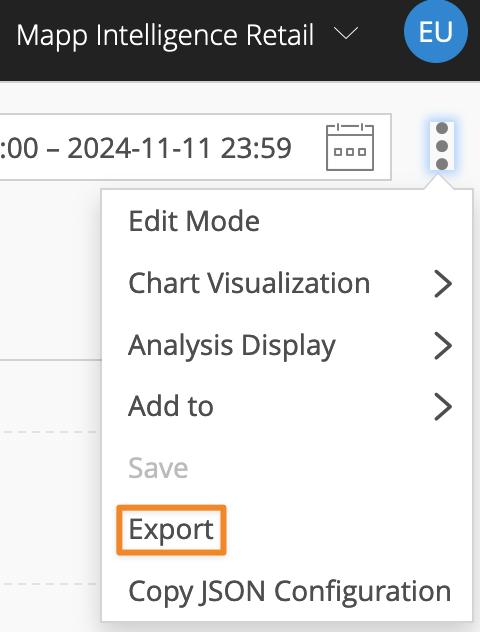
Click on the three-dot menu (⋮) in the upper-right corner of the analysis view and select Export.
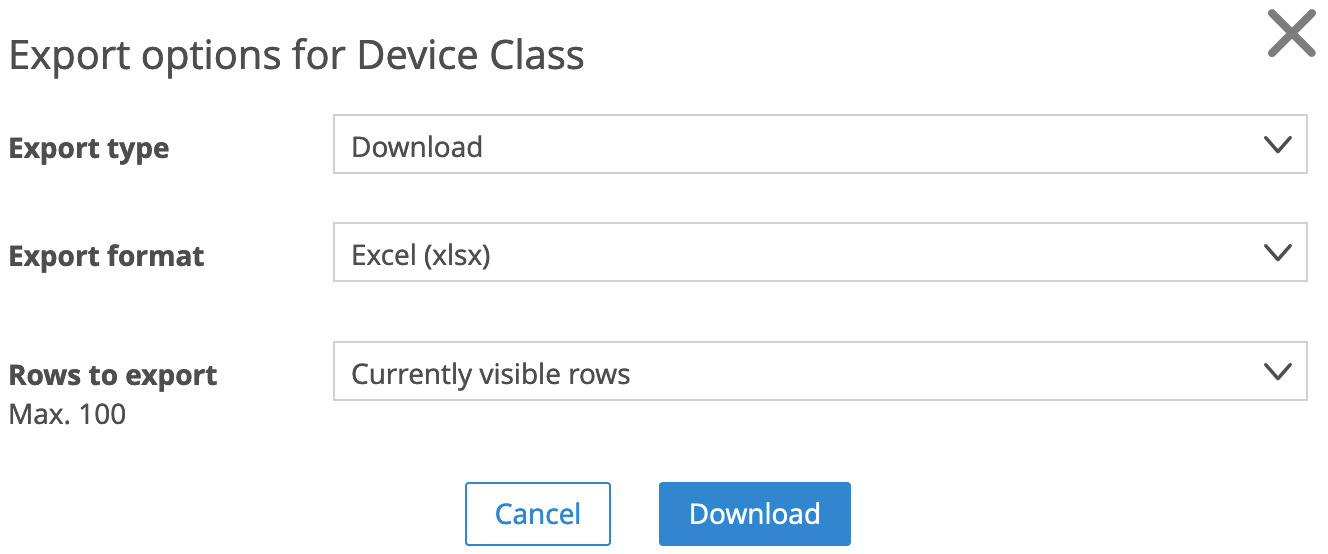
Choose your preferred export format (Excel, PDF, or CSV).
Select the export type (Download, Email, or Remote Server).
Key Details for Ad Hoc Exports
Manual Export Process:
Exporting a single analysis is always an ad hoc process, meaning you need to manually initiate the export each time by clicking the export button. There is no option to automate this process for individual analyses.
Format-Specific Details:
PDF files include diagrams and visualizations of metrics, making them ideal for presentation-ready reports.
Excel and CSV files provide raw data for further analysis but do not include visual elements.
Export Limitations:
Depending on your contract, there may be limitations on the number of rows you can export at once.
Automating Exports with Reports
If you need to automate data exports, you can use the Reports feature. Reports allow you to schedule regular exports in the same formats (Excel, PDF, CSV) on a daily, weekly, or monthly basis, delivering them directly to your team via email. For more details on setting up automated reports, refer to the Reports training chapter.