Overview
The Overview tab provides access to the core configuration and status information of a Mapp Connect integration. It allows users to define basic integration details, manage credentials, and configure automation-related behavior. This information determines how the integration operates and how it interacts with automations and mappings.
Navigation Path
Data Management > Mapp Connect > Add New Integration
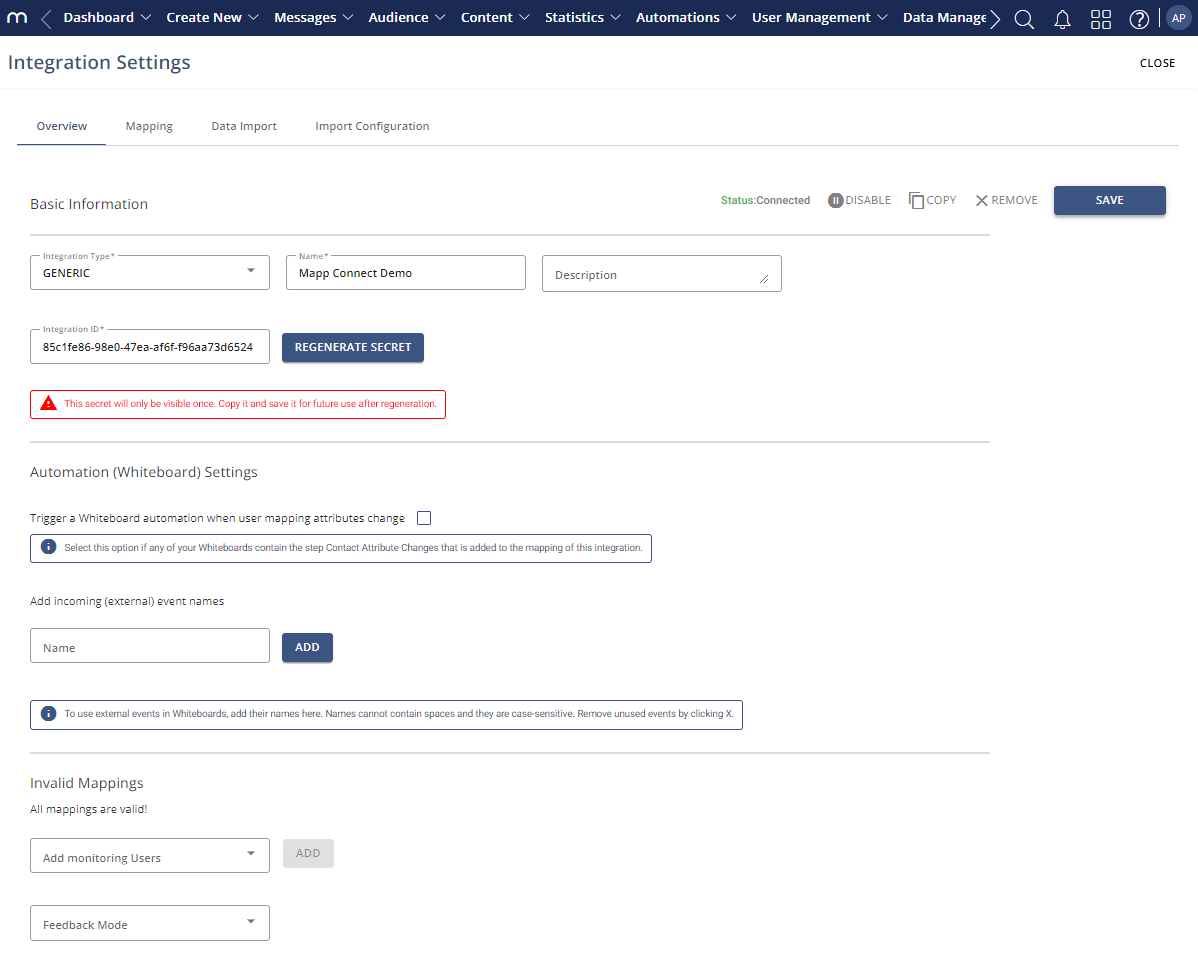
Settings
Integration Status and Management
Setting | Description |
|---|---|
Status | Displays whether the integration is “Connected” or “Disconnected.” |
Disable / Enable | Disables or enables the integration. |
Copy | Creates a copy of the integration. |
Remove | Removes the integration. |
Save | Saves the basic integration settings. |
Basic Information
Setting | Description |
|---|---|
Integration type | Indicates whether the integration is generic or third-party. |
Name | Displays the integration name. The name can be edited at any time. |
Description | An optional field for additional information about the integration. |
Integration ID | Unique identifier for the integration. |
Note
The integration secret is displayed only once after generation and must be saved for future use.
Automation (Whiteboard) Settings
Setting | Description |
|---|---|
Trigger Whiteboard automations when user mapping attributes change | Enables Whiteboard automations to trigger when mapped user attributes change. This option is relevant if Whiteboards react to attribute changes initiated through the Mapp Connect integration. |
Add incoming (external) event names | Defines external event names used by the Mapp Connect External Event. These events become available for use in automations. Event names cannot contain spaces and are case-sensitive. |
Note
Unused external events can be removed from the configuration to avoid unnecessary automation triggers.
Mapping Validation, Monitoring, and Feedback
Setting | Description |
|---|---|
Invalid Mappings | Indicates whether all mappings within the integration are valid. If a mapping is invalid, a warning is displayed, and an error also appears on the main integration page. |
Add monitoring users | Adds a Mapp Engage user who receives notifications and logs related to mappings. Users are selected by email address. |
Feedback mode | Defines how feedback is handled for the integration. Available options are “None,” “Response Queue,” and “Callback URL.” |