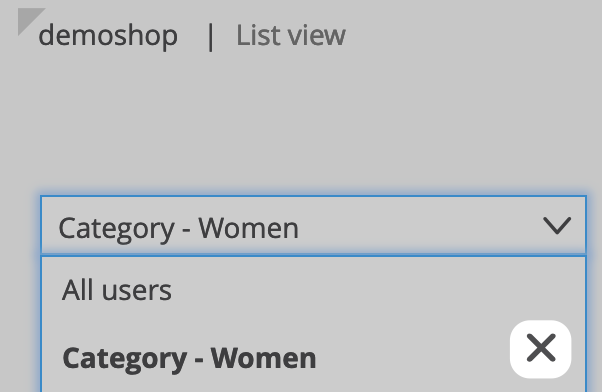
Segments in Mapp Intelligence are versatile tools that allow you to filter data based on specific criteria, such as user behavior, visits, pages, or other events. You can use segments as filters in analyses or as visitor segments, enhancing flexibility and precision in your data exploration. With the ability to switch between segment use cases through a drop-down menu, segments help streamline your workflow and improve accuracy in reporting. Manage and apply segments in the Segment Manager to gain valuable insights across Mapp Intelligence, Mapp Engage, and Mapp Marketing Automation.
Example:
New visitors from Berlin or London
Buyers via Google
Loyal users
Mapp Intelligence Segments are available as CI Segments in Mapp Engage. Learn more about it on this page: Create segments in Intelligence and use them in Engage
You will find a variety of interesting use cases and practical examples in our how-to section.
1 Creating a segment
Open Mapp Intelligence and click on Segment Manager > Create new segment and add the filter criteria.
In this case, we will create a segment for all people who visited the section "women"” which is tracked via “Page Hierarchy 1”.
Watch the short video to see how it works.
2 Using segments in Mapp Intelligence
Open the filter engine within the analysis and
Select Auto-scope
Choose the dimension Segments and select the segment
Choose your use case (User segment/Filter) via drop-down
As User Segment: Applies the segment at the Visitor scope, showing all actions the visitor performed within the selected time period, including visits from multiple devices.
As Filter: Applies the exact scopes defined during segment creation, without elevating the segment to the Visitor scope.
Apply the filter.
In our example, we are filtering a content group analysis.
3 Editing and Deleting Segments
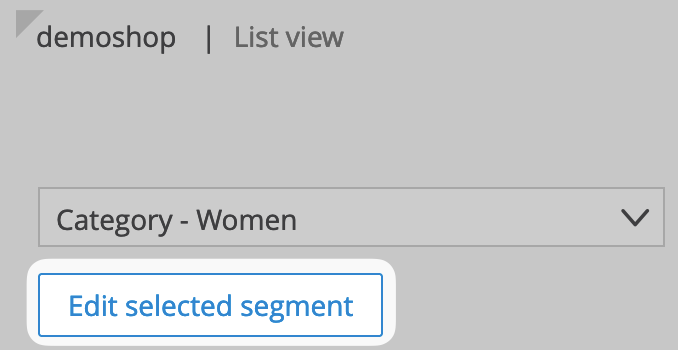
Editing Segments: Select the segment, click Edit selected segment, and decide whether to overwrite the existing segment or create a new one.
Deleting Segments: Click on the delete icon next to the segment’s name.