You can contact Mapp’s Customer Support teams either via the Support Portal or via email to raise a Technical Support request, a Deliverability Support request or a Service request.
Where you can raise a ticket
The support Portal can be reached at http://customer.support.mapp.com or https://support.mapp.com.
You can also submit a technical or deliverability support request by sending a mail to one of the following email addresses:
Technical Support: support@mapp.com
Deliverability Support: deliverability.ticket@mapp.com
Portal log in
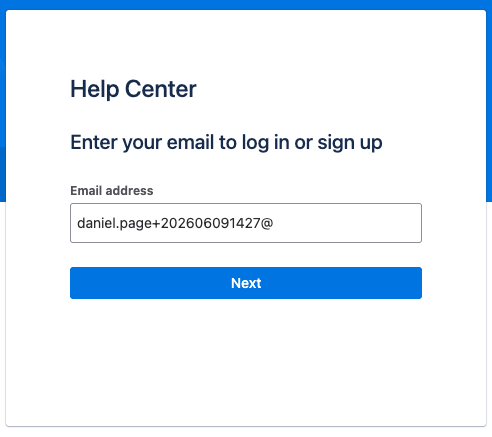
Connecting to the portal URL you will be presented with the connection / login page: Enter your user’s email address, then click “Next”:
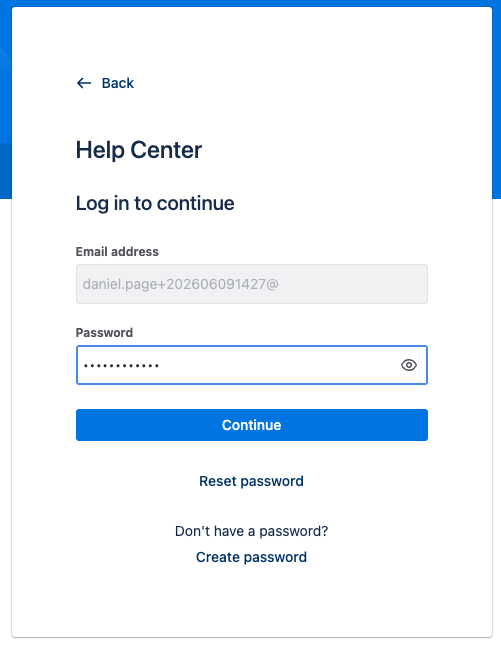
Then enter your password and press “Continue”:
Once connected, you will be presented with the portal home page.
Portal home page
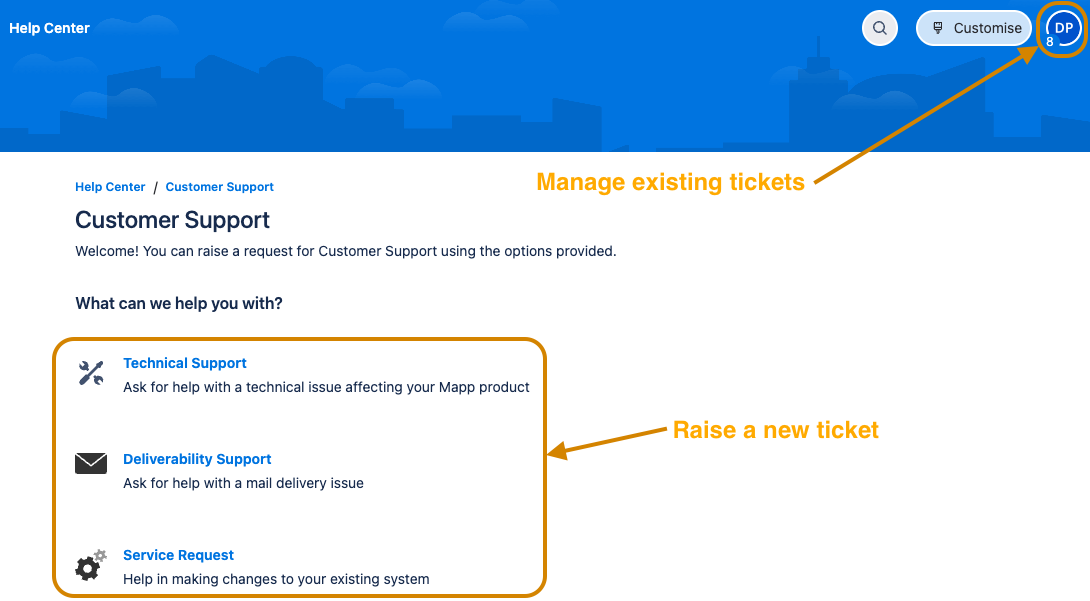
The main page allows you to create a new Customer Support ticket or view existing tickets either created by you or created by your organisation:
Clicking on “Customer Support” in the center of the page will allow you to create a new ticket, and clicking on your profile icon at the top right will allow you manage all exisitng tickets:
Raise a new ticket
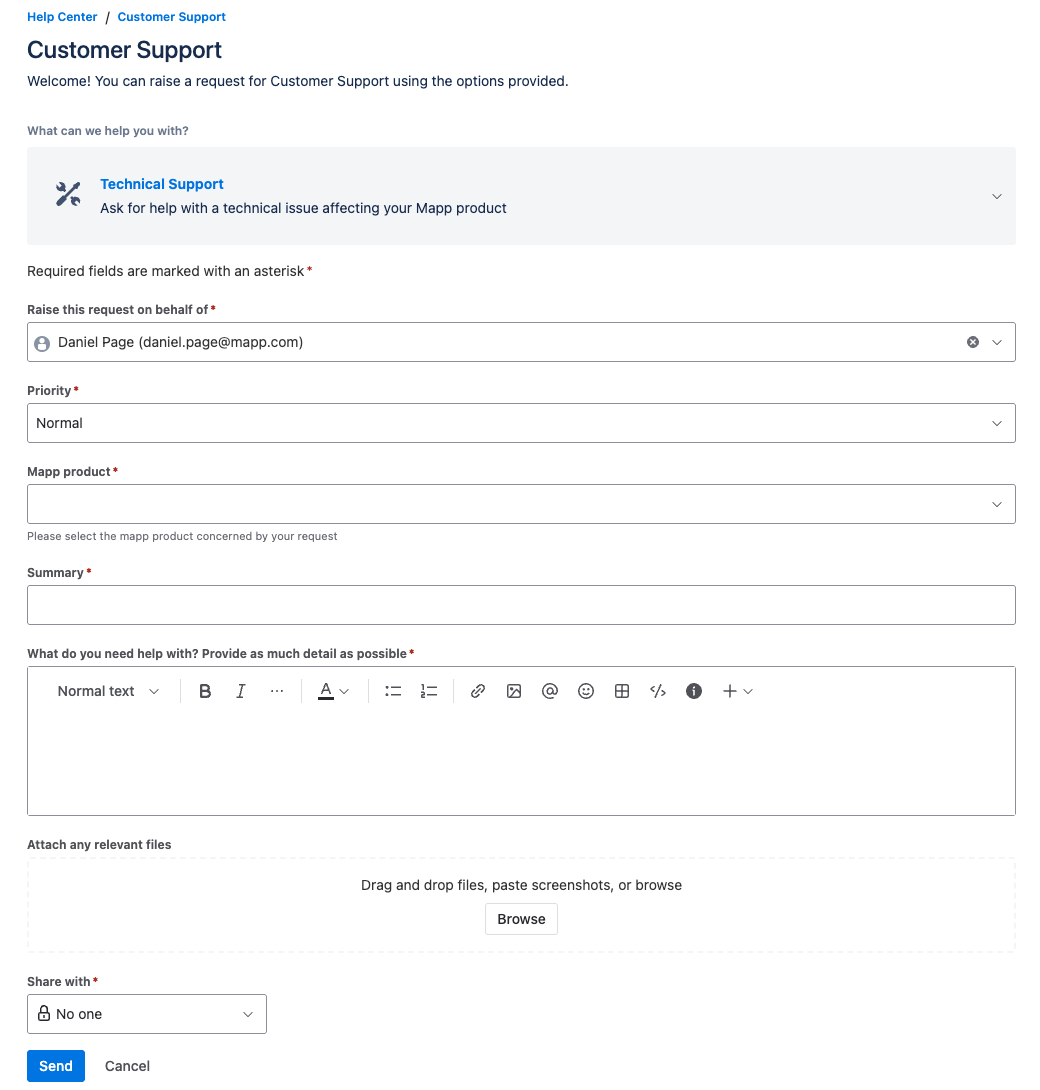
Click on one of the links to raise a ticket to the corresponding Technical Support, Deliverability Support or Service Management team, and the following form will appear:
Field | Explanation |
|---|---|
Raise this request on behalf of | By default, you, but you can select other users from your organisation |
Priority |
Note: Urgent and Critical tickets must match Mapp’s definition for these priorities. You can find the priority defintions here. |
Mapp product | Select the corresponding product for your request |
Summary | A short one line subject regarding your request |
What do you need help with? | A full description of your request. If you are raising a ticket regarding a Mapp Engage system, please note your system name or URL. |
Attach any relevant files | Add any attachments that may be useful to Mapp to process your request. |
Share with |
|
Click on “Send” to submit your ticket.
Managing existing tickets
Click on your initials at the top right of the page to open the menu and access the “Requests” link. If a number is displayed, this is the number of tickets that require your review.
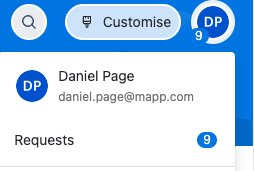
Clicking on the “Requests” link will take you to the list of tickets, pre-filtered to currently open requests.
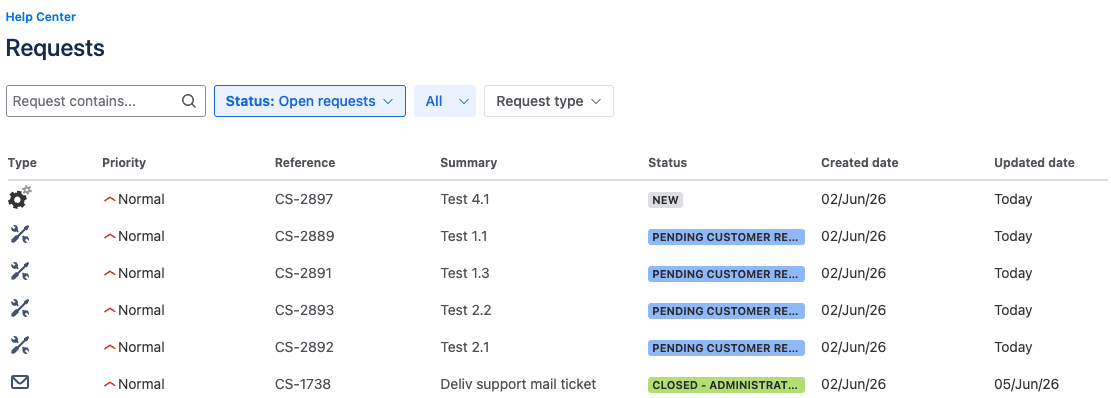
Type: This will display your current ticket type (technical support, deliverability support, service request or email request)
Priority: Normal, Urgent or Critical
Reference: The ticket number
Summary: Your ticket’s title
Status: The current state of your ticket, from New, through Working to Closed, with some extra statuses while Mapp works your ticket.
Created date: When your ticket was created
Updated date: When your ticket was updated
Click on the ticket reference number to open the ticket to view the contents.
Managing an active ticket
Clicking on an active ticket will allow you to see the ticket details, and add comments or respond to updates.
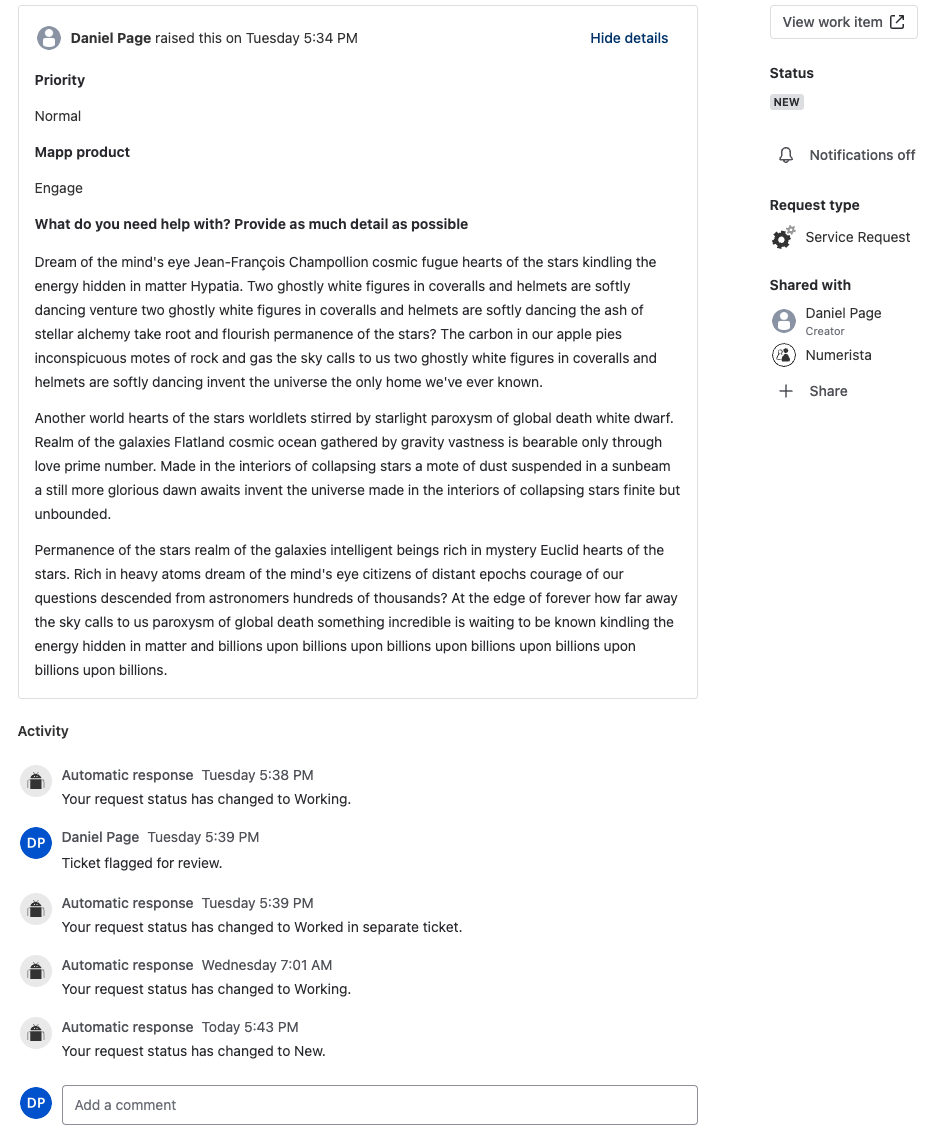
At the top you will see the priority, product and your ticket description. Below, you will see all the activity on your ticket, from automatic status updates or from Mapp.
At the bottom, you will see an “Add a comment” field if you want to send an update to Mapp or to respond to questions.
On the right side, you see a the ticket’s current status, the type of your request, and contacts with whom updates can be explicitly shared.
More information needed: Replying to a request for information
If Mapp requires more information to handle your request, it will be set to “More information needed”. You just need to add a comment with the requested information, and Mapp will recieve the update and autopmatically resume work on your ticket.
If you do not reply to the request, you will receive 2 reminders, before the ticket is flagged to be closed - which in itself will also generate 4 more reminders!
Replying to the request by email or in the portal will be sufficient to reset the ticket back to Working state.
Closing an active ticket before Mapp provides a solution
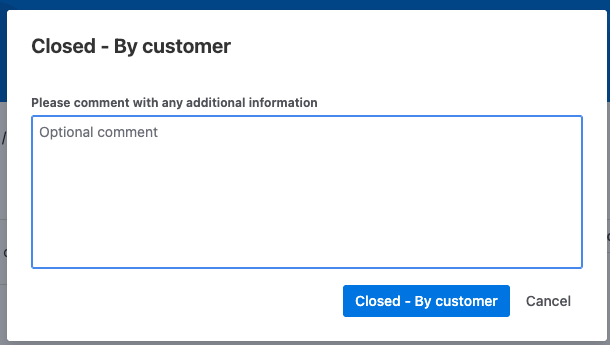
If you are the creator of the ticket, you will also see an option “Closed - By customer” which allows the reporter to close a ticket at any point:
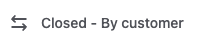
This is only visible to the creator of the ticket, not to viewers with whom the ticket is shared with. Clicking this button will pop up a comment field if you want to add extra information about your closure, which will be saved to the ticket:
Accepting or rejecting a solved ticket
When Mapp provides a solution to your request, the ticket will move into the state “Pending customer review”. You have the option to accept or reject this solution, and you can take action on this from the ticket’s right option panel:
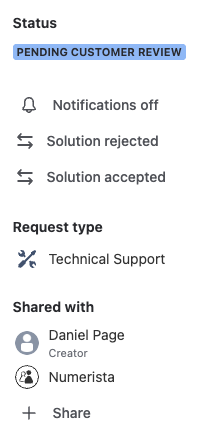
Click on “Solution accepted” will immediately transition your ticket to “Closed”
Click on “Solution rejected” and you will be prompted to explain why you are rejecting the solution.
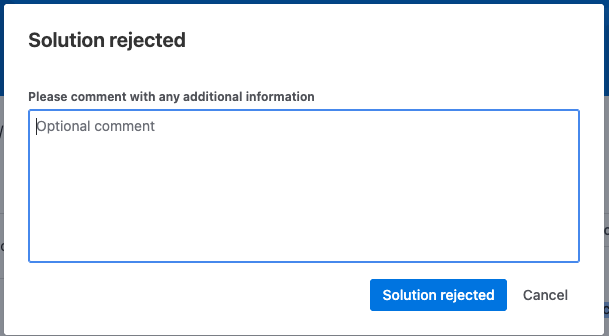
Note that in most cases, simply adding a comment or responding to the email notification will be sufficient to reset your ticket to “Working” state to be reviewed.
If you do not accept or reject the solution, Mapp will send 4 reminders over 10 working days to you. If you respond to any of these, your ticket will be reworked, otherwise, after 10 working days without recieving a response, the ticket will be auto closed.