Overview
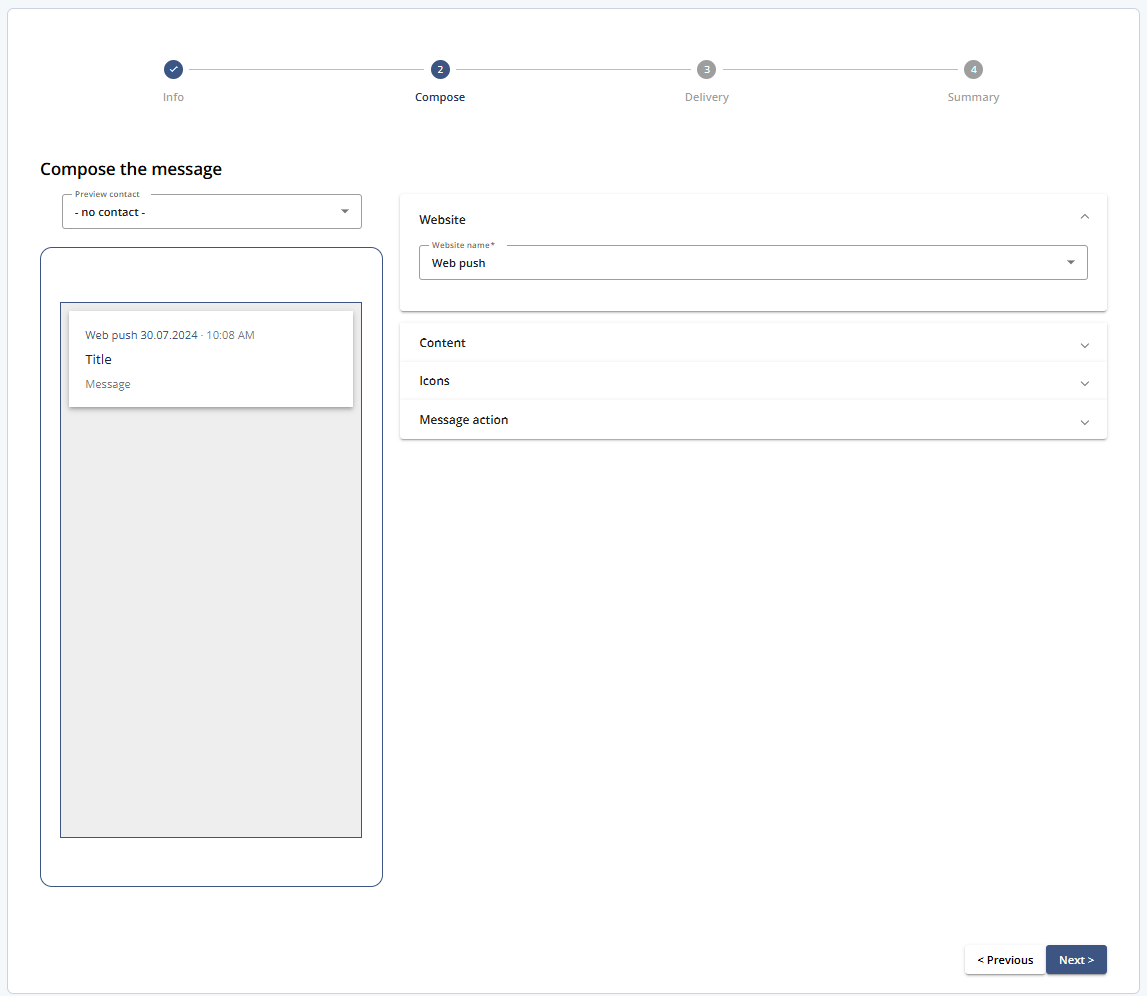
In the Compose step, you define the content and behavior of your web push notification.
Navigation Path
During message creation, follow the message creation process until you reach Compose.
1 Compose Tools
1.1 Website
Select the app for the push sendout, and the language for button labels.

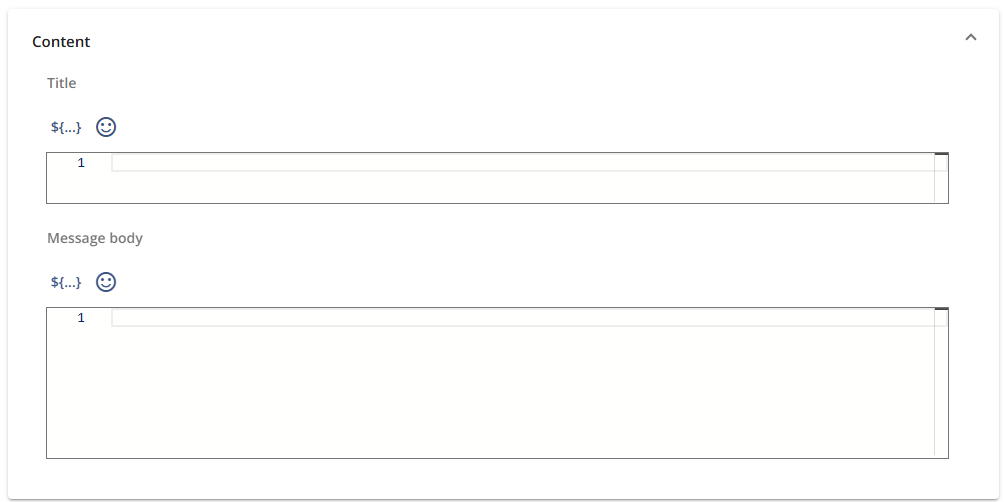
1.2 Content
Available for both the title and message body:
The
 icon allows you to include personalized elements. Personalization tags may affect character count.
The
 icon lets you choose from over 500 emojis.
1.3 Icons
 opens a pop-up to add images from the Content Store or upload them.

1.4 Message Action
Enter the website that should open by clicking on the notification.

2 Preview Tools
The preview allows you to see a real-time visual of your notification as you edit. The preview refreshes automatically with every change. You can select a specific contact to preview how the message will look with personalized details (based on their profile attributes).

3 Buttons and Actions
Action | Description |
|---|---|
Previous | Returns to step 1. Info. |
Save | Saves your web push notification as a draft and keeps the window open. You can return to a draft message and edit it later. |
Next | Opens step 3. Delivery of the message creation wizard. Here, you select the sendout group and the channel in which Mapp Engage sends the web push notification. You can also apply a selection and prepare other sendout settings. |