Overview
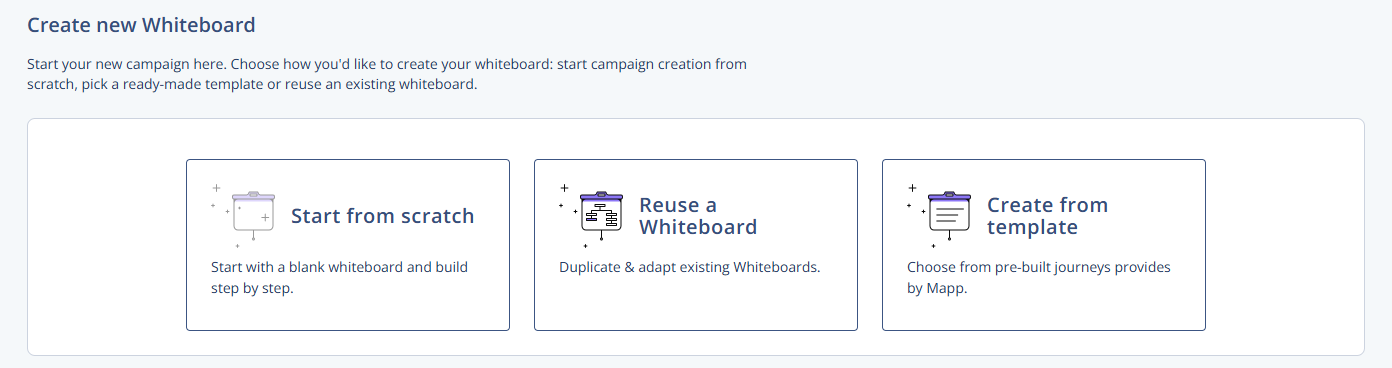
The Whiteboards interface offers three ways to set up a new whiteboard: start from a blank canvas, reuse an existing whiteboard, or base the setup on a template.
Navigation Path
Automations > Whiteboards > Create new Whiteboard
On the Create new Whiteboard view, three options are available:
Start from scratch – start with a blank whiteboard and build the journey step by step.
Reuse a Whiteboard – duplicate and adapt an existing whiteboard.
Create from template – choose from pre-built journeys provided by Mapp.
Creation Options
1 Start from scratch
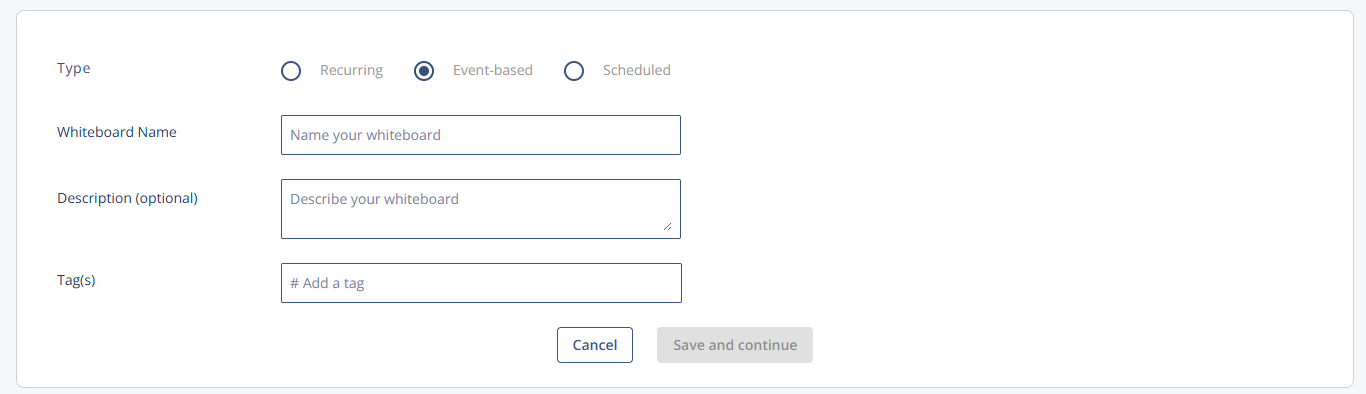
Use 'Start from scratch' to manually configure a new whiteboard, beginning with basic details such as type, name, and tags.
Automations > Whiteboards > Create new Whiteboard > Start from scratch
Settings & Actions | Description |
|---|---|
Type | Select the whiteboard type: Recurring, Event-based, or Scheduled. |
Whiteboard name | Name used to identify the whiteboard. |
Description (optional) | Optional text that describes the purpose or content of the whiteboard. |
Tag(s) | Tags assigned to the whiteboard. |
Save and continue | Saves the configuration and continues to the next step in whiteboard creation. |
2 Reuse a Whiteboard
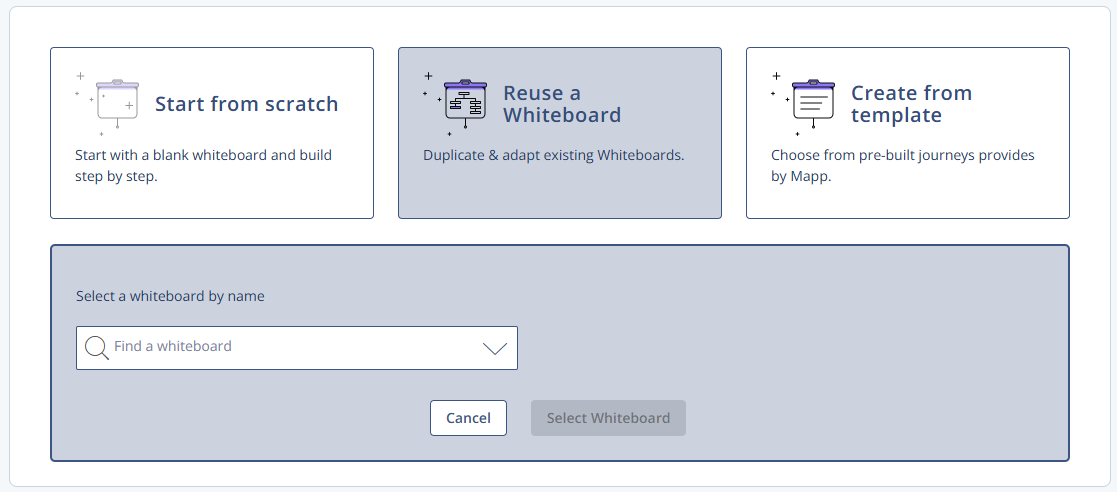
Use Reuse a Whiteboard to duplicate and adjust an existing whiteboard.
Automations > Whiteboards > Create new Whiteboard > Reuse a Whiteboard
Settings & Actions | Description |
|---|---|
Select a whiteboard by name / Find a whiteboard | Use Reuse a Whiteboard to duplicate and adjust an existing whiteboard. |
Select Whiteboard | Confirms the selected whiteboard and proceeds with the creation. |
3 Create from template
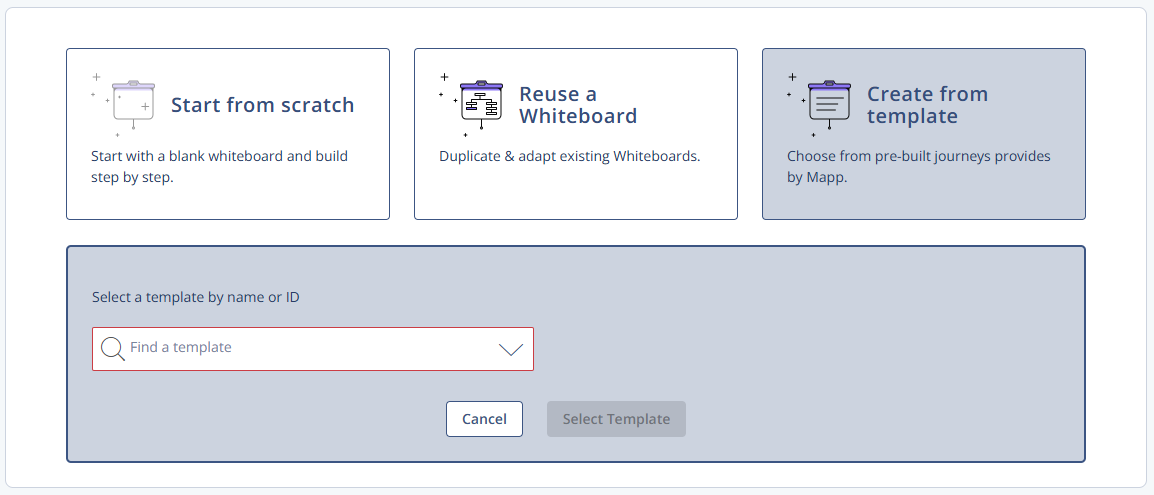
Use Create from template to start from a pre-built journey template.
Automations > Whiteboards > Create new Whiteboard > Create from template
Settings & Actions | Description |
|---|---|
Select a template by name or ID / Find a whiteboard | Search field to find and select a template to use for the new whiteboard. |
Select Template | Confirms the selected template and proceeds with the creation. |
Available Templates
Abandoned Cart
Happy Birthday
Welcome Message