Overview
URL parameters let you pass extra values in the links of a message. A parameter can be a static value, a personalization placeholder, or a system variable, so you can hand dynamic values to the target page and track clicks per recipient.
Use Cases
Personalized website experience: Use contact data to tailor the landing page linked from an email.
Pre-filled forms: Auto-fill fields in downloadable content such as whitepapers or brochures.
Message attribution: Track which message a clicked link came from for web analytics.
How Parameters Work
Parameters are added as name=value pairs in the query part of a URL (after the
?symbol).You can use static values or dynamic placeholders, for example
<%${user['lastname']}%>.Add parameters manually to individual links, or automatically to all links via group settings (see the procedures below).
You can exclude specific links from receiving parameters (see Exclude Links From Link Parameters).
Note
Placeholders must not appear in the hostname part of the URL. This breaks link tracking.
Link Tracking and Redirection
When link tracking is on, Mapp Engage routes every link through its tracking system before sending the recipient to the final destination.
Unsafe characters such as spaces are URL-encoded automatically (a space becomes
%20).The redirect is invisible to the recipient and lets Engage record click events.
Warning
Do not use parentheses ( ) in message names that are used in tracking links. They are not URL-encoded and will break the link.
Parameters in HTML vs. Text Emails
HTML Emails
Use these parameters:
l– encoded final destination URLreq– personalized request data
A personalized placeholder in the URL:
http://www.website.com/?FNM=<%${user['lastname']}%>During sendout it resolves to something like:
http://secure.dmcsystem.com/re?l=6m7...&req=FNM=von%20Sch%F6nburgText Emails
Text emails use slightly different tracking parameters:
l– encoded destinationu– full destination URL with parameterss– security signature (for examples=PKPJFBHPPLJGMKHM)
Add a Parameter to a Single Link
Edit the link's URL directly to pass a static or dynamic value.
Example
You want to append the contact's ID to a shopping link so your e-commerce platform can customize the experience.
Original link
<a href="www.sportswear.com">Shop Online</a>Modified link with parameter
<a href="www.sportswear.com/?contactID=<%${user['ID']}%>">Shop Online</a>Resulting link in the recipient's inbox
www.sportswear.com/?contactID=14182654230Procedure
Open the email in the Compose Message window.
Locate the link you want to modify.
Add a parameter to the query part of the URL (after the
?symbol):Use a personalization placeholder to insert a value from the contact profile.
Use a Mapp Engage variable to insert message-, group-, or system-specific values.
Save the email.
Add Parameters to All Links
In the group settings you can define parameters that Engage appends automatically to every link in messages sent to that group.
Procedure
Go to Audience > Group Management > Groups.
Locate the group used to send the message and click the Change Settings icon next to it.
Open the Tracking & Links tab.
Expand the Link Parameters section.
Click the plus icon next to Add Link Parameter, then:
In the first field, enter the parameter name (no special characters or spaces).
In the second field, enter the value: a static value, a personalization placeholder, or a Mapp Engage variable. Use the Personalization button to insert placeholders or variables, or the Web Analytics button for standard web-analytics parameters.
Click Save.
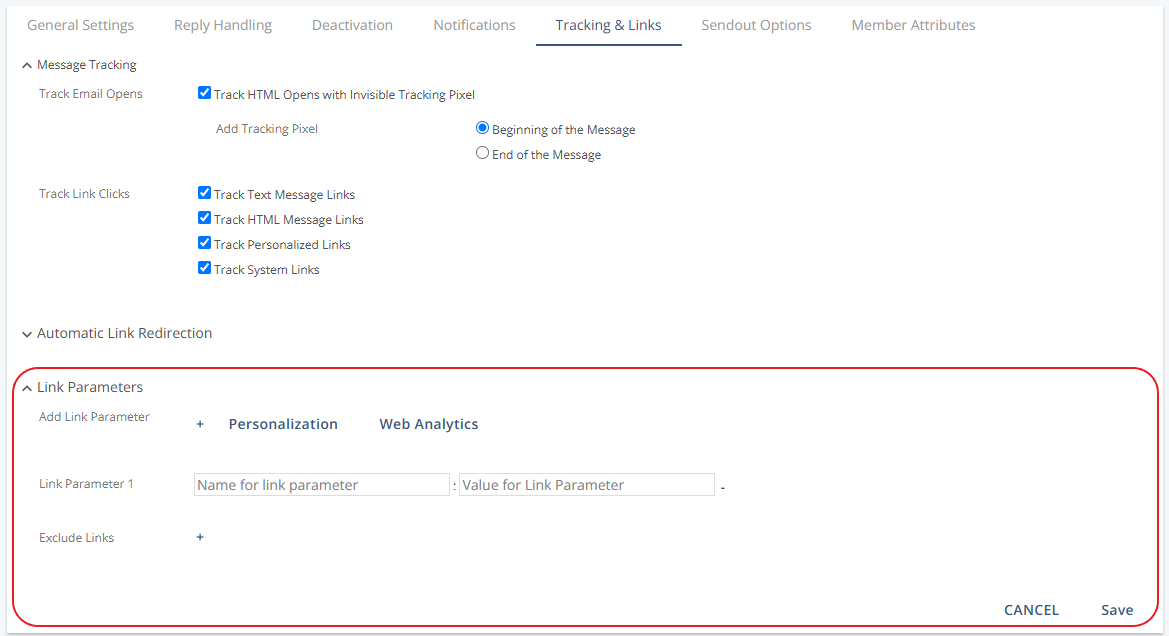
The parameter is now added to every link in emails sent to this group.
Note
If Email Tracking Consent is active for your account, contacts who denied or withdrew consent only get the five standard UTM parameters from the group settings (
utm_source,utm_medium,utm_campaign,utm_term,utm_content) when the message uses Normal Tracking or Force Anonymized when denied or withdrawn. Other parameters, such as a contact ID or an external message ID, are not added for them. For details, see Email Tracking Consent.
Example
To track each newsletter with an external message ID:
Parameter name:
exmidParameter value:
<%Message.ExternalID%>
If you enter november25_womenswear in the External Message-ID field during newsletter setup, the resulting links look like this:
www.sportswear.com/?exmid=november25_womenswear