The Analysis Period feature in Mapp Intelligence allows you to define the timeframe for data displayed in your analyses and reports. By default, it covers the last 28 days, but you have the flexibility to adjust it as needed using the calendar.
Customizing Your Analysis Period
You can easily adapt the analysis period to fit your specific requirements. The calendar view highlights your selected dates in blue, and all times are shown based on your account’s timezone, visible in the top-right corner.
Manual Date Selection
If you want to focus on a specific timeframe, simply click to select any day, range of days, or an entire week directly in the calendar. This option is perfect for reviewing focused periods, like campaign launches or monthly performance assessments.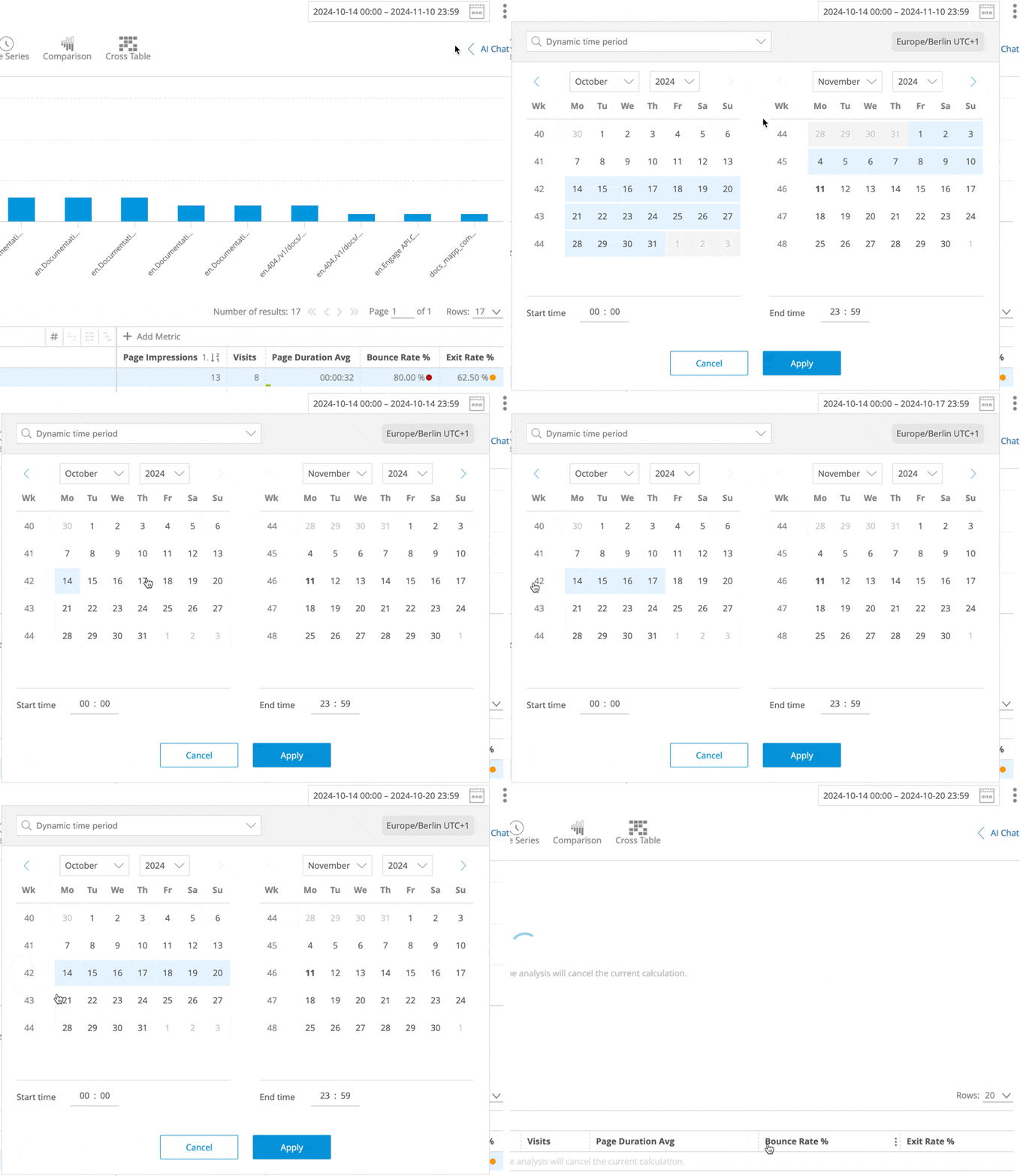
Dynamic Time Periods
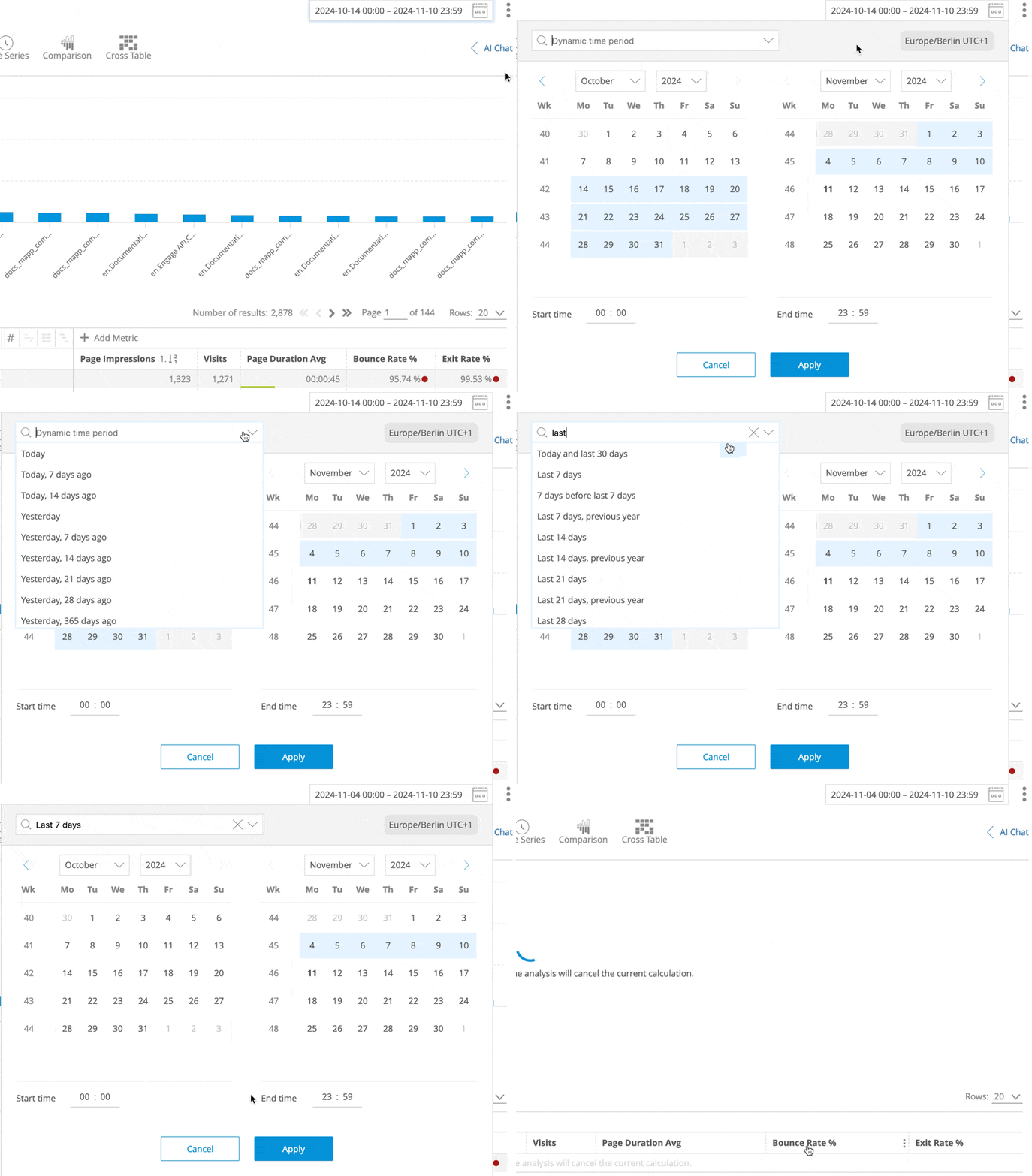
For ongoing monitoring, dynamic options like “Last 7 days” or “Previous month” are available from the drop-down menu. These periods automatically update based on the current date, helping you keep track of trends without needing to adjust the dates manually. For added precision, you can define start and end times—ideal for analyzing weekend traffic or after-hours engagement.
Custom Dynamic Timeframes:
In addition to predefined dynamic options, users with Admin rights can create their own custom dynamic time periods. This allows you to set up specific recurring timeframes tailored to your needs, such as custom rolling periods or business-specific cycles. For more details on creating custom dynamic periods, please refer to the help documentation.
.png)
Applying Analysis Periods Across Analyses
Once you adjust the analysis period, it carries over to all subsequent analyses, ensuring consistency across your data evaluations.