Goal
Determine how many contacts currently belong to a published segment in the Segmentation Builder overview.
Background Information
Segments in Mapp Engage are dynamic. Each time a segment is used, Engage evaluates the most recent data and selects all contacts that match the defined conditions. Because contact data changes over time, segment size is not static.
Segment size can be calculated in two different places, both using the same underlying logic but serving different purposes:
During segment creation
You can calculate the size of each filter and of the overall segment. This helps verify that the logic works as intended before publishing.In the Segmentation Builder overview (described in this How-to)
You can calculate the current size of published segments that you actively use in campaigns.
The value shown in the Number of Contacts column does not update automatically. It always reflects the most recent manual calculation until you refresh it.
Note
The final number of messages sent during a campaign can be lower because addresses with known delivery issues are skipped during sendout. For more information, see Skipped Messages (tab).
Procedure
Go to Audience > Segmentation > Segmentation Builder.
In the overview, locate the published segment you want to review.
In the Number of Contacts column, review the displayed value.
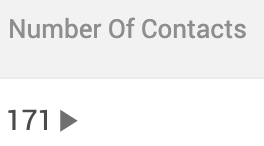
Hover over the value to see when it was last calculated.
If you want to refresh the value because the last calculation is outdated, click the Calculate icon next to the number.
Engage recalculates the segment size and updates the value in the same column.