Beta
The Product Catalog is currently in Beta and is not yet available to all customers. Availability is being expanded gradually. Functionality, configuration, and behavior may change before general availability.
Overview
The Product Attributes view lets you review all Custom Attributes that exist in the account, search and filter the list, manage the status of individual attributes, and create new Custom Attributes. Custom Attributes are reusable across multiple Product Catalogs.
Navigation Path
Connect > Products > Product Attributes
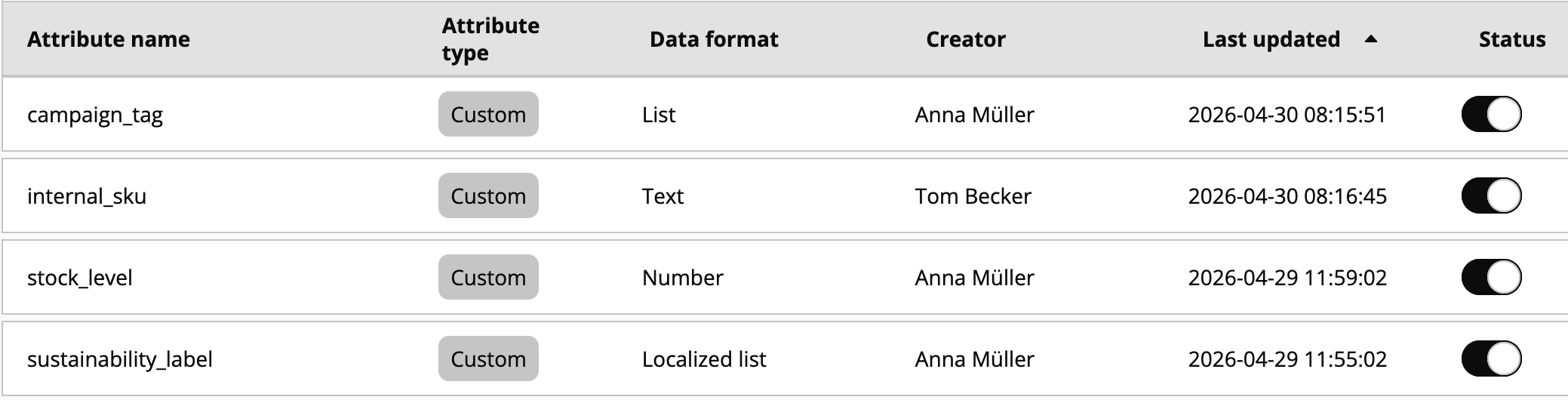
Product Attributes List
The list shows attributes with their type, data format, creator, last update timestamp, and current status. Filters and search above the list narrow the view; row actions allow editing or removing individual attributes.
List Columns
Column | Description |
|---|---|
Attribute name | Display name of the attribute. |
Attribute type | Predefined or Custom. Custom attributes are marked with a Custom badge. |
Data format | The Data format of the attribute, for example Text, Number, Boolean, List, or Localized variants. |
Creator | User who created the attribute. Shows a dash for system-generated attributes. |
Last updated | Timestamp of the most recent change to the attribute. |
Status | Toggle that controls whether the attribute is Active or Inactive. Inactive attributes are kept in the system but are not available for use in catalogs. |
Filter and Search
Several controls above the list help you find specific attributes:
Search: Filters attributes by Attribute name.
Show only Custom: Limits the list to Custom Attributes; Predefined attributes are hidden.
Show all data formats: Limits the list to a specific Data format, for example Text, Number, or Boolean.
Select Date Range: Limits the list to attributes whose Last updated date falls within the selected range.
Reset: Clears all active filters and returns the list to its default state.
Row Actions
Action | Description |
|---|---|
Edit | Opens the attribute so you can update its description, status, and selected configuration options. Name and Data format are set at creation and cannot be changed. |
Delete | Moves the attribute to the trash. The attribute is removed from user visibility and can no longer be selected or managed in the interface. For details on the lifecycle, see Product Attribute Model. |
Create new Custom Attribute
To open the creation flow, click the Create new Custom Attribute button in the top right corner of the list. The creation view collects the basic attribute definition and a small set of configuration toggles.
Fields
Field | Description |
|---|---|
Custom Attribute name | Internal name of the attribute. Only letters, digits, hyphens, and underscores are allowed. The name cannot be changed after creation. |
Description (optional) | Free-text description that explains the purpose of the attribute. |
Data format | Defines which values the attribute accepts and how it is validated. Selectable values are |
Toggles
Toggle | Default | Description |
|---|---|---|
Active | On | Controls whether the attribute is available for use in catalogs. Inactive attributes remain in the system but cannot be selected. |
Mandatory Attribute | Off | When enabled, the attribute must be provided during import for every variant in catalogs that use it. |
Is a purchasable Product Option | Off | Flags the attribute as a variant-defining option that a customer can choose when buying the product, for example color or size. For details, see Product Attribute Model. |
Saving the Attribute
Use Save Custom Attribute to create the attribute, or Cancel to discard your input and return to the list.
Note
Display Type for text-based attributes (
Text,List,Localized list) is set during creation and cannot be changed afterwards. For the available Display Type options and their behavior, see Display Type.