Beta
The Product Catalog is currently in Beta and is not yet available to all customers. Availability is being expanded gradually. Functionality, configuration, and behavior may change before general availability.
Overview
The Product Catalogs view is the central entry point for managing Product Catalogs in Connect. From here you can review all existing catalogs, search for a specific catalog, open the detail view of a catalog, and create new catalogs.
Navigation Path
Connect > Products > Product Catalogs
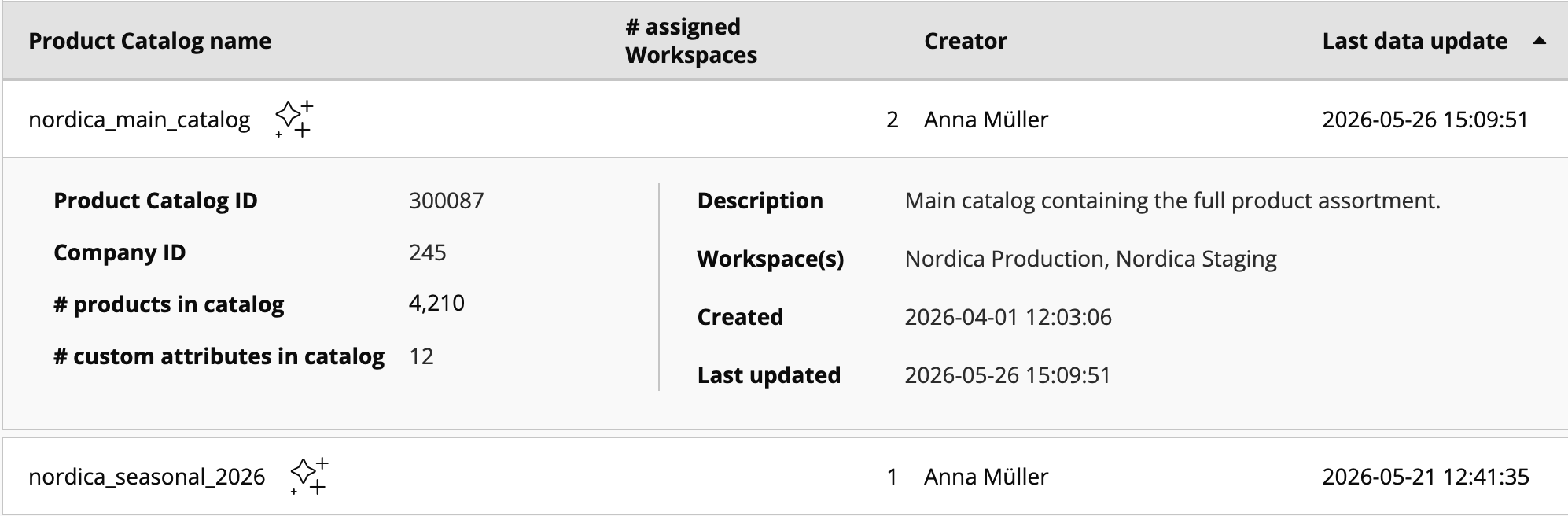
Product Catalogs List
The list shows all Product Catalogs that exist in the account, including basic metadata and quick actions for each catalog. A counter at the bottom of the list indicates the total number of Product Catalogs that are currently set up.
List Columns
Column | Description |
|---|---|
Product Catalog name | Display name of the Product Catalog. Catalogs operating in Fashion-enabled mode are marked with a Fashion indicator next to the name. |
# assigned Workspaces | Number of workspaces the catalog is currently assigned to. |
Creator | User who created the catalog. Shows a dash when the creator is not available, for example for system-generated catalogs. |
Last data update | Timestamp of the most recent change to the catalog's product data. |
Row Actions
Action | Description |
|---|---|
View | Opens the Catalog Detail View for the selected catalog. For details on the detail view, see Manage the Catalog. |
Edit | Opens the catalog configuration so you can update basic information, workspace assignments, and attribute assignments. |
Delete | Removes the catalog. This action requires explicit confirmation. |
Search
The search field above the list filters catalogs by Product Catalog name. The list updates as you type.
Create new Product Catalog
To open the creation flow, click the Create new Product Catalog button in the top right corner of the list. The creation view is structured into two sections: Basics and Product Attributes.
Basics
Field | Description |
|---|---|
Product Catalog name | Display name of the catalog. Only letters, digits, hyphens, and underscores are allowed. |
Description (optional) | Free-text description that helps your team understand the purpose of the catalog. |
Workspace(s) | Assigns the catalog to one or more existing workspaces. Workspace assignment controls where the catalog and its product data are available. For details on workspace behavior, see How Product Catalogs Work. |
Product Attributes
The Product Attributes section lists all attributes that will be available on the new catalog. Predefined attributes are included by default and cannot be removed; their State (Mandatory or Optional) depends on whether the catalog operates in standard or Fashion-enabled mode.
List Columns
Column | Description |
|---|---|
Product Attribute Name | Display name of the attribute. |
Type | Predefined or Custom. |
State | Mandatory or Optional. Indicates whether the attribute is required during import. |
Status | Active or Inactive. Indicates whether the attribute is currently in use. |
Data Format | The Data format of the attribute, for example Text, Number, Boolean, List, or Localized variants. |
Last Updated | Timestamp of the most recent change to the attribute. |
Filter and Search
The attribute list provides quick ways to find specific attributes:
Search: Filters attributes by Product Attribute Name.
Show all Types: Limits the list to Predefined or Custom attributes only.
Adding Custom Attributes
Two actions at the bottom of the Product Attributes section let you extend the catalog with custom attributes:
Assign existing Custom Attribute: Selects a Custom Attribute that already exists in the account and adds it to the catalog.
Create new Custom Attribute: Opens the creation flow for a new Custom Attribute. After saving, the new attribute is available on the catalog. For details on the creation flow, see Product Attribute Model.
Note
The Fashion-enabled mode is configured on the catalog itself and changes which predefined attributes are mandatory. For details on Fashion-enabled mode and the resulting catalog behavior, see How Product Catalogs Work.