Introduction
Related Data in Mapp Engage allows users to store and manage multiple pieces of information about contacts in a structured and efficient way. Unlike contact profile attributes that store only a single value per contact, Related Data sets can contain extensive information tied to unique identifiers such as or Contact ID. This enables advanced customer communication, segmentation, and personalization.
Looking for a structured learning path?
Learn step by step in our Academy Course: Mapp Engage - Related Data.
.png "grafik(33).png")
Benefits of Related Data
Store large amounts of structured data efficiently.
Use advanced segmentation based on past interactions.
Personalize messages dynamically using stored data.
Maintain product catalogs and purchase history for better targeting.
Establish relationships between different data sets for improved insights.
Understanding Related Data Sets
A Related Data Set is a table that can be linked to a profile attribute (e.g., User ID) or exist independently. These sets allow for:
Storing multiple data points about a contact (e.g., purchase history, preferences).
Connecting data for more personalized messaging.
Automating data-driven decision-making in marketing campaigns.
Linked vs. Unlinked Related Data Sets
Linked Data Sets: Associated directly with an attribute (e.g., 'Purchase History' tied to a 'User ID'). These allow for easier data access and insertion into messages.
Unlinked Data Sets: Exist independently and require additional information to reference data within messages or segmentation.
Unique vs. Non-Unique Data Sets
Unique Data Sets: Each record is distinct, such as a product catalog where each product has a unique ID.
Non-Unique Data Sets: Allow multiple entries per key, such as a purchase history where one customer can have many purchase records.
Setting Up Related Data in Mapp Engage
Prerequisites
Ensure Related Data is enabled in your Mapp Engage account. Contact your Account Manager if necessary.
Obtain the necessary permissions to view and modify Related Data Sets.
Creating & Populating Data Sets
Manual Import: Upload CSV files with related data.
Automated Import: Set up a recurring automation for data import.
Whiteboard Import: Use workflows to dynamically update data sets.
Using Related Data in Mapp Engage
In Segmentation Builder
Use Related Data to filter audiences based on past interactions.
Example: Target users who purchased a tent in the last 6 months.
Use Case: Target Audiences with Relevant Products
Inserting Related Data into Messages
Use placeholders to insert personalized data into messages.
Example: Include product images and descriptions in emails based on past purchases.
Use Case: Integrate Local Store Promotions in Your Regular Campaigns
Example: Using a Product Catalog in Campaigns
Imagine you have a Product Catalog stored as a Related Data Set, where each product is identified by a unique Product ID. This structured data allows for seamless integration into marketing campaigns. For instance, if a customer (d.ocustom@e.com) has an item in their wishlist for a while, you can dynamically insert the product's image, name, and description into an email. This enhances personalization and increases the likelihood of purchase.
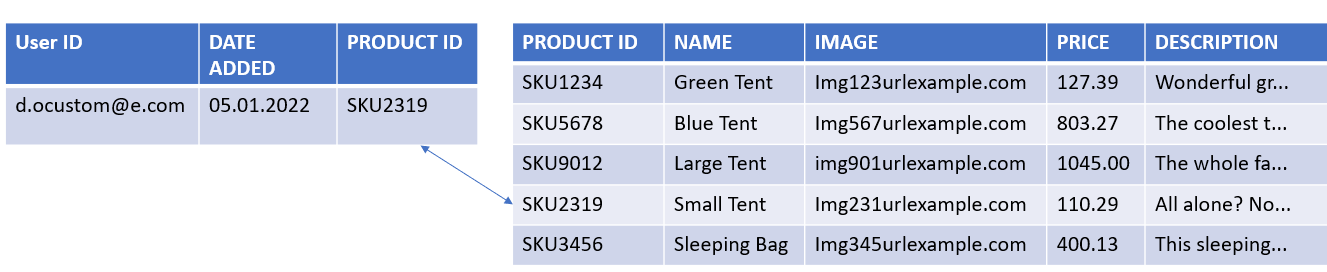
Cross-Table Queries
Create data views to link multiple Related Data Sets.
Example: Retrieve product details from a 'Products' data set using IDs from a 'Purchase History' data set.
More information: Create Data Views for Cross-table Related Data Queries
Next Steps
Explore the documentation on creating data structures.
Set up sample data imports to test functionalities.
Experiment with Related Data in segmentation and personalization to maximize engagement.