Overview
This window displays an overview of all the prepared Email and SMS messages in your system. A prepared message is a saved message assigned to a group. Mapp Engage sorts the messages into separate overviews based on the message's sendout channel.
What can I do in this window?
Create or edit a prepared message.
Copy or view a prepared message.
Use the Copy & Send action to send a copy of the prepared message to group members.
Open the Current Use window to see whether the selection is in use in any automations or on a whiteboard.
Archive unused prepared messages.
Navigation Path
Messages > Prepared Messages > Email or SMS
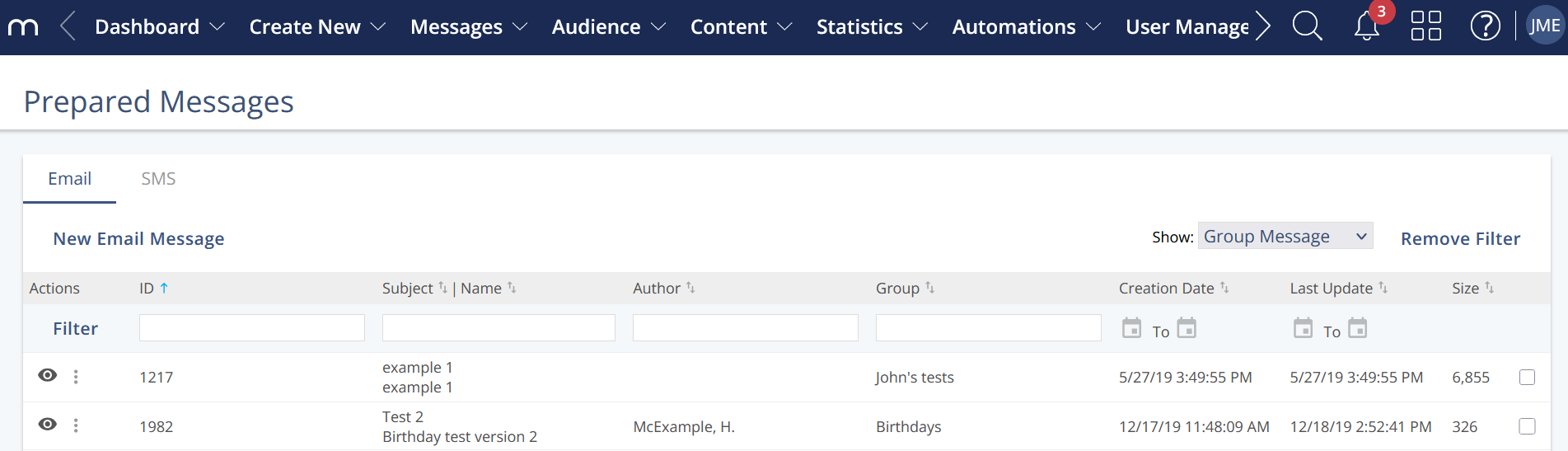
Settings
Information | Description |
|---|---|
ID | Displays the message ID (MID). Mapp Engage generates the MID, which is a unique number. It identifies the message in the system. All single sendouts of a prepared message share one MID, and each group sendout receives a new, unique message ID. |
Subject / Name | Displays the subject and name of the message. |
Author | It displays the name of the system user who created the message. Message ownership cannot be transferred. |
Group | Displays the name of the group to which the prepared message is assigned. |
Creation Date | Displays the timestamp when the message was first saved. |
Last Update | Displays the timestamp when the message was last updated and saved. |
Size | Displays the size of the message in kB. |
Message Actions
Action | Description |
|---|---|
New Message | Opens the Message Creation window. You can create a new message and save it as a prepared message. |
View | Opens the message in preview mode. The content cannot be edited in this mode. |
Edit | Opens the message in edit mode. You can modify the content, name, and subject line at any time, even if the message is already used in selections or automations. However, you cannot change the assigned group. |
Copy | Creates a duplicate of the message and opens the Message Creation window. The copy has a new message ID, can be assigned to another group, and is not linked to the original. Copies are not included in selections or automations referencing the original message. |
Copy & Send | Creates a copy of the message and opens the Prepare Sendout window. The copy must be sent to the assigned group. The message content or group cannot be changed before sendout. Copies created this way are included in selections and automations referencing the original prepared message. |
Edit Links | Opens the Edit Links window, where you can change link names and URLs. Redirected links affect all past and future sendouts of the prepared message. To update link properties (e.g., add tracking or categories), use Edit instead. These changes apply only to future sendouts. |
Current Use | Opens the Current Use window to see whether the message is included in any automations or whiteboard plans. |