Overview
The System Messages overview displays a list of default and customized messages used for automated system communication in Mapp Engage. It provides access to message details, editing options, and tools to manage message behavior.
Navigation Path
Messages > System Messages > System-Wide
Messages > System Messages > Group (General)
Messages > System Messages > Group (Specific) > Group (select from drop-down)
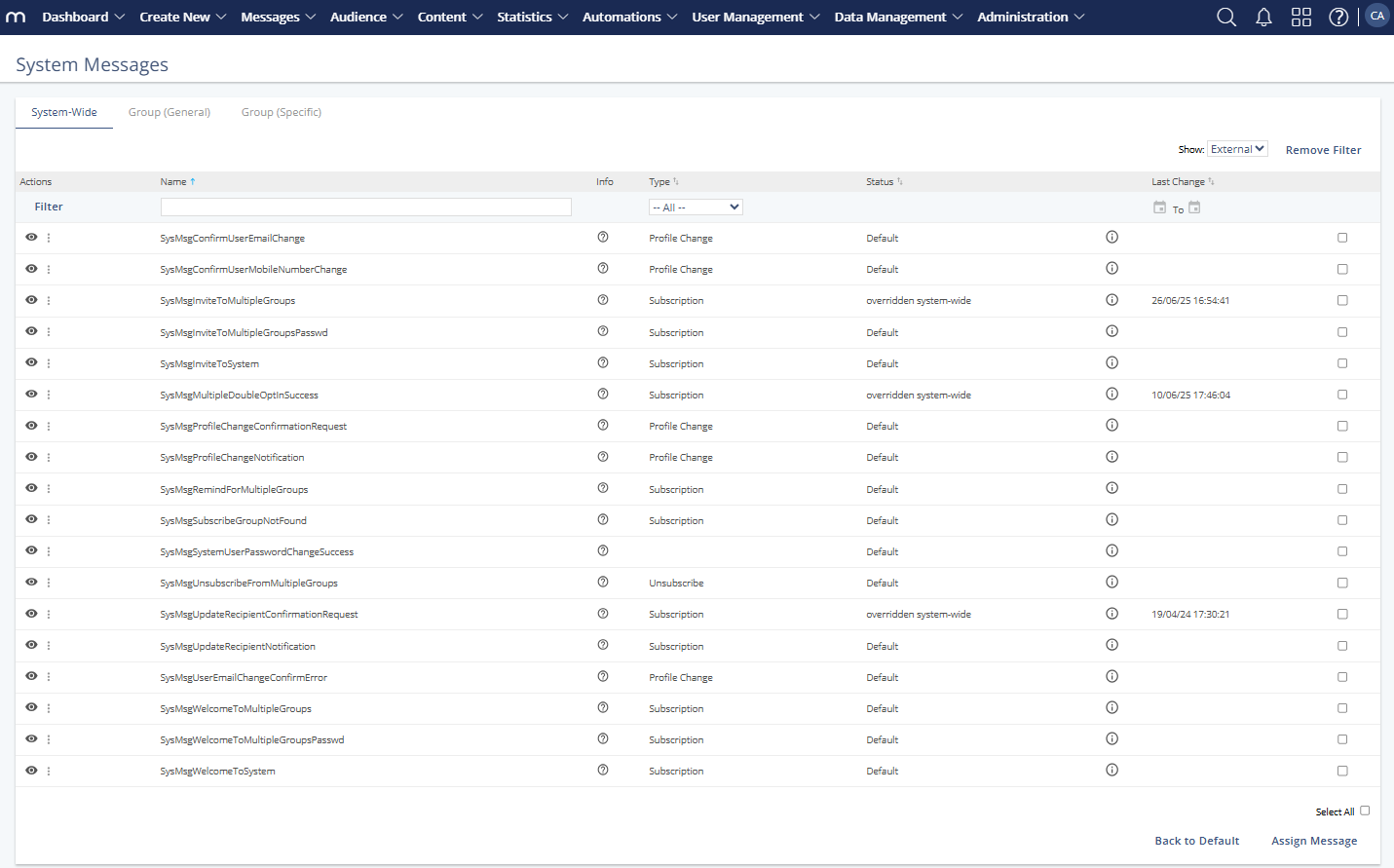
System Messages Overview
Information Displayed
Information | Description |
|---|---|
Name | Displays the internal name of the system message. |
Info | Tooltip icons show a short description or purpose of the message. |
Type | Indicates the type of action the message supports:
|
Status | Shows whether the message is default or overridden with a custom version. |
Last Changed | Shows the date and time when the message was last modified. |
Message Actions
Action | Description |
|---|---|
View | Opens the preview of the system message. See Email Message Preview. |
Edit | Opens the Edit System Message window. Note: Customized messages must be edited in the original prepared message. See Edit System Message. |
Suppress Sendout | Disables automatic sending of the message without deleting the configuration. |
Back to Default | Reverts the message to the default system version. |
Assign Message | Opens a window where you can assign a prepared message as a custom version. See Edit System Message.
|