Overview
The Calendar provides a time-based, consolidated view of all scheduled and sent messages across channels, including email, SMS, mobile push, web push, and in-app. It helps you plan, track, and manage communication activity to optimize message timing and frequency.
Use the calendar to identify communication gaps or overlaps, preview message content, and adjust plans. It supports detailed filtering, permission-based access, and access to message statistics.
Permissions
Certain actions in the Calendar require specific group permissions:
View sent messages – Group permission 605 (
Messaging: View Sent Messages)View message statistics – Group permission 608 (
Messaging: View Message Statistics)Reschedule messages – Group permission 618 (
Messaging: Schedule Message Sendout)
Navigation Path
Messages > Calendar
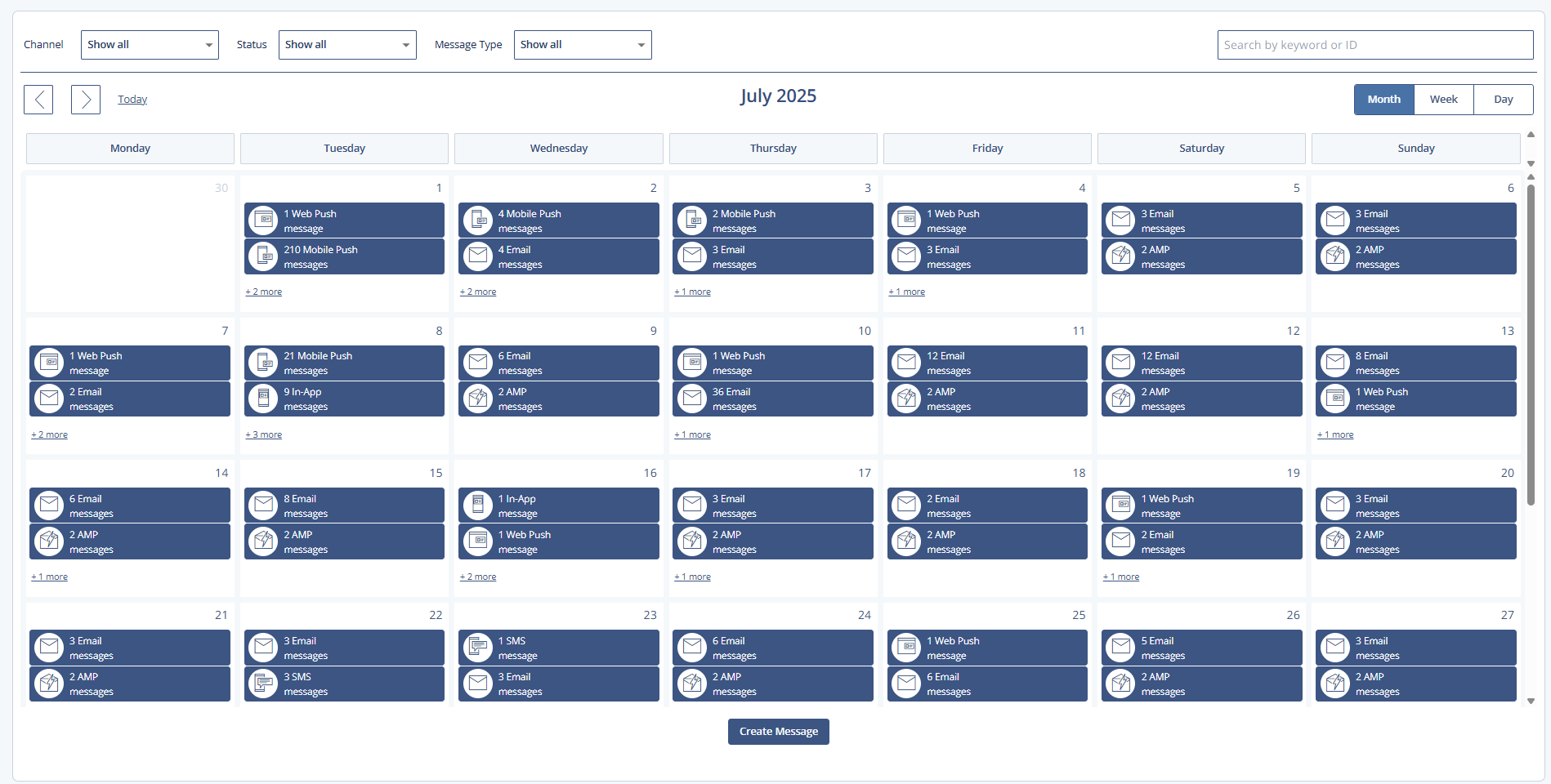
Filters
Use filters at the top of the Calendar window to narrow down the displayed messages. The calendar saves your most recent view and time interval. When you reload the window, the calendar defaults to these options.
Channel filters
Selects messages in a specific message channel. The entry is placed on the calendar according to the time the message was sent or is scheduled for sendout. If there are multiple messages of the same type simultaneously, the calendar groups the messages in a single entry.
SMS | Mobile Push | Web Push | In-App | AMP | |
|
|
|
|
|
|


Status filters
Selects messages with a specific status.
Scheduled: Selects messages that are scheduled for sendout.
Processing: Selects messages that Mapp Engage processes currently.
Finished: Selects messages that have already been sent.
Canceled: Selects messages that have been canceled
Failed: Selects messages whose sendout failed
Paused: Selects messages on which a system user halted work temporarily.
Message Type filters
Selects messages of a specific type.
Normal
Group Message: Selects a message to a group. For information on group messages, see Group Messages.
Split Main: Selects the main message from which variants were created for testing.
Split Variant: Selects the variants of the main message. For more information on split sendouts, see Split Sendout.
Submessage: Selects the Submessage from a SuperMessage sent to a SuperGroup.
SuperMessage: Selects the SuperMessages that are sent to a SuperGroup. For more information, see SuperMessages.
Time filters
Setting | Description |
|---|---|
| Navigate to the previous or next day, week, or month |
Today | Highlights the current day in the weekly/monthly view or shows today in the daily view |
Month | View all sendouts for a full month; click a day to open the day view |
Week | View sendouts for a week with a real-time indicator |
Day | View sendouts for a single day with a real-time indicator |

Sendout & Notes Panel
Clicking a calendar entry opens the Sendout & Notes panel on the right. This panel includes:
Message date and time
Message type and status
Author
Subject line and modification date
Direct preview access
Message statistics link
