Overview
eCommerce triggers store the rules that evaluate Product Catalog changes for use in Whiteboard automations. This interface is used to configure trigger conditions, scope, and timing so that only relevant product updates are considered.
Navigation Path
Administration > eCommerce > Triggers. To create a trigger, click Create. To change a trigger, click the pencil icon (Change settings) or select Edit from its menu (⋮).
Trigger List
The list shows your triggers with the columns Name, Type, Table, Description and Recency. Type and table are shown with their technical values, for example back_to_stock or wishlist. Use the filter row above the list to filter by these columns, and Show to switch between active and archived triggers.
Action | Description |
|---|---|
Create | Opens the form for a new trigger. See Settings below. |
Remove Filter | Resets the filter row. |
Edit | Opens the settings of the trigger. Available via the pencil icon or the menu (⋮) of the trigger. |
Archive | Archives the selected triggers after a confirmation. |
Reactivate | Only in the archived view: reactivates the selected triggers. |
Delete | Only in the archived view: deletes the selected triggers after a confirmation. This cannot be undone. |
Details | Area below the list. Shows the settings of the selected trigger. |
Settings
Setting | Description |
|---|---|
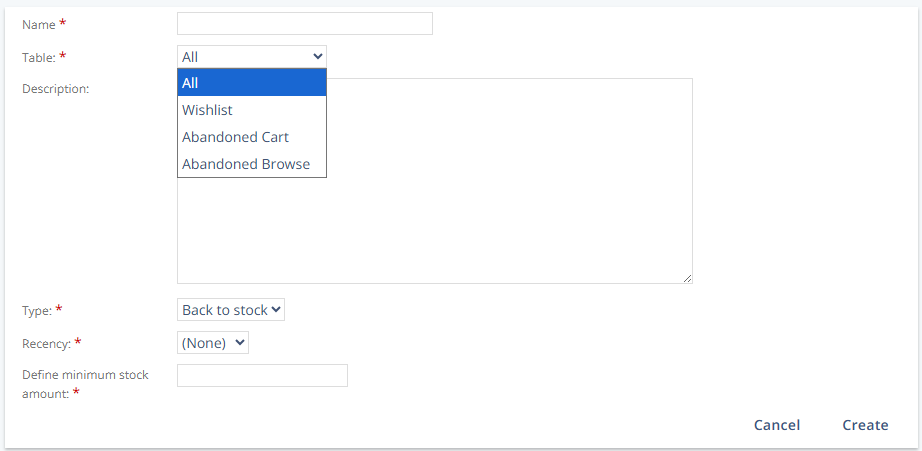
Name | Defines the internal name of the trigger. This name is used to identify the trigger configuration. At least 3 characters, letters and digits only. |
Table | Specifies where the product must exist to be evaluated by the trigger. Available options are:
|
Description | Optional text that describes the purpose of the trigger. |
Type | Defines the trigger logic that is applied when product data is imported. Available types are
|
Recency | Limits trigger execution based on the age of the product entry in the Wishlist, Abandoned Cart, or Abandoned Browse. Items older than the selected value are ignored. Available values are (None), 1 day, 3 days, 4 days, 14 days, 30 days and 90 days. |
Minimum stock amount | Shown for Back in stock and Low stock. Back in stock is met when the stock was 0 in the previous import and now exceeds this value. Low stock is met when the stock exceeds this value and is lower than Stock amount. |
Stock amount | Shown for Low stock only. Upper limit of the stock range. |
Minimum price drop percentage | Shown for Price drop only. Minimum price reduction in percent compared to the price stored in the Wishlist, Abandoned Cart, or Abandoned Browse. |
Note:
Triggers are evaluated only when product data is added to the Product Catalog.
Trigger configuration alone does not start an automation. A corresponding Whiteboard with a Product Catalog Event start event is required.
For examples of each trigger type, see Triggers.