Overview
Set a new password for an individual contact.
Navigation path
Go to Audience > Contact Management > All Contacts
In the Actions column of the desired contact, click Password.

Settings
Setting | Description |
|---|---|
New Password | Enter the new password for the selected contact. |
Confirm Password | Re-enter the same password to confirm. Validation ensures both values match. |
Validation
Passwords match:

Passwords don’t match:

Actions
Action | Description |
|---|---|
New Password | Sets a new password for the selected contact. |
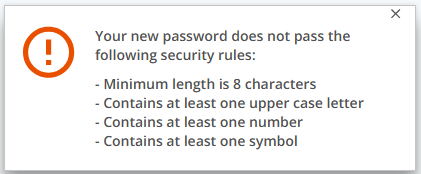
Guidelines for Password Creation
Your password must meet the following rules:
At least eight characters
Contain each of the following:
One lowercase character
One uppercase character
One symbol
One number
Not used in the last 30 days
Different from the last 12 passwords used for your account in the past year
Not changed more than three times in the last 24 hours
If a password does not meet these requirements, an error message is displayed: