Personalization Builder: Structure

Prev Next

Overview

Use the Structure area in Personalization Builder to build and organize personalization rules with InsertIf and InsertElse blocks. Define conditions, add nested structures, and insert content that displays dynamically to recipients based on attribute values.


Navigation Path​

  1. Navigate to Audience > Segmentation > Personalization.

  2. Edit an existing personalization, or create a new one.

  3. Click Structure - this opens the area where InsertIf/InsertElse blocks are created.

Personalisation Builder interface showing fields for name and description input.


Actions

General Block Actions

Action

Description


Expands or collapses blocks to display or hide their nested content.


Adds an InsertElse block at the same level as the current block. The initial structure always starts with InsertIf; subsequent blocks determine which parts of the rule apply to the recipient.

Opens  menu to access these options:

  1. Add InsertElse: Adds an InsertElse block at the same level.

  2. Edit: Modifies the InsertIf or InsertElse conditions in the wizard. See Editing InsertIf-InsertElse Conditions.

  3. Edit Block Name: Renames the block for easier identification; block names also appear in email campaign statistics for comparing success across different personalizations.

  4. Add Content: Adds a content block to the selected InsertIf or InsertElse structure. Content blocks are editable and can include fixed text, HTML formatting, or placeholders. See /v1/docs/create-a-personalization-structure-wizard#add-content​

  5. Add Default: Creates a fallback block that applies when no other conditions are met; typically contains general content.

  6. Add Nested InsertIf: Creates a nested InsertIf/InsertElse structure within the selected block for more granular logic (e.g., segment by one attribute, then refine by additional attributes).


Add Content​

Inserts a Content Block into the selected InsertIf/InsertElse structure. Content can include fixed text, HTML formatting, and placeholders for attribute-based personalization. Personalizations can be saved with or without content.
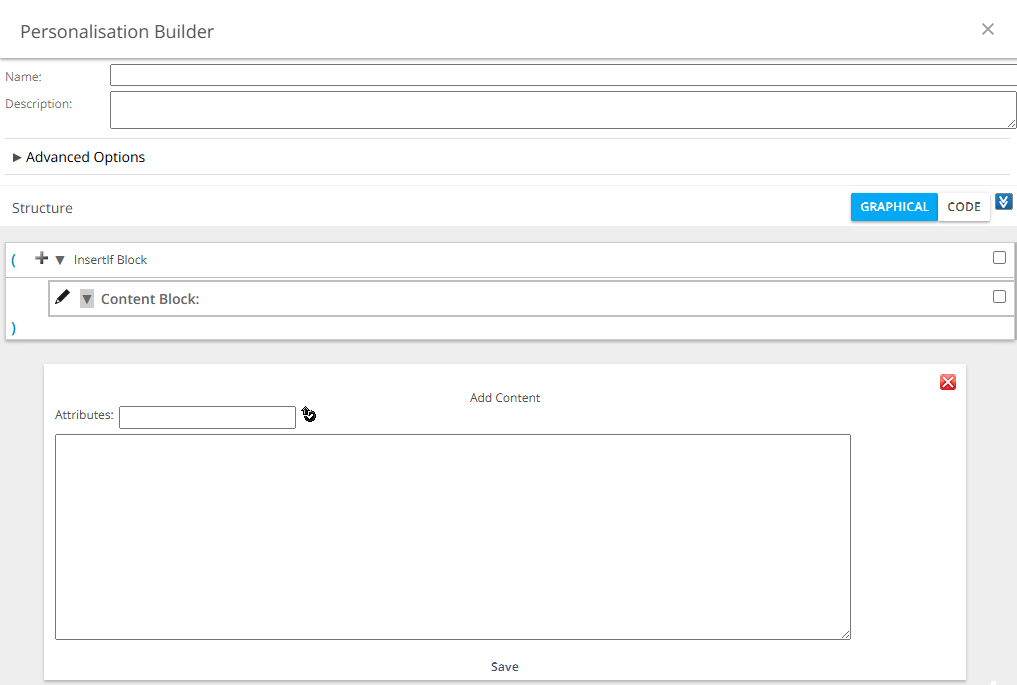
Personalisation Builder interface showing content block and attributes section for customization.

Action

Description

Attributes​

Searches across standard and custom attributes.

Adds the selected attribute to your content for personalization.

​Input field​

Defines the fixed content of an InsertIf/InsertElse block. HTML tags are supported to customize layout. Nested blocks can also include their own content.

Example:

  • Enter fixed text such as “Dear”.

  • Add a nested InsertIf to check the recipient’s gender.

  • For male recipients, add: Dear Mr. <%user['Lastname']%>.

  • For female recipients, add: Dear Ms. <%user['Lastname']%>.

​Save​

Saves the content within the content block and closes the Add Content window.


Examples of InsertIf and Content Blocks

  1. Salutation with Capitalized Name:
    This InsertIf block personalizes the salutation with the recipient's first and last name, capitalized.

    Dear Mr. <%${ecx:capitalizeFirstLetter(user['FirstName'])}%> <%${ecx:capitalizeFirstLetter(user['LastName'])}%>
  2. Loyalty Program Points Progress: This structure provides dynamic feedback to recipients based on their loyalty program points. The output adapts depending on their progress:

    <%InsertIf expression="${user.CustomAttribute['Loyalty_Points'] < 1000}"%>
    <%${1000 - user.CustomAttribute['Loyalty_Points']}%> Points to Reach Silver!
    <%/InsertIf%>
    <%InsertIf expression="${user.CustomAttribute['Loyalty_Points'] >= 1000 && user.CustomAttribute['Loyalty_Points'] < 5000}"%>
    <%${5000 - user.CustomAttribute['Loyalty_Points']}%> Points to Reach Gold!
    <%/InsertIf%>
    <%InsertIf expression="${user.CustomAttribute['Loyalty_Points'] >= 5000 && user.CustomAttribute['Loyalty_Points'] < 10000}"%>
    <%${10000 - user.CustomAttribute['Loyalty_Points']}%> Points to Reach Platinum!
    <%/InsertIf%>
    <%InsertElse%>
    Register for Our Loyalty Program to Receive Valuable Rewards!
    <%/InsertElse%>

    Please also see the following use case that leverages the personalization capabilities of Mapp Engage: Using a Loyalty Program to Increase Revenue.

  3. Capitalize First Name in Subject Line: This personalization capitalizes the first letter of the recipient’s first name, or provides a default subject if the name is unavailable:

    <%InsertIf expression="${((not empty user['FirstName']))}" id="testcapitalize"%>
    <%${ecx:capitalizeFirstLetter(user['FirstName'])}, rest of subject%>
    <%/InsertIf%>
    <%InsertElse id="testcapitalize"%>
    Subject
    <%/InsertElse%>