Goal
Update an existing Whiteboard or create a copy for a new journey while avoiding message conflicts and preserving data clarity.
Background Information
Whiteboards are used to design automated customer journeys. Over time, you may need to improve a journey's performance or reuse a setup for a different audience.
There are two main approaches:
Edit a Whiteboard by creating a new version (Event-based and Recurring whiteboards only)
Copy a Whiteboard to reuse its structure without affecting the original
Each option supports different use cases.
Procedures
1 Edit an Existing Whiteboard
Use this option to optimize a journey while allowing existing contacts to complete their flow.
Example: improve your birthday campaign without disrupting ongoing sends.
Note
This option is available for Event-based and Recurring whiteboards. Scheduled whiteboards do not have an Edit option while active. To change a Scheduled whiteboard, deactivate it first, then edit it while it is inactive.
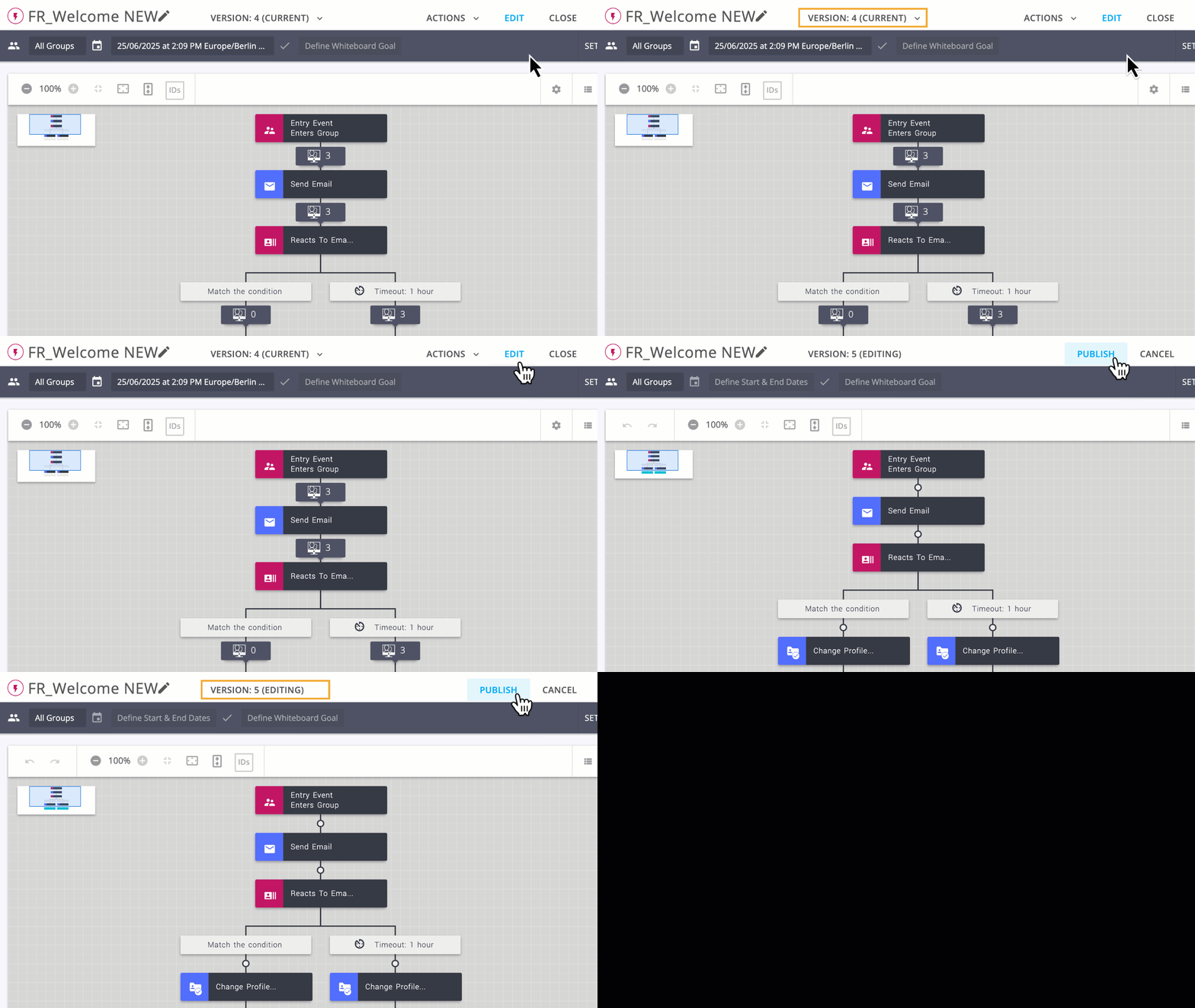
Click Edit on the Whiteboard you want to update. This creates a draft version.
Make the necessary changes.
Click Publish to activate the new version.
Note
The previous version is phased out: it no longer accepts new contacts, but existing contacts continue their path.
Each version has its own statistics, allowing you to compare performance over time.
2 Copy a Whiteboard
Use this option when you want to reuse the structure for a different audience or campaign.
Example: You want to replicate your seasonal campaign for another customer segment.
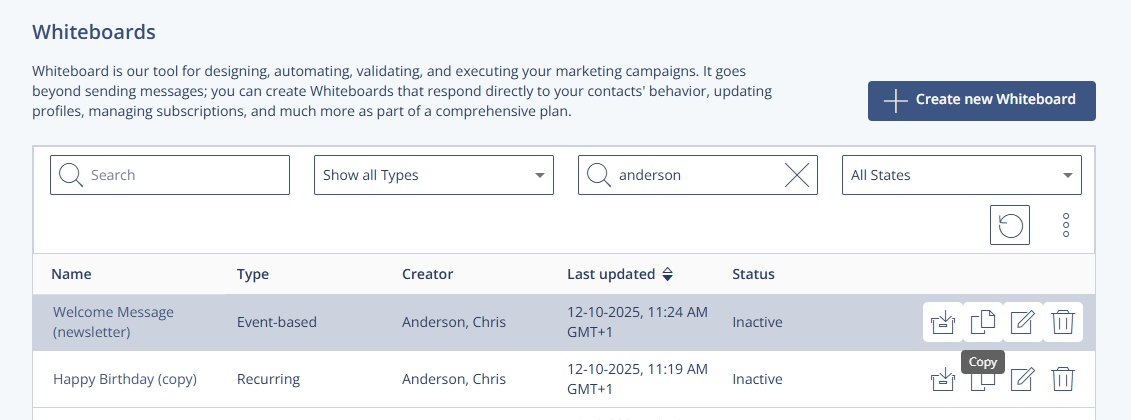
Go to Automations > Whiteboards
Click the Copy icon next to the Whiteboard you want to copy.
Note
The new Whiteboard has the same structure but no statistics.
This ensures a clean start with no data carried over from the original.