1 Introduction
In Mapp Intelligence, each filter works within a specific context, known as the scope. The scope determines at which level a filter applies: for a single interaction, for a page, for a complete visit, or across multiple visits of the same user.
This page explains how scopes work, how they influence filter results, and how they can be extended. Real-world examples show how choosing the right scope affects your analysis.
2 Overview of Available Scopes
In Mapp Intelligence, filters and values are always applied in a specific scope. A scope defines the level at which something is evaluated — for example, per interaction, per page, or across a full visit.
The following scopes are available:
Scope | Description | Example Dimensions |
|---|---|---|
Direct | Individual list entries, such as products or errors | Products |
Actions | A single interaction, such as a click or media activity | Events, Media |
Pages | A single page view and all values sent with it | Pages, Referrer |
Visits | All interactions within one session | Campaign, Device Class |
Visitors | All visits of the same user | - |
Visitors Preference | Interests derived from visit behavior over time. More information here. | - |
2.1 Standard Scopes
Most filters in Mapp Intelligence are based on dimensions or metrics with a defined standard scope. This scope determines the default level at which the value is evaluated — for example, whether something is tracked per action, per page, or per visit.
The following are the standard scopes:
Actions
Pages
Visits
.png)
Standard Scopes with Example Dimensions
These standard scopes are assigned automatically and shown in the filter configuration or documentation. Knowing the standard scope is helpful when interpreting data, especially when combining different dimensions and metrics or applying filters.
For example, if you use a visit-level dimension like Device Class together with a page-level metric like Page Impressions, the metric will show the value across the full visit. If both elements share the same scope, the metric and dimension are evaluated in that specific context only.
The Visitors and Direct scopes are not standard scopes. They are only used in specific cases, for example, when extending filters across sessions (Visitors) or analyzing list-type parameters (Direct).
Direct is automatically applied (via Auto scope) and cannot be selected manually.
3 How Scope Evaluation Works Internally
Scopes in Mapp Intelligence are based on how tracking data is stored and linked behind the scenes.
Each user activity – such as a page view, event, or product impression – is recorded with several identifiers, which determine how filters are evaluated across different scopes.
3.1 Scopes and Tracked Activities
This diagram shows how a single visit with multiple interactions is broken down and mapped to different scopes:
Actions: individual clicks or page views
Pages: all data grouped by page
Visits: all activity within a session
Visitors: all visits of the same user
Direct (if applicable): separate entries for each product or value in a list
.png)
Example of tracked user activity across different scopes: Visit, Pages, Actions, and Direct entries.
3.2 Captured Data and Identifiers
Each tracked interaction — such as a page view, event, or product impression — includes a set of core values and identifiers. These determine how filters are evaluated and how activities are grouped into different scopes.
Typical identifiers include:
Visitor ID – user identifier
Session ID – visit/session context
Request ID – individual interaction
Click Request ID – links clicks to follow-up actions
Position ID – separates entries in a list (used for Direct)
Together with the actual tracking values (e.g., page name, device, campaign), these identifiers form the basis for scope evaluation.
.png)
Example of tracking data with assigned identifiers used for scope evaluation (Visitor ID, Session ID, Request ID, Click Request ID).
Note
Some requests are automatically created by plugins, such as the Teaser Performance Plugin or Marketing Automation Plugin.
These may include internal request types like "webtrekk_ignore" and are also assigned to scopes based on their metadata.
3.3 Underlying Data Structure
All captured data is stored in a normalized table structure. Each row in this table represents a single interaction or list entry.
The scope system builds on this structure to determine whether a filter condition is fulfilled at the chosen level — for example, whether a condition is true for a single click (Actions), a full session (Visits), or across all sessions of the same user (Visitors).
This structure enables:
Reliable grouping and evaluation of filters by scope
Correlation of events across different levels
Accurate inclusion or exclusion of data based on container logic
.png)
Structured view of captured tracking data, showing how each interaction is stored and linked to identifiers across scopes.
4 Understanding Filter Scopes
In Mapp Intelligence, filters can be evaluated on different levels, called scopes.
When building a filter, you can either rely on the automatic assignment (Auto Scope) or select a specific scope manually (Manual Scope Selection). This affects which dimensions or metrics are available, how they interact, and how filter logic is applied.
4.1 Auto Scope
By default, filters in Mapp Intelligence use Auto Scope. This means:
The system automatically chooses the smallest valid scope where all filter elements can be applied together.
This reduces complexity and prevents scope conflicts.
Auto Scope is selected by default when creating a filter.

Note
The smallest valid scope is not always the same as the standard scope of a dimension or metric.
For example, the metric Page Impressions has a standard scope of Pages, but it can only be filtered in broader scopes like Visits or Visitors, where it is aggregated correctly.
Example: Different Scopes in One Container
With Auto Scope, each filter is evaluated in the smallest valid scope where it can be applied, even if multiple filters are placed in the same container.
.png)
Two filters in Auto-Scope Container
Search Engines → evaluated on Pages scope
Device Class → evaluated on Visits scope
Although both filters are in the same container, they are processed separately, each in its respective valid scope. This avoids scope conflicts and makes filter building more flexible.
4.2 Manual Scope Selection
Instead of using Auto Scope, you can manually define a scope for a filter container. This determines the context in which all included filter elements are evaluated.
When selecting a manual scope, only dimensions and metrics available in that scope, or in a narrower scope that allows extension, are displayed.
Typical use cases:
Filter for all visits in which a certain page was viewed.
Combine metrics with different standard scopes in a broader context.
Apply filters based on user-level behavior across sessions.
Note
If you select a narrow scope (e.g. Pages), broader elements like Device Class won’t be available.
4.2.1 How Scope Extension Works
Each filter starts from a defined standard scope, such as Actions, Pages, or Visits. From there, it can be extended step by step to a broader scope if needed.
Scopes in Mapp Intelligence follow a logical hierarchy — from the most granular to the broadest level:
Direct → Actions → Pages → Visits → Visitors
Scope extension means that a filter is evaluated not just in its original context, but in a broader one — for example, a page-level filter inside a visit-level container. This allows multiple filter elements to be combined meaningfully, even if their standard scopes differ.
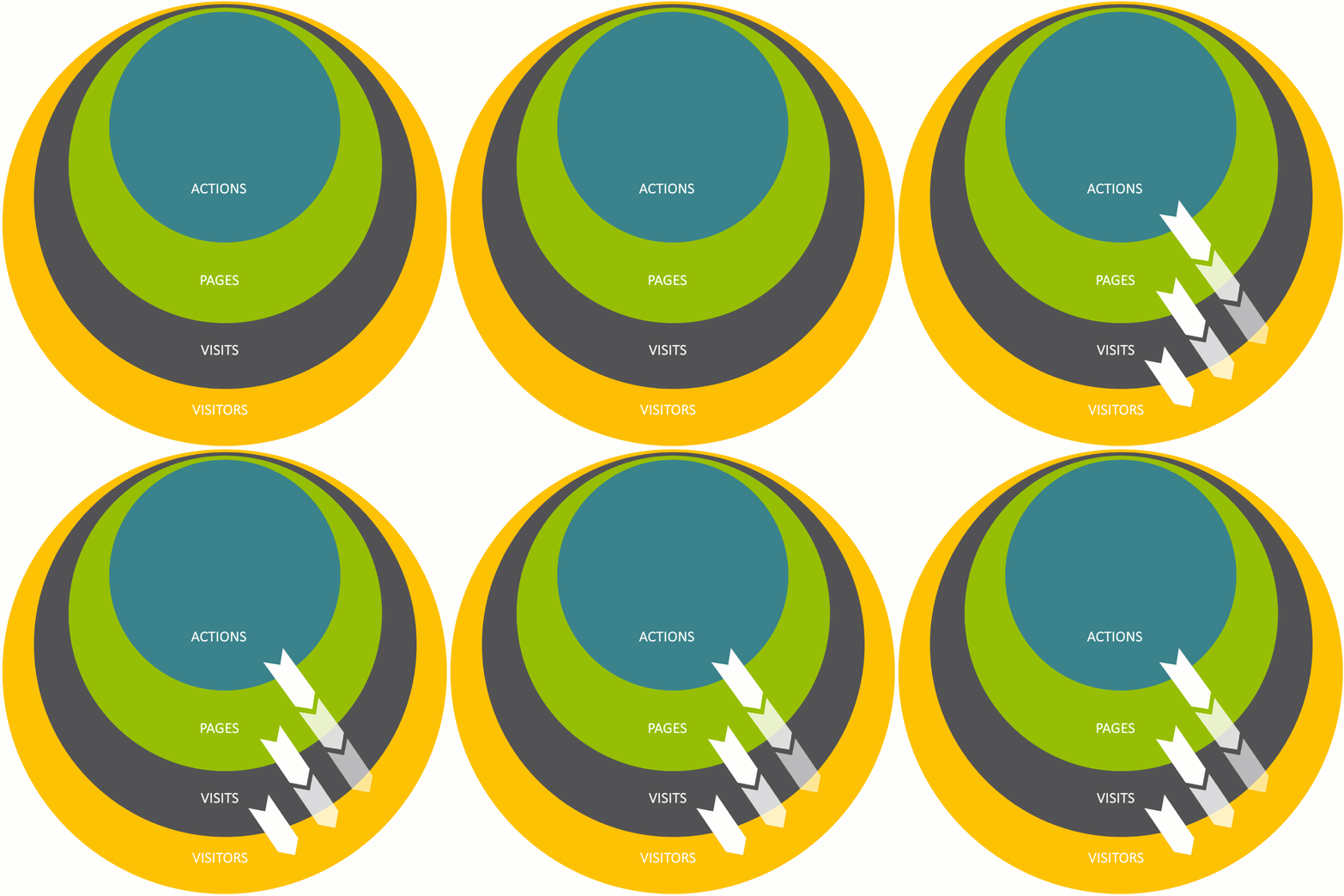
Scope Extension
You can adjust the scope for each container using the dropdown in the Filter Engine.
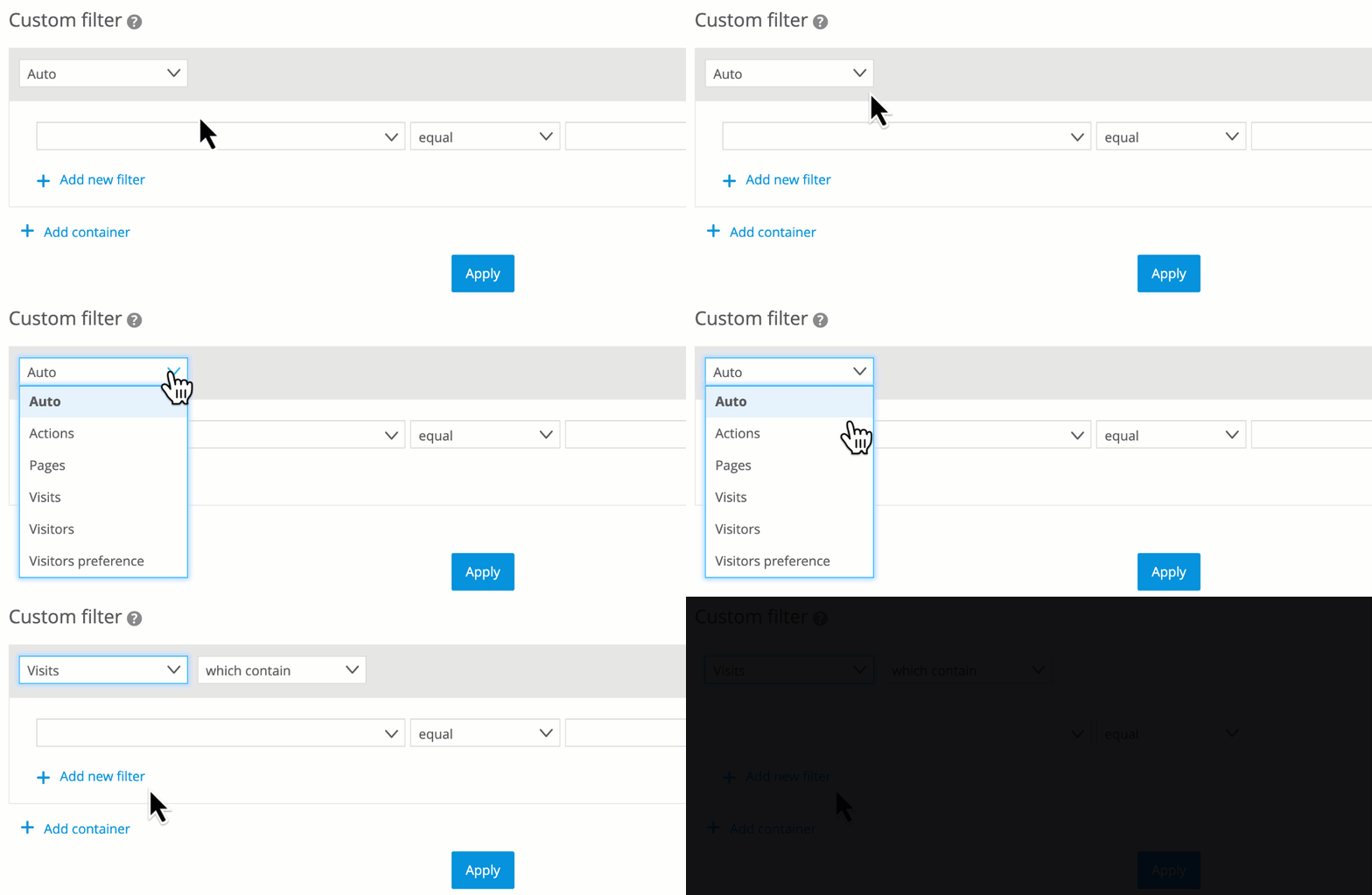
Choosing a scope
Scope Compatibility of Dimensions and Metrics
Not all filter elements behave the same when it comes to scope extension:
Dimensions are usually available in their standard scope and in broader scopes through extension.
Count metrics (e.g. Qty Orders) typically require aggregation and are available starting from the next higher scope.
Non-count metrics (e.g. Order Value) can be used in their standard scope and in higher scopes.
A detailed list of compatible metrics, dimensions and scopes can be found in the documentation.
4.2.2 Example: Search Button Click
You are tracking clicks on a Search Button using an event. Depending on the selected scope, the filter returns very different results:
Scope: Actions – How often was the button clicked?
Scope: Pages – On which pages was the button clicked?
Scope: Visits – What else happened during those visits?
Scope: Visitors – What did those users do across all their visits?
Each level adds broader context, from a single interaction to multi-session user behavior.
5 How Scopes Affect Filter Results
The following examples show how filters can return different results depending on the selected scope, even when the underlying tracking data remains the same.
Each scenario follows the same structure:
A user interacts with a website or app – visiting pages, clicking links, or viewing products.
The interactions are tracked and grouped based on their time, content, and technical identifiers.
We then apply the same filter – but change the scope (e.g., Pages, Visits, Visitors) – to see how the result changes.
5.1 Example: Pages, Visits, Visitors
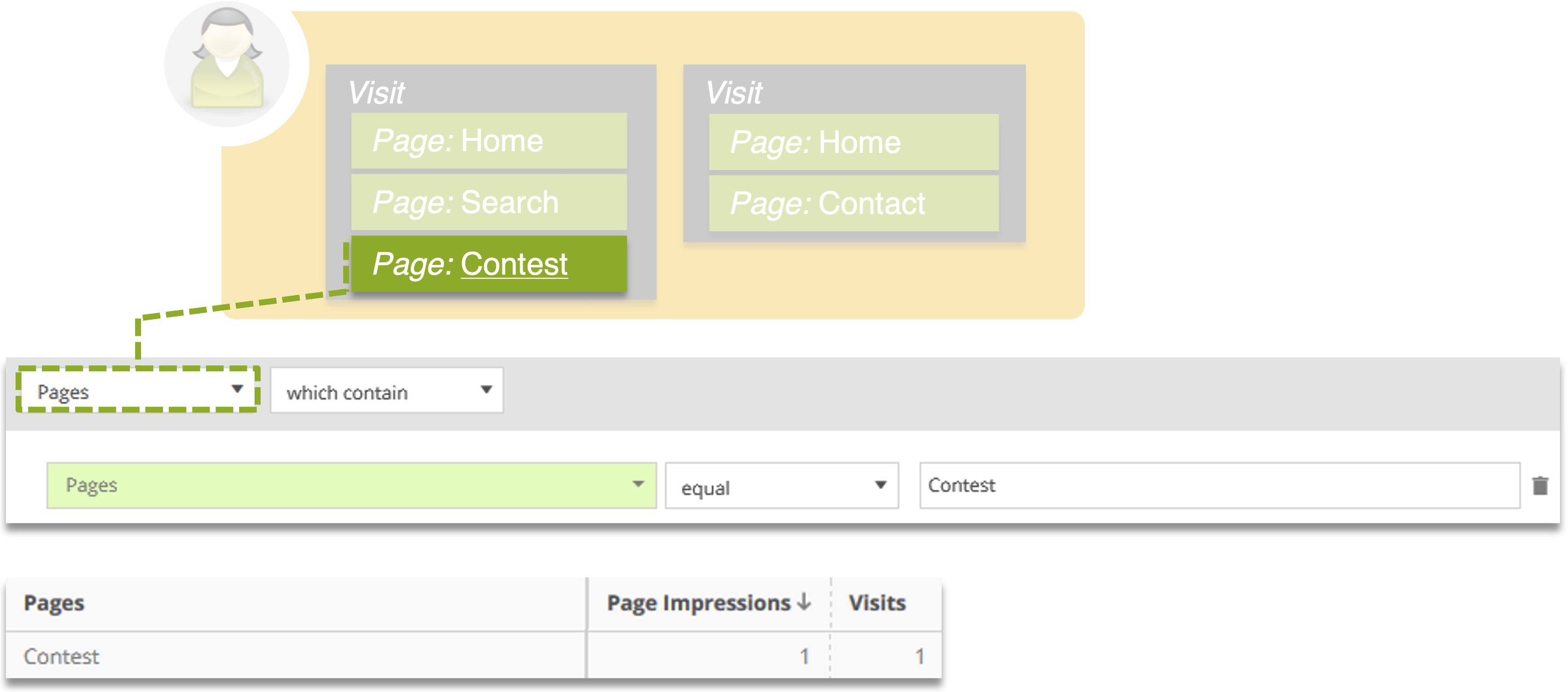
This example shows a visitor with two separate visits.
During one of the visits, they view the page “Contest”. We apply a filter on this page and observe how the result changes depending on the selected scope.
.png)
Example 5.1 - One visitor with two separate visits and different page views per session.
Result by Scope
Scope | What the result shows in this case |
|---|---|
Pages | How often the page “Contest” was viewed |
Visits | Which visits included at least one view of the page “Contest” |
Visitors | All visits of the user who viewed the page “Contest” at least once |
Pages Scope
This image shows how the filter is applied on page level.
Every tracked view of the page “Contest” is counted, regardless of visit.
In this case, the page was viewed once, so the result shows one page impression.
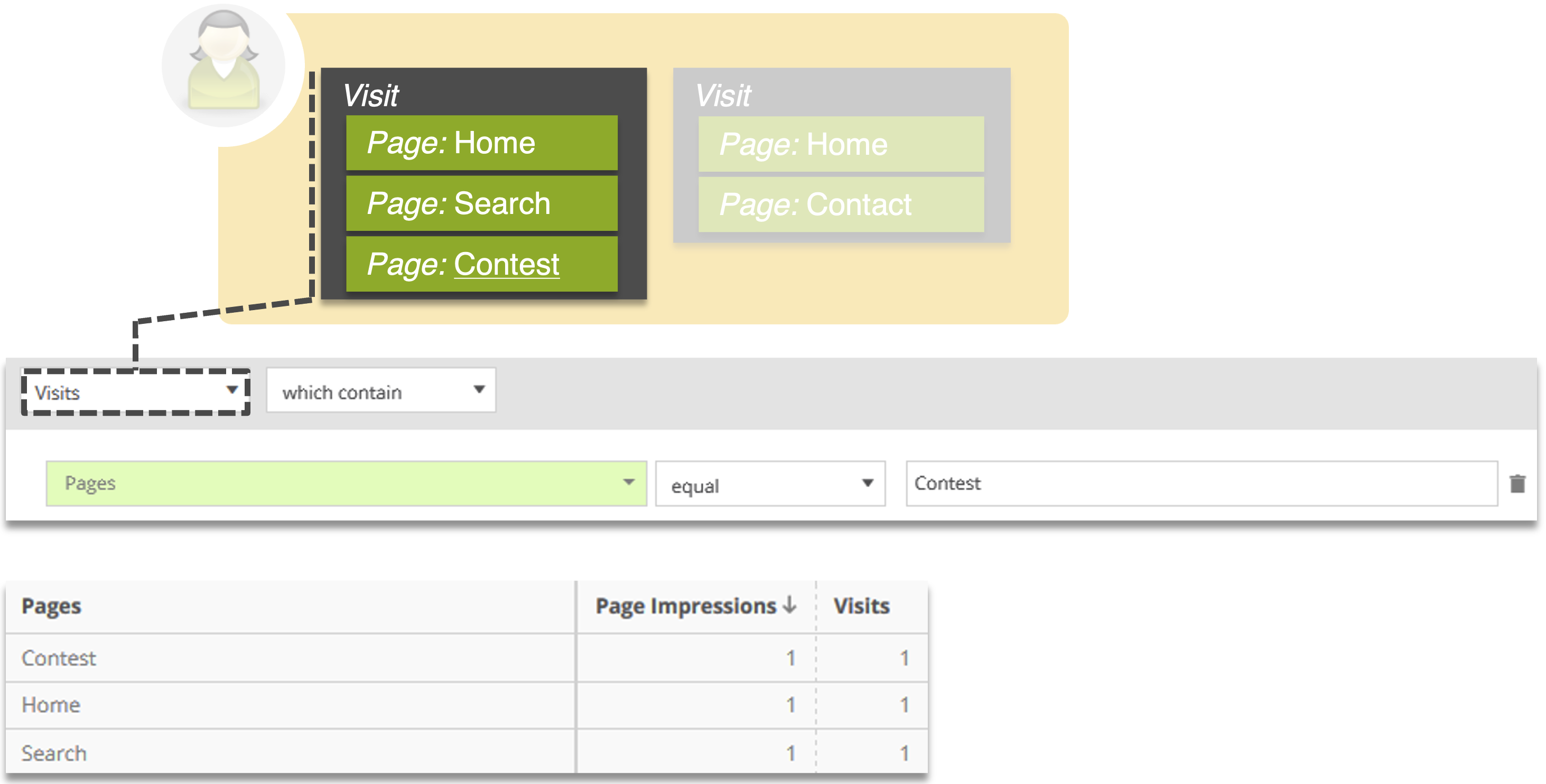
Visits Scope
This image shows how the same filter is evaluated on visit level.
Only the visit in which the page “Contest” was viewed is included.
All other visits are excluded from the result.
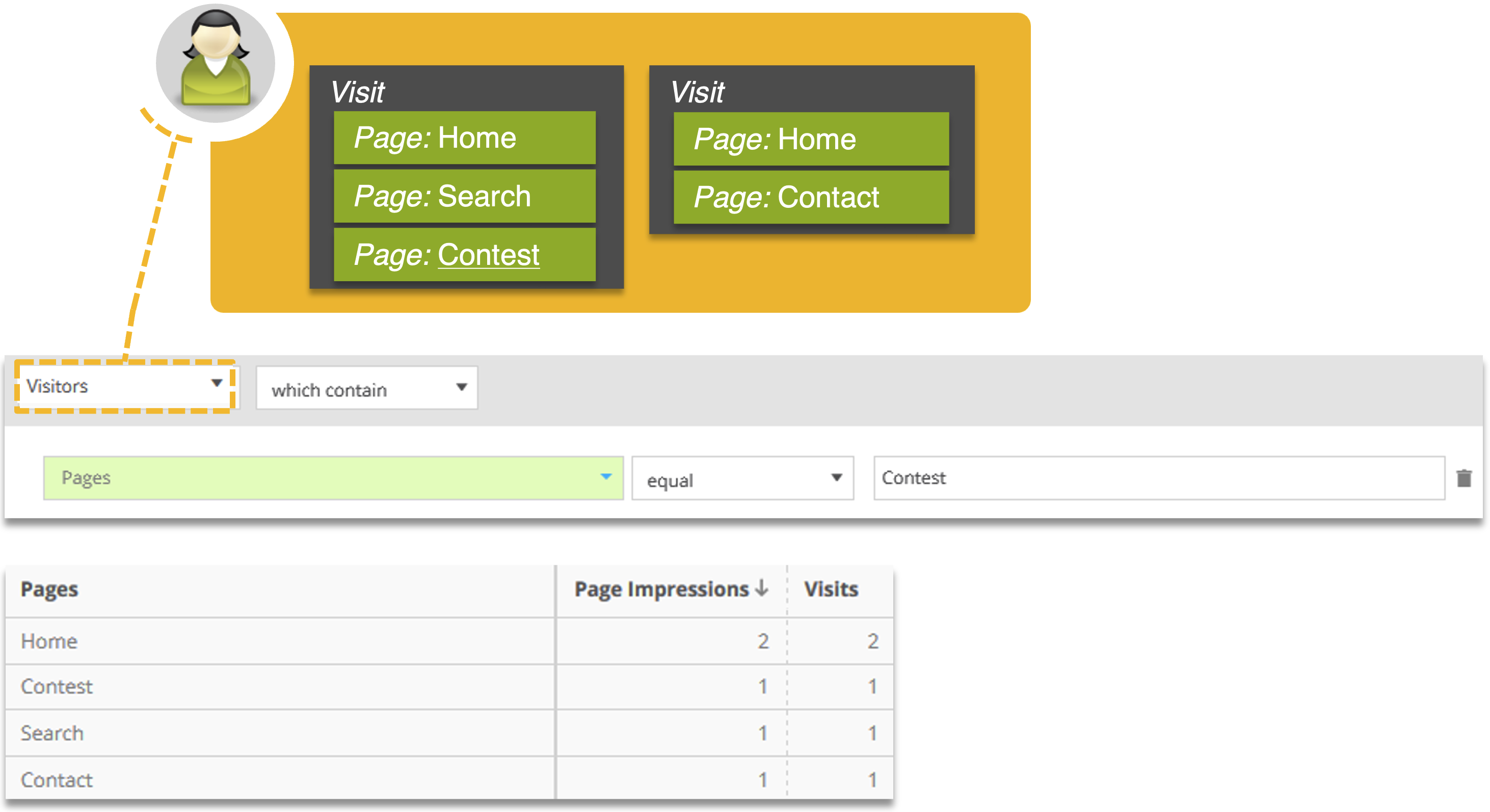
Visitors Scope
This image shows how the filter is evaluated on visitor level.
The result includes all user visits—even those where the page was not viewed—because the visitor matched the condition at least once.
5.2 Example: Filtered Events - Actions, Pages, Visits
This example shows a visitor interacting with multiple elements during a single visit. On the “Search” page, they click two different filter buttons: “Filter Brand” and “Filter Price”. We apply a filter on the event “Filter Price” and observe how the result changes depending on the selected scope.
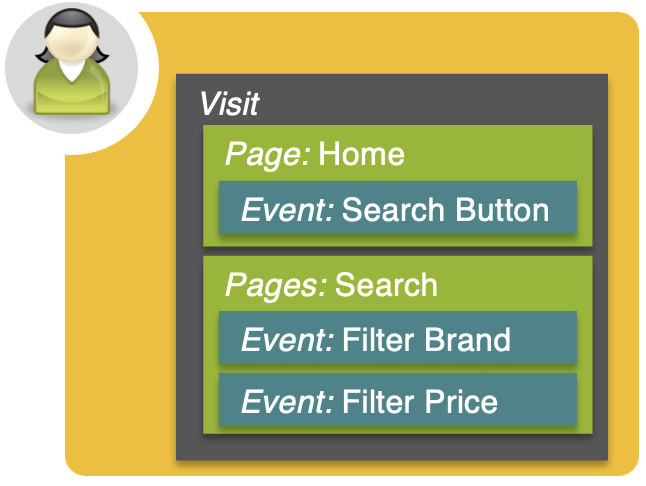
Example 5.2 - One visitor with multiple page views and events during a single visit
In this example, we look at two types of analysis:
Event analysis (Navigation > Events): shows how often the filtered event was measured..
Page analysis (Navigation > Pages > Pages): shows on which pages the filtered events were measured, and how often those pages were viewed.
Result by Scope
Scope | Event Analysis | Page Analysis |
|---|---|---|
Actions | How often the filtered event was measured | On which pages the filtered event was measured |
Pages | Which events were measured on the same page | Which pages included at least one matching event – and which events were on those pages |
Visits | All events during the visit | All pages viewed during the visit |
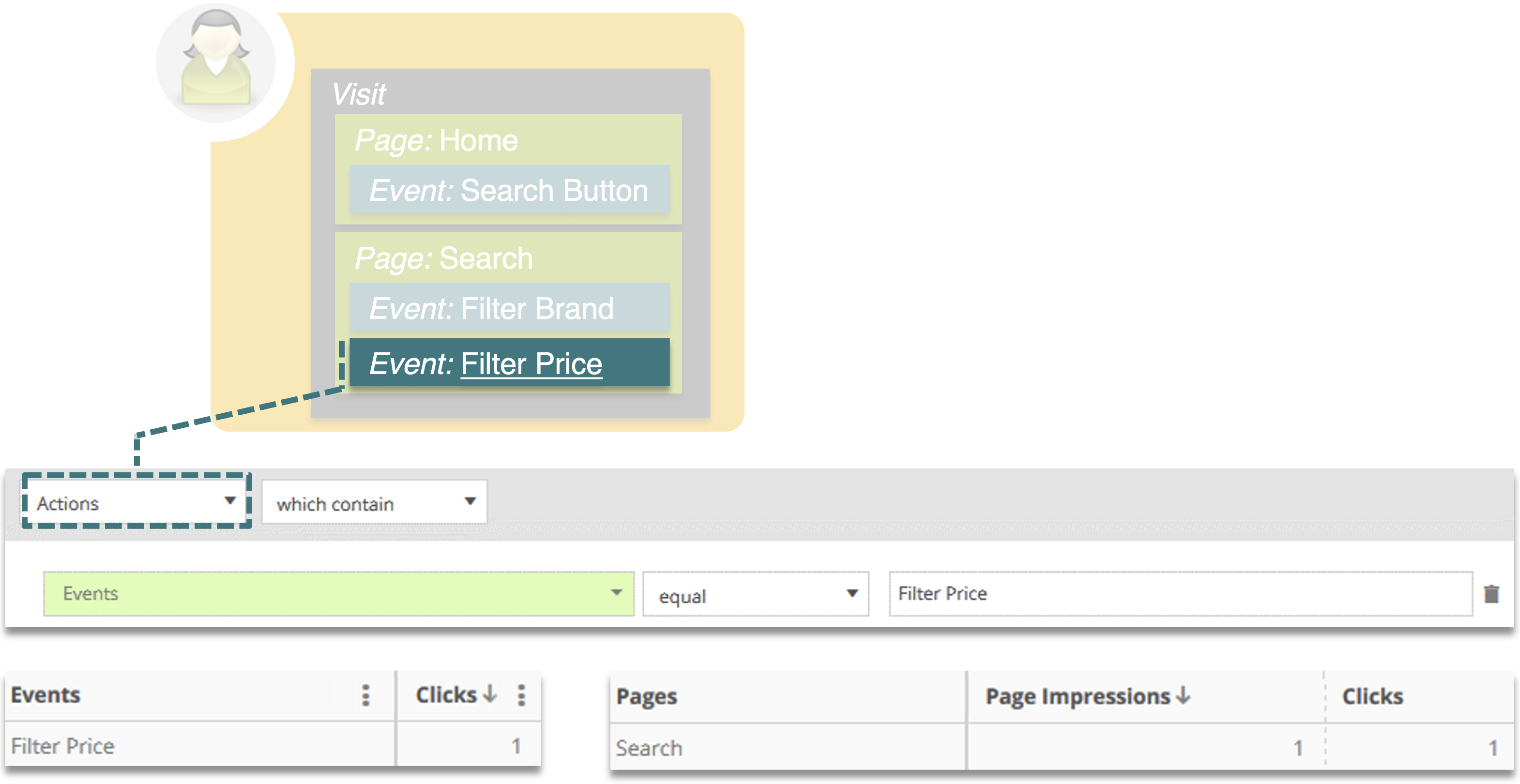
Actions Scope
This image shows how the filter is applied on action level. Only the event “Filter Price” is counted, exactly once, as it was triggered once during the visit.
The result shows one matching event and one page (“Search”) where the event was recorded.
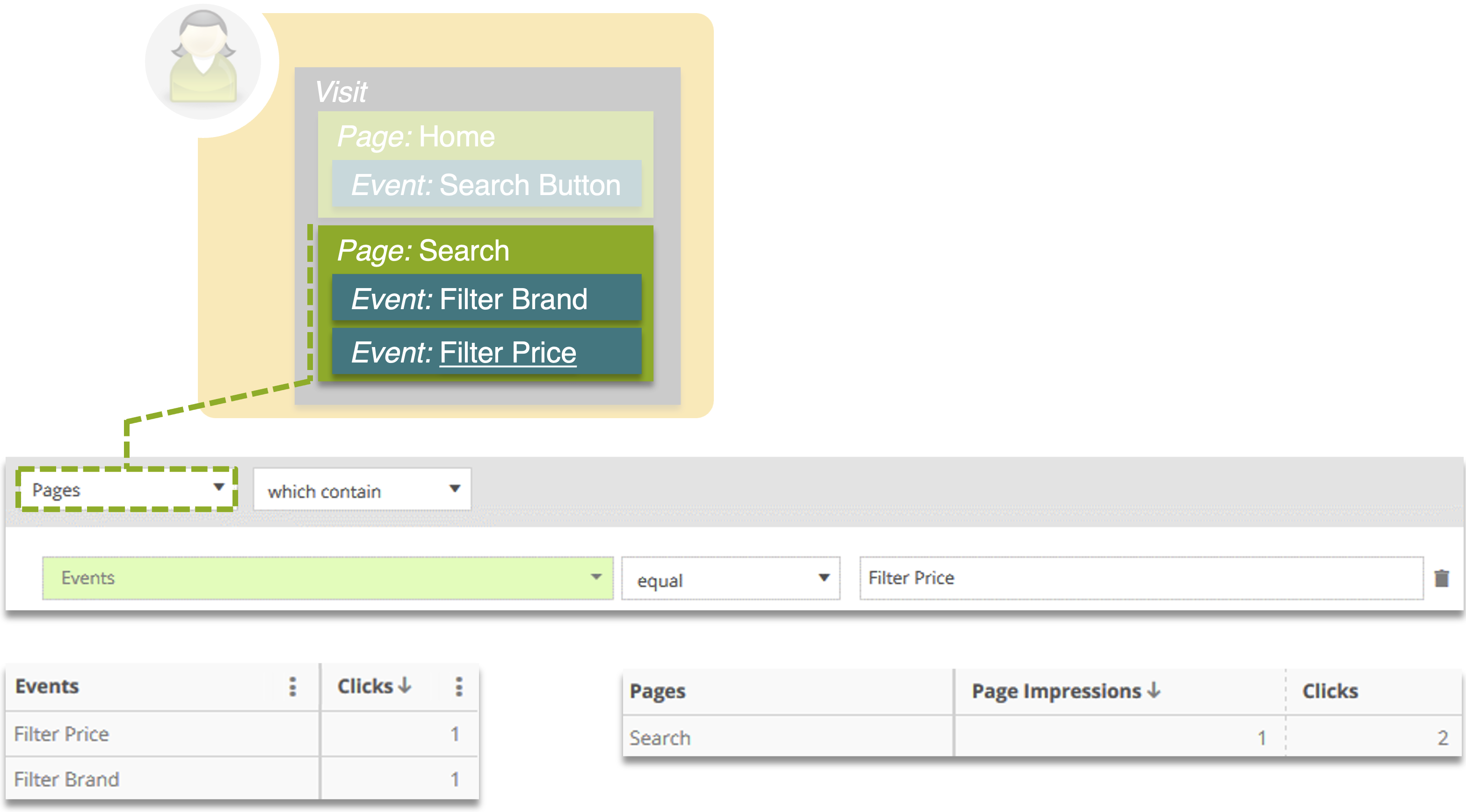
Pages Scope
This image shows how the filter is evaluated on page level. The system includes all events measured on pages where the filter condition was met — in this case, the “Search” page.
The result shows two events from that page: “Filter Brand” and “Filter Price”.
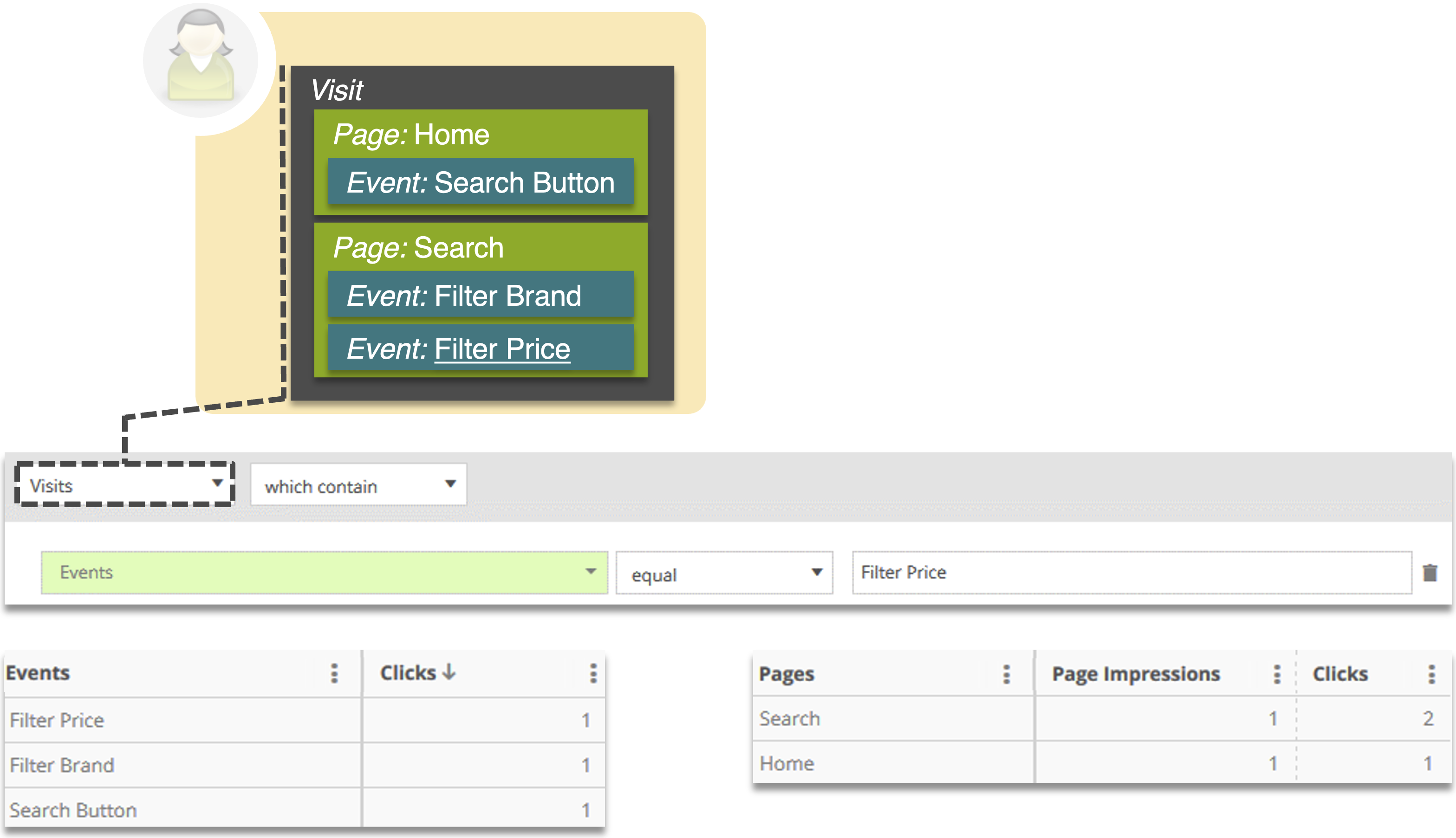
Visits Scope
This image shows how the filter is evaluated on visit level. All pages and events from the entire visit are included in the result.
In this case, the visit contains three events (“Search Button”, “Filter Brand”, “Filter Price”) across two pages (“Home” and “Search”).
5.3 Example Scopes Direct, Actions, Pages
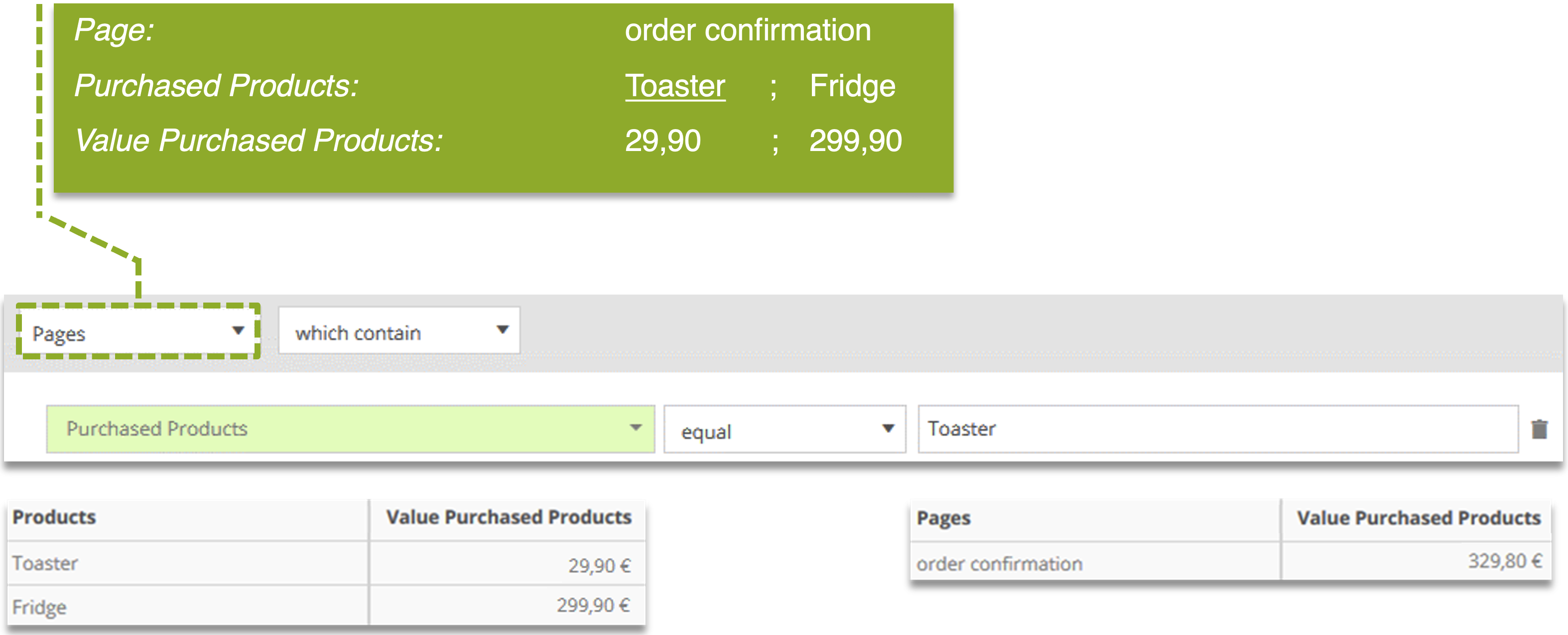
This example shows a user reaching the order confirmation page after completing a purchase. The purchased products are tracked as a list using multi-value parameters. In this case, the user buys two products: a toaster and a fridge. We apply a filter on the product name “Toaster” and observe how the result differs depending on the selected scope.
.png)
Tracked product data on the order confirmation page
In this example, we look at two types of analysis:
Product analysis (E-Commerce > Products): shows which individual products were filtered and how often they occurred.
Page analysis (Navigation > Pages > Pages): shows on which page the filtered product was submitted.
Result by Scope
Scope | Product analysis | Page analysis |
|---|---|---|
Direct (Auto) | The matching product is shown individually | The page where the product was submitted is shown |
Actions | The full purchase request is shown, including all submitted products | The page where the request occurred is shown |
Pages | All requests on the same page are evaluated together | The full page view is shown, including all submitted product data |
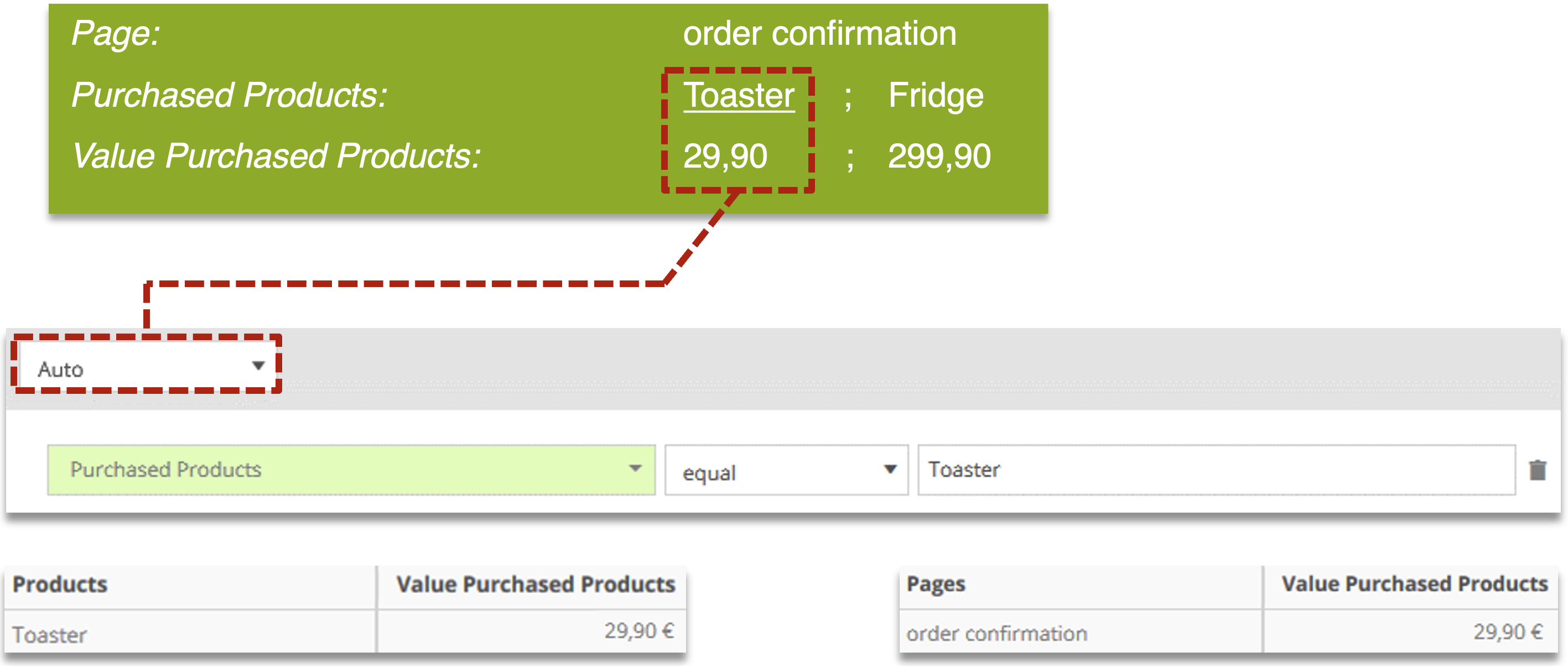
Direct Scope
This image shows how the filter is applied on Direct scope (Auto). Only the matching product (“Toaster”) is included in the result. The system evaluates each product entry in the list individually.
The result shows one matching product and the page (“Order Confirmation”) where it was submitted.
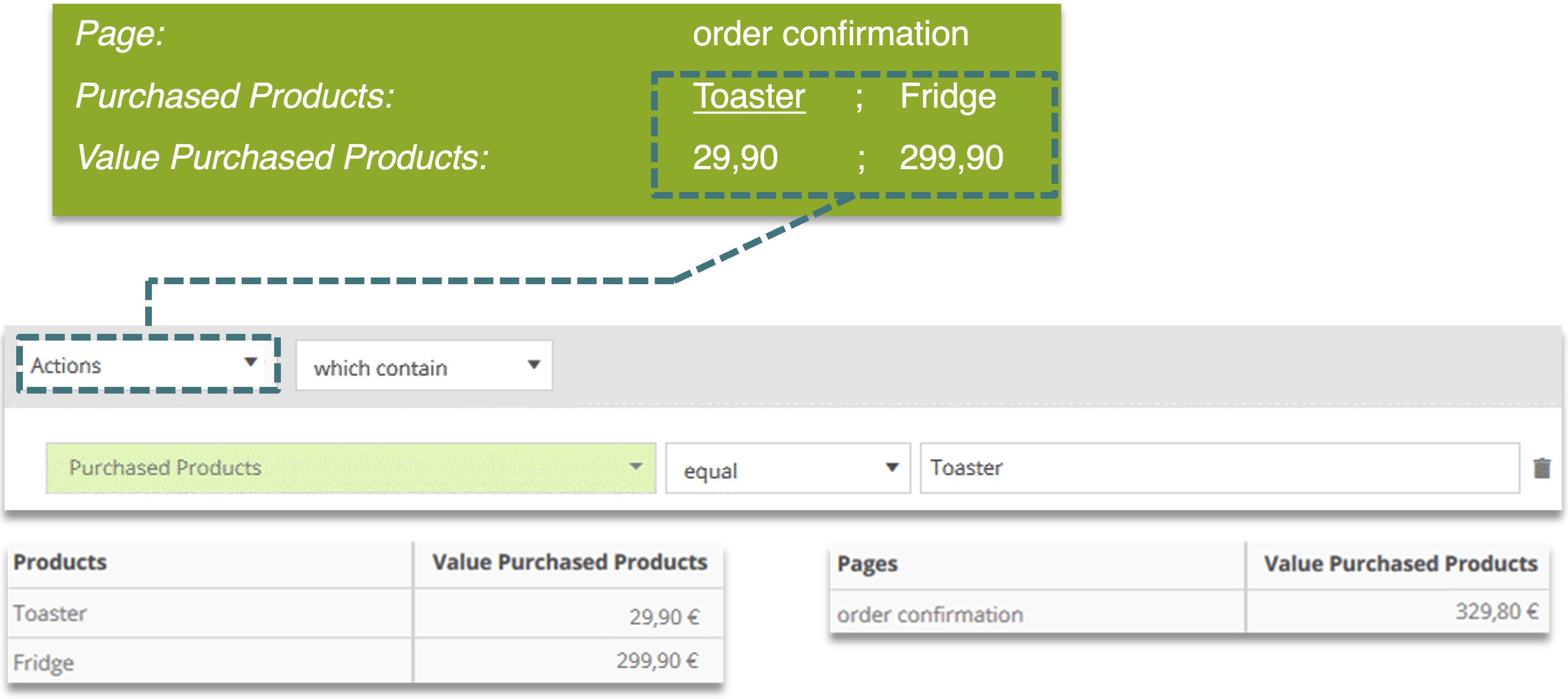
Actions Scope
This image shows how the filter is evaluated on action level. The entire purchase request is included in the result because it contains the product “Toaster”.
The result includes all submitted products from that request (e.g., “Toaster” and “Fridge”) and the page where the request occurred.
Pages Scope
This image shows how the filter is evaluated on page level. The full page view is included in the result, because the product “Toaster” was submitted on that page.
All requests and all submitted product data from the same page are shown in the result.