Overview
This page explains the nested interfaces for viewing and editing mapping information in Mapp Connect. Mapping information defines how incoming data sources are assigned to destination attributes, how values are transformed, and where the data is stored. The interface is structured into multiple levels, with each layer providing access to more detailed configuration options.
Customer Mapping Details
Navigation Path
Data Management > Mapp Connect > Add New Integration > Mapping
Click Edit in the Actions column, next to the mapping you want to edit.
Click Edit Field Mapping.
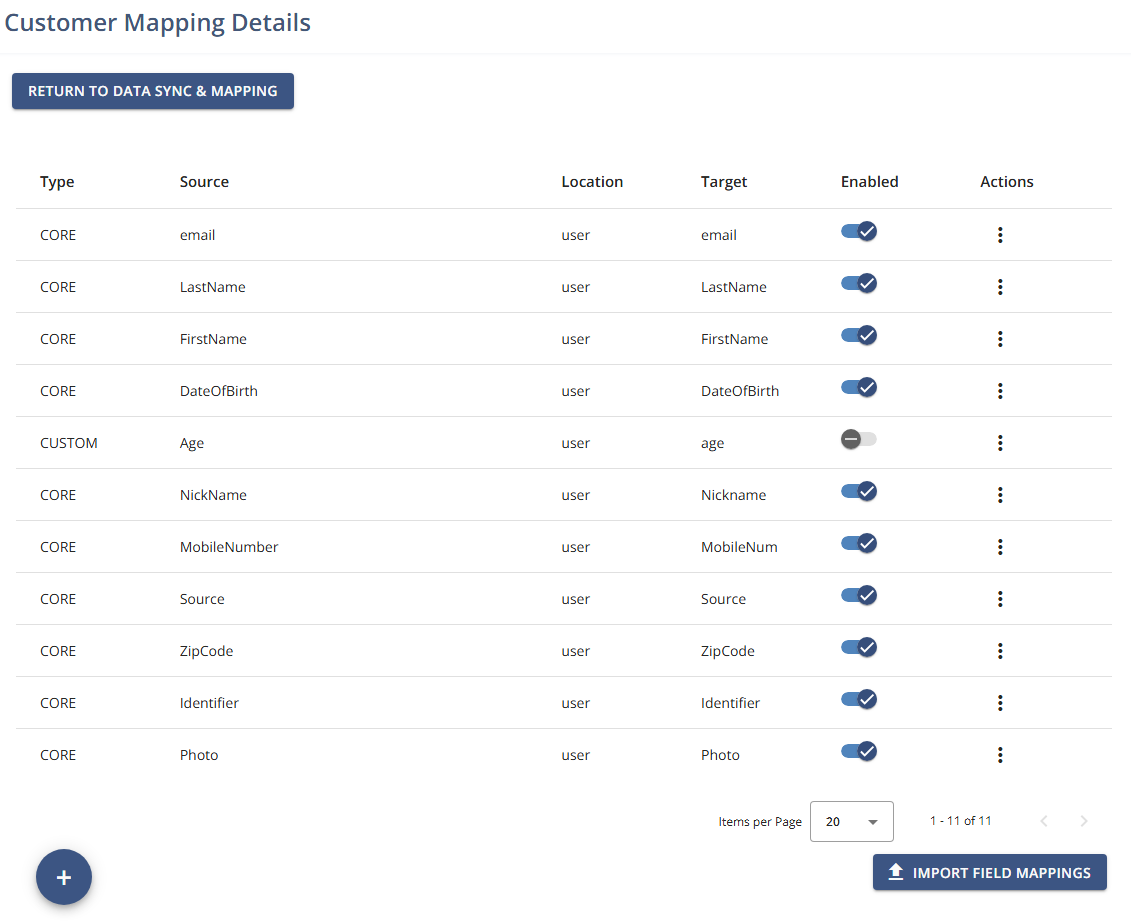
Settings
Available Information
Column | Description |
|---|---|
Type | The attribute type used by the mapping entry, such as Core or Custom. See /v1/docs/mapp-connect-edit-field-mapping#attribute-types. |
Source | The field name from the incoming data payload. |
Location | The mapping subtype that defines the data context, for example, user. |
Target | The destination attribute where the incoming value is stored. |
Enabled | Indicates whether the attribute mapping is active. Disabled entries are ignored during processing. |
Actions | Provides access to attribute-level actions, such as editing. |
Attribute Types
These types of attributes can be assigned to the profile.
Core or standard attributes such as email (always required), first name, etc.
Addon: An attribute where one profile can have a different value assigned depending on the integration.
Custom: Attributes created by the Mapp Engage system user on one system.
Member: One attribute can vary for the same user depending on the group (optimal for agencies).
Related Data: Attributes pulled from your related data tables.
None
skipUnsubscribers
From Fall 2024, you can use the User attribute skipUnsibscribers to check the subscription status of contacts when adding them to a group. When this BOOLEAN parameter is set to TRUE, the check will be run and contacts who have unsubscribed won’t be added back to the group.
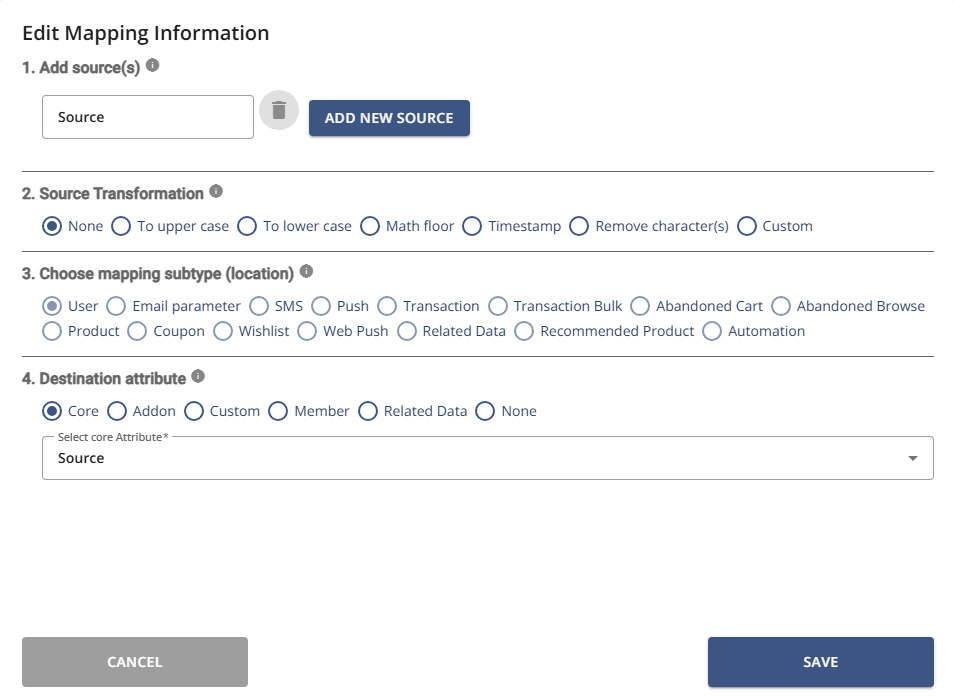
Edit Mapping Information
The Edit Mapping Information pop-up displays basic information about the selected mapping and provides access to field-level configuration. From this view, the detailed field mapping configuration can be opened.
Navigation path
Navigate to the Customer Mapping Details view.
Click Edit in the Actions column, next to the attribute you want to edit.
Settings
The Edit Field Mapping configuration defines how individual source fields are handled. This includes assigning sources, applying transformations, selecting the applicable subtype, and defining destination attributes.
Section | Description |
|---|---|
Add source(s) | Allows you to add one or more fields from the incoming data payload that are used for the mapping. |
Source Transformation | Defines whether and how the source value is transformed before storage. See /v1/docs/mapp-connect-edit-field-mapping#data-transformations |
Choose mapping subtype (location) | Specifies the event or object type the mapping applies to, such as User, Email parameter, or Transaction. The subtype must match the event type used in the incoming data. |
Destination attribute | Defines where the incoming data is stored. Required destination attributes are predefined for each mapping subtype. |
Note:
Mapping sources and destination attributes are case sensitive.
Destination attributes of type Addon are not visible in the user interface or email personalization, but can be used in the Segmentation Builder.
Data Transformation
Data transformations define how source values are modified before they are stored in the destination attribute.
Transformation Type | Description |
|---|---|
None | No transformation is applied to the source value. |
To upper case | Converts the source value to upper case. |
To lower case | Converts the source value to lowercase. |
Math floor | Rounds numeric values down to the nearest integer. |
Timestamp | Converts a timestamp into a date and time string in the format |
Remove character(s) | Removes all instances of specified characters from the source value. |
Custom | Applies a custom JavaScript function to the source value. |
Actions
Action | Description |
|---|---|
Edit | Opens the configuration view for a mapping or attribute, depending on context. |
Edit Field Mapping | Opens the detailed field mapping configuration for the selected mapping. |
Delete Mapping | Removes the selected mapping from the integration. |
Import Field Mappings | Imports mapping definitions from a file to populate multiple mappings at once. |
Save | Stores the current configuration. |